Manage Course Lessons
Add lessons, attach homework or exercises, open the editor, and keep the course structure readable.
Who this is for
Teachers building or reorganizing the lesson structure inside a course.
What this page answers
- Which lesson type should I create?
- How do child homework and exercise lessons fit under a class lesson?
- How do I reorder the course cleanly?
Prerequisites
- an existing course draft
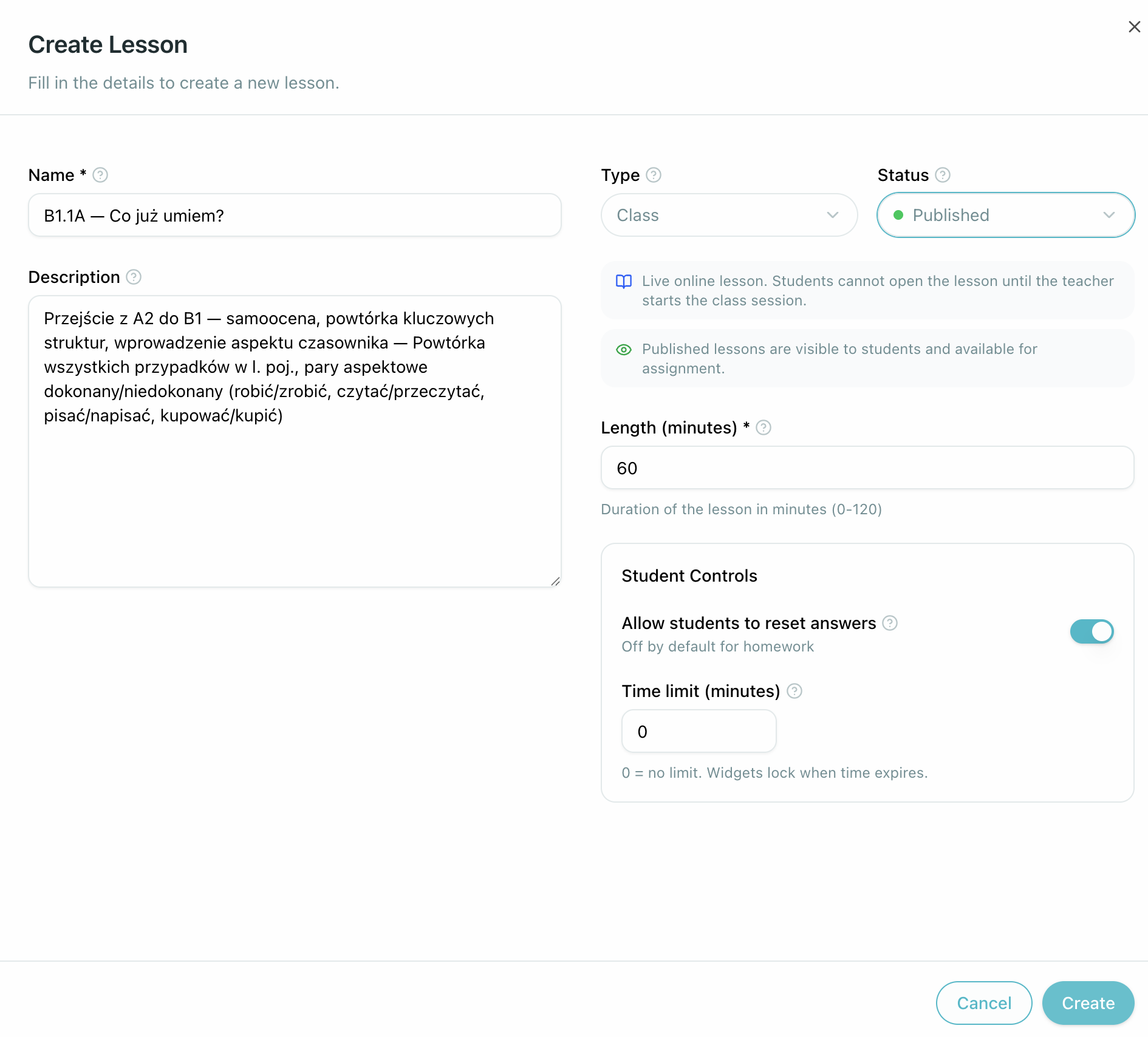
1. Add a lesson to the course
You can quickly add a new lesson directly from the single-course page using the Add lesson button. When creating a lesson, pick the type intentionally:
| Lesson type | Best for |
|---|---|
| Class lesson | the main teaching flow |
| Exercise | extra practice or reinforcement |
| Homework | work that students submit back to the teacher |
2. Use child lessons to keep related work together
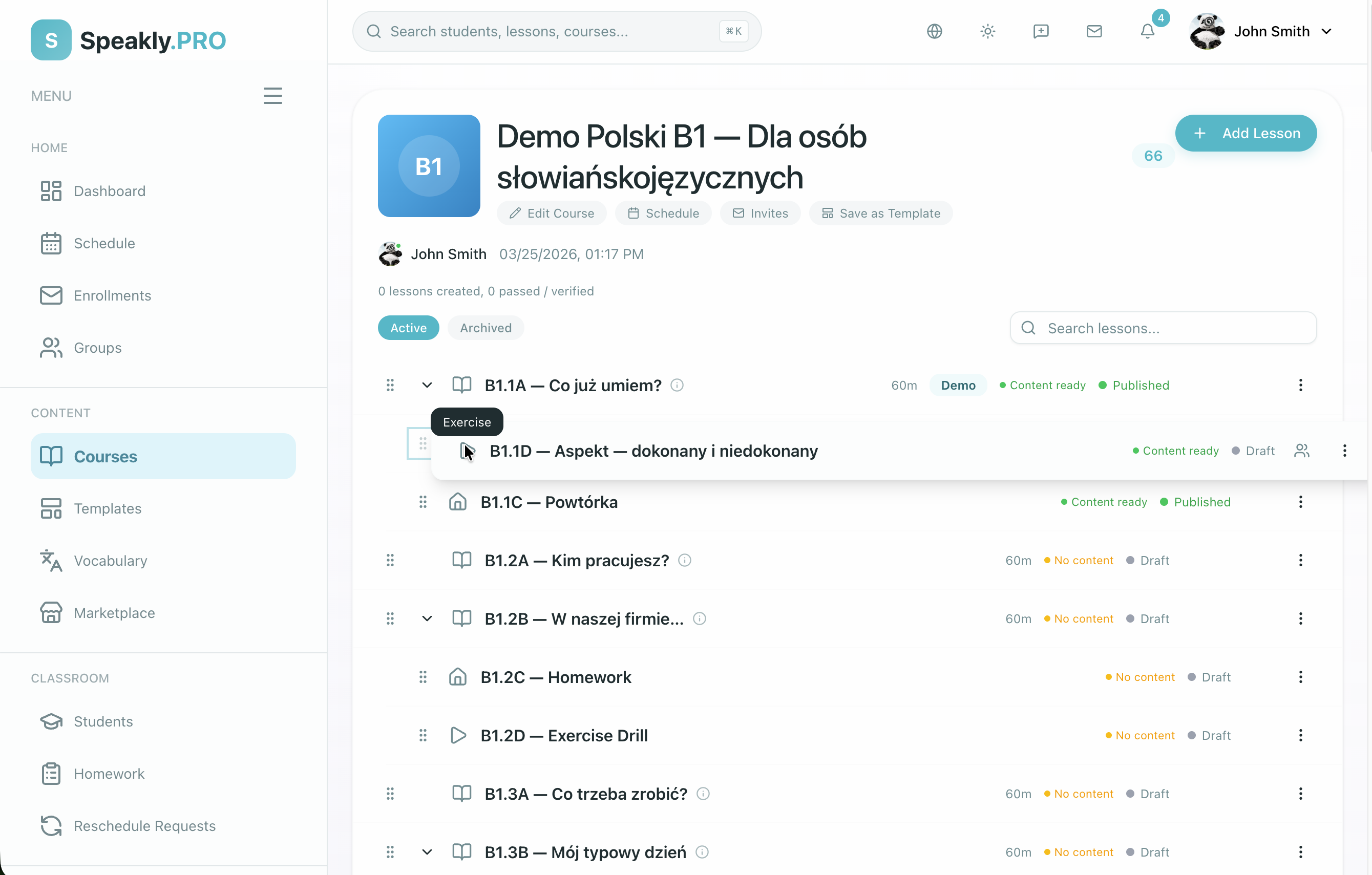
Homework and exercises can sit under a parent class lesson so the course stays grouped by topic rather than becoming a flat list.
Child lessons auto-assign under every Learning Path strategy. If the course has a release strategy set (All at once, By date, After previous, Manual release), adding a child sub-lesson assigns it to every enrolled student the next time rules are applied — and the sub-lesson unlocks together with its parent. Only the Legacy strategy leaves sub-lesson assignment fully manual. See Learning Paths → Sub-Lessons for the full behavior.
3. Open each lesson in the editor to build content
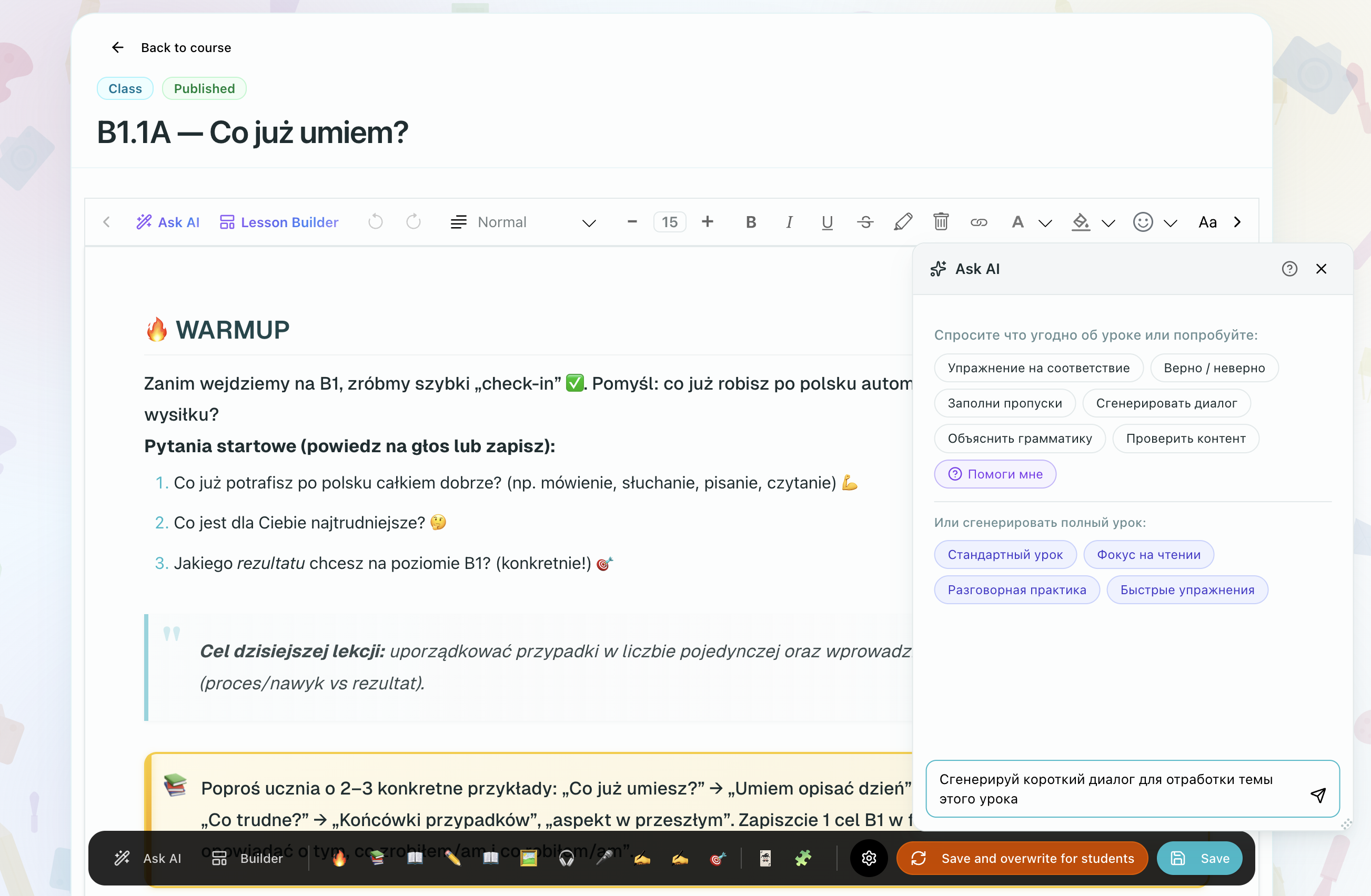
Once the lesson exists, open it in the Lex Editor to:
- write the teaching content
- add widgets and media
- set lesson-specific controls
- add a cover image — upload your own or click Generate Cover to create one with AI (25 tokens). The AI uses the lesson title, description, content, and course context. Lesson covers appear as thumbnails on the course page.
4. Reorder the course when the outline changes
Use the course view to drag lessons into the right order and keep related content together.
5. View AI Analysis Reports
For homework and exercises, the lesson table surfaces the AI analysis status directly in the Output column. You will see an icon indicating whether the lesson is ready to analyze, currently analyzing, or if the report is available to view. For child lessons, this icon appears directly on the expanded child row so you don't have to open the lesson menu.
6. Update Several Lessons at Once
Use Select on the course lesson list when you need to make the same change to multiple lessons.
Common batch actions:
- Assign a lesson directly from the course outline using the "Assign this lesson" row menu action.
- Edit shared settings such as status, lesson type, duration, answer reset, read-only mode, delayed answer reveal, time limit, assessment billing, or release rules.
- Copy selected lessons into another course.
- Archive active lessons you want to hide without deleting.
- Restore archived lessons from the archived view.
- Delete archived lessons permanently when you are certain they are no longer needed.
Select the lessons, choose the action from the batch bar, review the confirmation, and wait for the progress indicator to finish.

Permanent deletion is only for archived lessons and cannot be undone. Archive first when you only want to remove lessons from the active course outline.
7. The All Lessons Tab & Unsorted Lessons
To see every lesson across your organization regardless of which course it belongs to, navigate to the Lessons tab in the Course Management area. This centralized view allows you to manage content without opening individual courses.
Both the course outline and the All Lessons tab include a robust filter bar. Use the More filters menu to narrow down the lesson list by Tags, Language, and CEFR level. The active filter count is displayed directly on the badge.
Unsorted Lessons
When adding a lesson from this tab, you can create an Unsorted lesson. These are standalone lessons that do not belong to any specific course. Unsorted lessons are stored in a system bin and are ideal for quick, ad-hoc materials or one-off sessions.
From the Lessons tab, you have access to quick actions for every lesson row:
- Start instant lesson: Directly start a live room (available for class lessons).
- Assign this lesson: Assign the lesson directly to a student or group without adding them to a course structure.