Drawing & Diagrams
Create freehand drawings and diagrams with the Whiteboard canvas.
The Lex Editor includes a Whiteboard drawing canvas for creating diagrams, sketches, and visual aids within your lessons.
Whiteboard Integration
The Whiteboard is a drawing canvas that provides a hand-drawn aesthetic. It is embedded directly in the editor as a block element.
Multiple Whiteboards in One Lesson
A single lesson can contain several Whiteboard blocks. Use this when you want separate prepared boards for different parts of the lesson:
- a grammar scheme before practice
- a timeline or process diagram for discussion
- a mind map for vocabulary work
- a blank board for live problem solving
Prepare each board in advance with the shapes, arrows, labels, or diagrams you want students to see. During a live lesson, when the teacher opens a Whiteboard block, Locuto.PRO automatically opens that board for students as well, so everyone is focused on the same visual workspace.
Students can draw and collaborate on in-document whiteboards even when the lesson document itself is read-only (such as during homework assignments or when the teacher has locked document text editing). During a timed exam or exam lockdown, student drawing is locked.
What You Can Create
- Diagrams -- flow charts, mind maps, sentence structure trees
- Visual aids -- labeled illustrations, timelines, concept maps
- Annotations on images -- add arrows, text labels, and highlights to images
- Grammar diagrams -- sentence parsing, word relationship diagrams
- Custom illustrations -- any freehand drawing you need
Inserting a Whiteboard
Open the Insert Menu
Type /whiteboard in the editor or select Whiteboard under the Media category in the Lesson blocks drawer.
Draw on the Canvas
The Whiteboard editor opens within the block. Use the toolbar to select drawing tools:
- Selection -- select and move elements
- Rectangle, ellipse, diamond -- shapes
- Arrow, line -- connectors and lines
- Text -- add text labels
- Freehand -- draw freehand with a pencil tool
- Eraser -- remove elements
Save and Close
Click outside the canvas or press Escape to close the editor. The drawing is embedded in the lesson as a block.
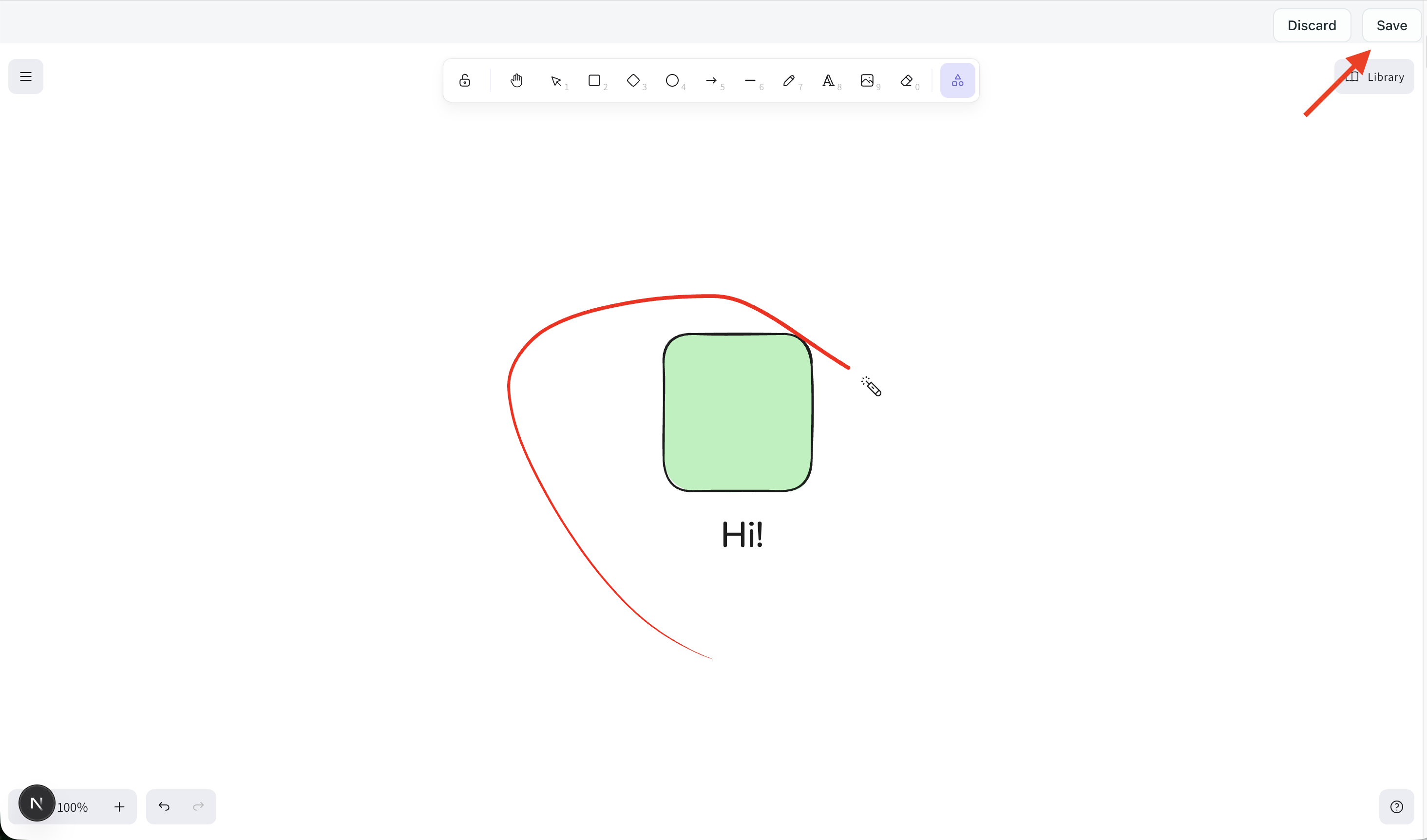
Editing an Existing Drawing
Click on the drawing block to reopen the Whiteboard editor. All your previous elements are preserved and editable.
The Lesson Board
The Lesson Board is a full-screen, dedicated collaborative workspace designed specifically for live lessons. Unlike inline Whiteboard blocks embedded directly into the text flow, the Lesson Board opens as an expansive visual stage for the entire class without cluttering the document.
Opening the Lesson Board
To launch the board during a live session, click the circular Lagoon Board pill (Board) in the top-right live tools strip, located directly below the sticky-note button. It immediately opens for all connected participants. When finished, click Save and close in the top right to save the board state and return to the lesson.
Read-Only Notice on Unsaved Previews
When opening the Lesson Board from a read-only course lesson preview or version history where changes cannot be saved, a lock badge appears in the top-right corner reading "Changes to this board will not be saved", and the exit button reads "Close" instead of "Save and close".
Drawing While the Lesson Document Is Locked
Locking the main lesson document during a live session does not lock the Lesson Board:
- The Lesson Board button stays enabled on the toolbar.
- Teachers can open and present the board anytime.
- Students who have drawing/editing permission can continue to draw and save on the Lesson Board even while the lesson text is locked.
Lead the Class Capsule
Docked at the bottom center of the board, the Lead the class capsule provides classroom orchestration controls:
- Bring the class here: Summons all students to your current viewport coordinates and zoom level in one click.
- Follow me: Locks student screens to follow your pan and zoom movements across the canvas. If a student chooses to pan away during independent exploration, a floating Back to the teacher pill appears so they can return instantly.
- Pointer: Activates a shared laser pointer on the board. Tapping any exercise card triggers an animated focus ring on every student's screen.
- Whole board: Automatically fits all elements on the canvas within the viewport.
- Class timer: A butter-colored timer with 1-, 2-, and 5-minute quick presets, +/- 30s adjustment buttons, and an optional chime when time expires. While active, a shared countdown pill appears on every screen with controls to Pause/Resume, +1 min, or Stop the timer.
- Pick a student: Shown when 2 or more students are connected. A rose button that cycles fairly through online learners ("Every student gets a turn before anyone is picked twice"). It provides options to Pick again or Give a sticker, and displays a prominent "The teacher picked you." notification badge on the selected student's screen.
- Class Drawing Lock: The last button in the capsule (button 7 in group classes with Pick a student, or button 6 in 1:1 lessons). This padlock button manages drawing permissions for the entire class at once:
- When student drawing is closed: Displays a neutral grey closed padlock with the tooltip "Allow students to draw on the board". Clicking it turns drawing on for every student in the class at once.
- When student drawing is open (at least one student has drawing permission): Displays a mint-green open padlock with its shackle swung open and the tooltip "Stop students drawing on the board". Clicking it turns drawing off for all students at once.
- It stays in sync with the individual student drawing toggles on each student's avatar chip in the top-right participant strip.
On screens narrower than 1024 px, the Lead the class capsule automatically lifts above the zoom footer so controls never overlap.
Students in the Lesson Strip
Positioned at the top right beside Save and close, the student participant strip displays avatar chips for all connected learners. Each chip indicates online status, earned praise stickers, and board drawing permissions. Click any student chip to:
- Award a praise sticker for outstanding effort.
- Toggle Allow drawing on the board to grant or revoke drawing capabilities for that individual student (this toggle stays in sync with the whole-class Class Drawing Lock button in the Lead the class capsule).
Board Toolkit, Cover Cards & Check Marks
The Lesson Board includes specialized tools for structured teaching:
- Core Drawing Tools: Select, Hand (pan), Pen, Highlighter (with 3 nib thicknesses and 13 vibrant colors), Text, Geometric Shapes, Sticky notes (pastel colors with
+handles to spawn adjacent notes to the right or below), Pins, and Layer ordering (Bring forward / Send backward). - Unified Picture Tool: Clicking the Picture tool on the board rail opens the unified Picture modal (Generate, Library, Upload) instead of a basic file picker. You can also select multiple pictures from the school Library at once, and they are placed in a neat centered horizontal row on the board.
- Cover Cards (under Lesson tools): Place an obscuring card over any diagram, answer key, or vocabulary list. To the teacher, the card appears semi-transparent with a dashed border labeled "This cover hides what lies under it from the students." To students, it renders as a solid opaque blue card with a
?symbol until the teacher clicks Reveal or Reveal all. - Marks for Checking Work (under Classroom graphics): Quickly stamp feedback marks on student work:
- Correct (green check mark)
- Try again (red cross mark)
- Question (blue
?) - Star
- Heart
- Look here (orange
!) - Arrow
Pasting Widgets & Steps onto the Board
You can bring lesson content directly onto the collaborative board:
- Copy any exercise, game, or brain-break widget, Shift-click a range of block grips in the lesson gutter, or copy whole Steps (
Ctrl+C/Cmd+C) from the lesson document. - Paste (
Ctrl+V/Cmd+V) onto the Lesson Board. Supported widgets transform into live, interactive cards arranged automatically in neat rows of three. - When an exercise card is selected, an action bar provides a Clear answers button so the class can solve the task again collaboratively.
- To import pre-existing external boards, choose Open in the board's top menu to import Miro
.excalidrawboards directly onto the canvas.
Drawing Board Widget (/drawingboard)
Separate from the Whiteboard and Lesson Board, the Drawing Board widget (/drawingboard under the Brain Breaks category in the Lesson blocks drawer) is a lightweight, gamified drawing canvas designed for brain-break activities, sketching games, and quick visual resets during live lessons. See the brain-break widget reference for details.
Comparing Drawing Tools
| Feature | The Lesson Board | Whiteboard Block (/whiteboard) | Drawing Board Widget (/drawingboard) |
|---|---|---|---|
| Location | Top-right live tools pill (Board) | Embedded in lesson document (Media) | Embedded in lesson document (Brain Breaks) |
| Workspace | Full-screen interactive stage | Inline canvas block | Inline gamified widget |
| Best For | Live group orchestration, widget staging, and collaborative activities | Permanent diagrams, visual explanations, and lesson illustrations | Quick sketching games and energizer brain breaks |
| Class Controls | Follow me, Bring class here, fair student picker, class timer | Document scroll synchronization | Built-in countdown timer |
| Special Tools | Cover cards, ink check marks, interactive widget cards | Shapes, connectors, text, freehand, vector import | Color brushes, eraser |
| Permissions | Class drawing lock & per-student toggles | Follows document permissions | Open to all participants |
Frequently Asked Questions
What is the difference between the Whiteboard and The Lesson Board?
The Whiteboard (/whiteboard) is a permanent block embedded directly within your lesson text — great for visual diagrams that belong to a specific Step. The Lesson Board is a full-screen collaborative space opened on demand during live lessons from the top-right live tools strip. It offers advanced classroom management (such as Follow me, fair student picker, and class timer) and lets you paste interactive widgets in rows of three.
What is the difference between the Whiteboard and the Drawing Board widget?
The Whiteboard is a comprehensive diagramming tool with shapes, arrows, text, and vector import capabilities. The Drawing Board (/drawingboard under Brain Breaks) is a playful collaborative canvas with colors and a timer, designed for fun resets during class.
Can I export drawings as images?
You can screenshot or use the Whiteboard's built-in export function to save drawings as PNG or SVG files.
Is there a limit to the canvas size?
The canvas is virtually unlimited. You can zoom and pan to work on large diagrams. However, keep in mind that very large drawings may be hard to view on mobile screens.