Real-time Collaboration
Co-edit lessons in real-time with other teachers.
The Lex Editor supports real-time collaborative editing. Multiple teachers can work on the same lesson, changes appear while everyone is connected, and you can see where others are editing.
How Collaboration Works
When collaboration is connected:
- Changes sync live. When one teacher types, other editors see the update as it is shared.
- Everyone has a visible connection state. The editor can show connected, connecting, or connection-lost status.
- Recovery is explicit. If the editor reports a conflict or failed update, review the current document and use the offered retry or reload action.
Keep the lesson open until an important edit shows as saved and the editor is connected again.
Starting a Collaboration Session
Open the Lesson
Navigate to the lesson you want to co-edit. The editor loads with collaboration enabled by default.
Invite Collaborators
Share the lesson URL with other teachers who have access to the course. When they open the same lesson, the collaboration session begins automatically.
See Who Is Editing
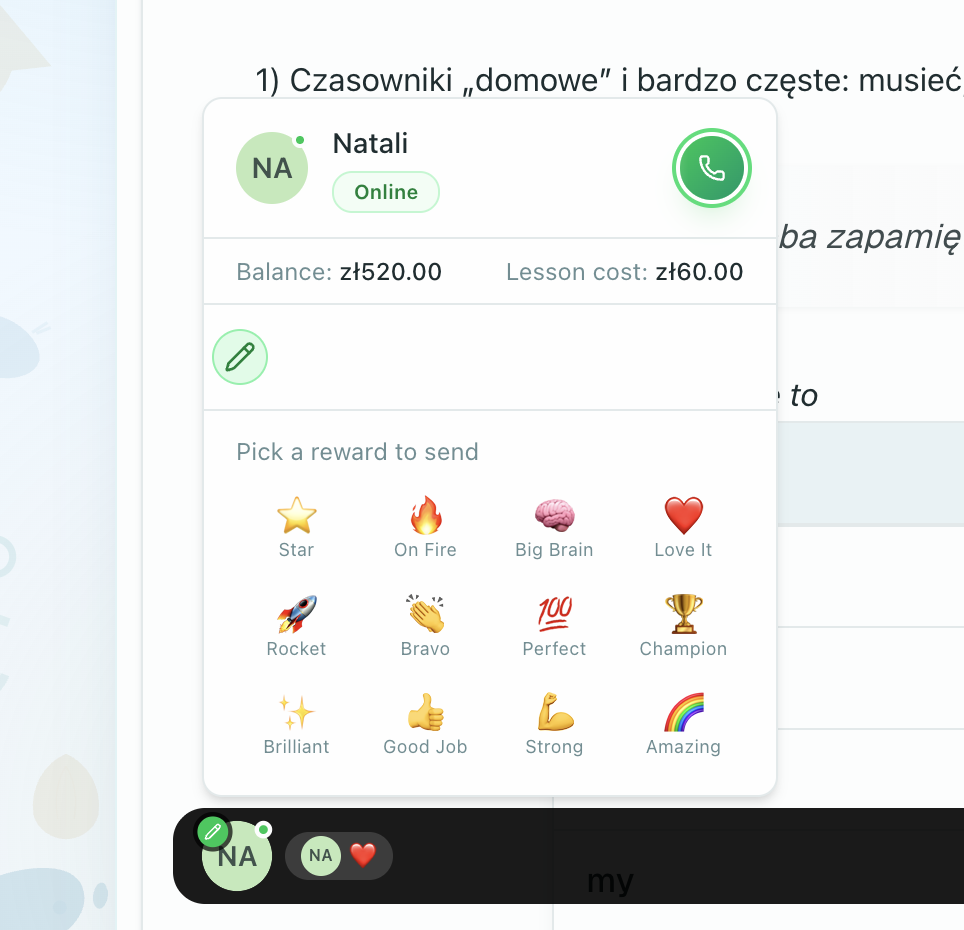
The collaboration panel in the sidebar (or top-right corner) shows:
- Names and avatars of all active editors
- Colored indicators for each person
Live Cursors
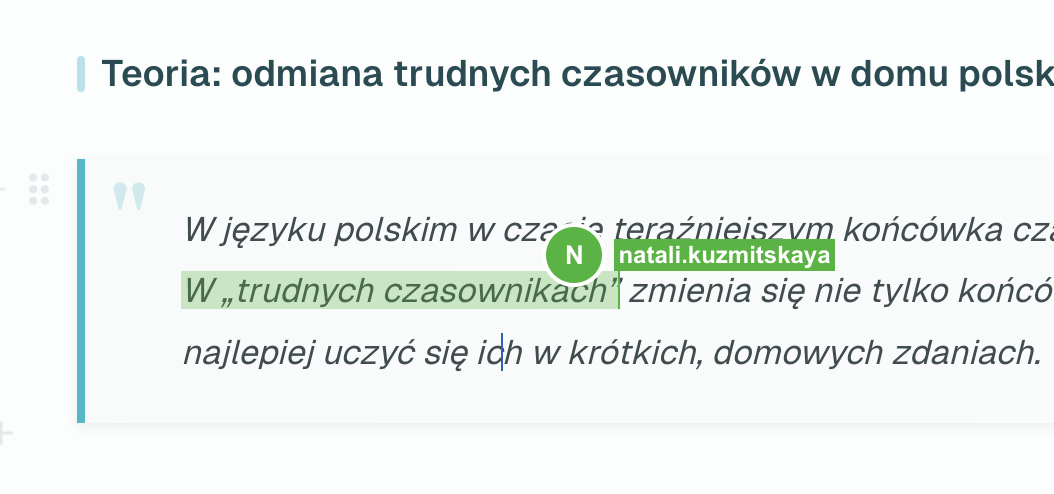
Each collaborator has a colored cursor visible to all other editors. As they type, you can see their cursor position and the text they are entering in real time.
- Each person gets a unique color
- The cursor shows the collaborator's name
- Selections are highlighted in the collaborator's color
This gives you awareness of who is editing what and helps the team coordinate when two people are working near the same content.
Connection and conflict recovery
Most edits made while the editor is connected appear for the other editors without a separate merge step. If the connection drops or the document changes while your page is catching up, the editor may show a conflict or recovery notice. In that case:
- Pause editing until the status returns to Connected.
- Read the notice and use Retry or Reload when it is offered.
- Check the document before continuing. If the change should be undone, use a saved point under Snapshots.
Do not treat a conflict as silently resolved. The current document and the notice on screen are the source of truth for what was saved.
Media Playback Sync
During a live session, the collaboration system extends beyond text editing to media playback. When a lesson contains audio or video blocks, the teacher's playback actions are synchronized to all students in real time:
- Play / Pause -- starting or stopping a player applies to everyone
- Seek -- jumping to a specific moment moves all students to the same position
- Playback speed -- changing the speed (e.g., 0.75x for slower listening) updates across all players
Each audio and video block is synced independently, so controlling one does not affect another. Students' playback controls are locked during the session to prevent them from getting out of sync.
Presence and Awareness
Beyond cursors, the collaboration system provides awareness features:
- Online status -- see who is currently viewing the lesson
- Activity indicators -- see who is actively typing vs. idle
Snapshots
The lesson document is saved at points along the way, and school staff can go back to one of them.
Open the Reload menu in the collaboration overlay and pick a saved point to restore. The document is put back to that state for everyone working on that lesson. Wait for the editor to show Connected before continuing.
Two things to understand before you use it:
- You get the document exactly as it was at that moment. Restoring is not a merge and not an undo of one change. Everything written after the point you pick — by you or by anyone else — is replaced by the older content.
- It applies to the shared document, not to your own view. There is one lesson document, and everyone in the room is working in it, so the restore lands on all of their screens too.
Also worth knowing:
- This is a list of saved points, not a named version history. There are no labels, notes, or side-by-side comparisons — you choose by when it was saved.
- Only school staff can restore. Students cannot.
- If a restore fails, it reports an error rather than appearing to do nothing.
Restoring replaces the current content for everyone in the room. Check with anyone else editing before you do it.
Frequently Asked Questions
How many people can collaborate at once?
There is no hard limit, but the experience is best with 2-4 editors working simultaneously. More editors increase the visual complexity of tracking cursors and changes.
Can students see my edits in real time?
Students viewing a published lesson outside a live class see the last saved version, not unsaved edits. During a live class, students see the lesson state that the teacher shares for that session.
What happens if I close my browser during collaboration?
When you reopen the lesson, wait for the editor to reconnect. It then loads the latest saved state, including changes made by other collaborators while you were away. If the page reports a conflict, follow its Retry or Reload action before editing further.
Can I see the version history of collaborative edits?
Not as a version history with names and comparisons. School staff can restore the document to an earlier saved point from the Reload menu — see Snapshots above — but there is no browsable log of who changed what.