Speech & Audio
Use text-to-speech, speech recognition, and audio recording in lessons.
Students can listen to text read aloud, practice pronunciation by recording themselves, and interact with speech-to-text exercises.
Text-to-Speech
Text-to-speech converts written text into spoken audio. Use it for:
- Modeling correct pronunciation
- Creating listening exercises without recording your own voice
- Helping students hear unfamiliar words
Listen (Text-to-Speech)
Students and teachers can select text in a lesson and use Listen (Text-to-Speech) from the floating toolbar. This is useful for hearing a sentence, short passage, instruction, or vocabulary item without leaving the lesson.
The selected text is read aloud by a native-sounding AI voice at a slower learning-friendly pace. The button is available in learning contexts where listening is allowed, including some read-only lesson views.
Playback speed
Next to the Listen button, a playback speed selector lets the listener choose how fast the AI voice reads — useful for slowing down a tricky sentence for an A1 student or speeding up a familiar passage for review. The selected speed applies to subsequent Listen requests in the same lesson; it is a per-user preference, not a teacher control, so a teacher's speed does not change what the student hears. The setting is separate from the speed control on the Audio Player widget below — that one applies to a generated audio track, not selection-based listening.

Selection-based Listen supports up to 100 words per request. For the Word List (:::word-list) widget, word pronunciations are cached in the global platform word store and are completely free (0 AI credits deducted), pre-warmed automatically when a lesson is saved. In the AI Lesson Builder, multi-speaker dialogue audio generation remains configurable per Step.
AI-Generated Audio (Lesson Builder)
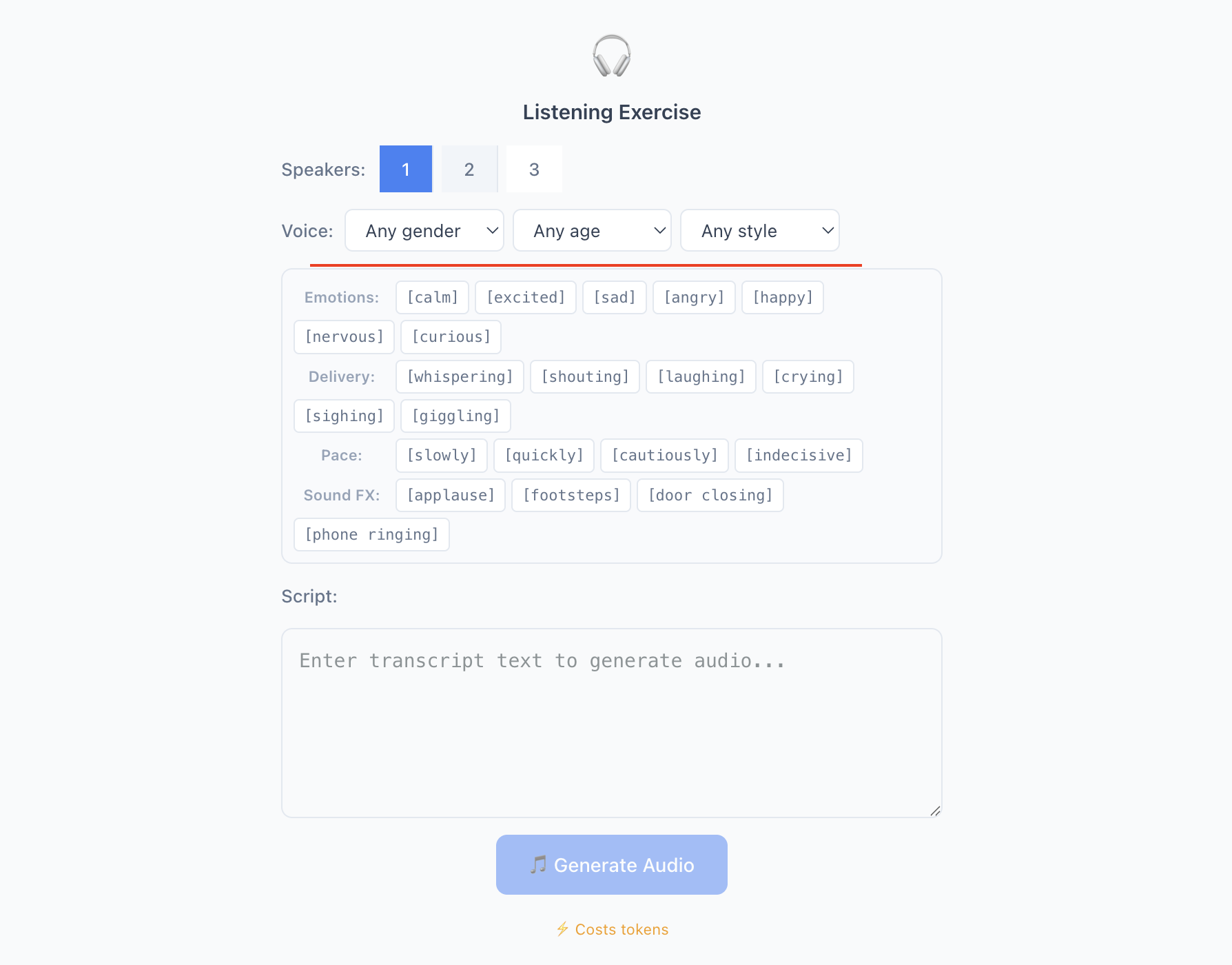
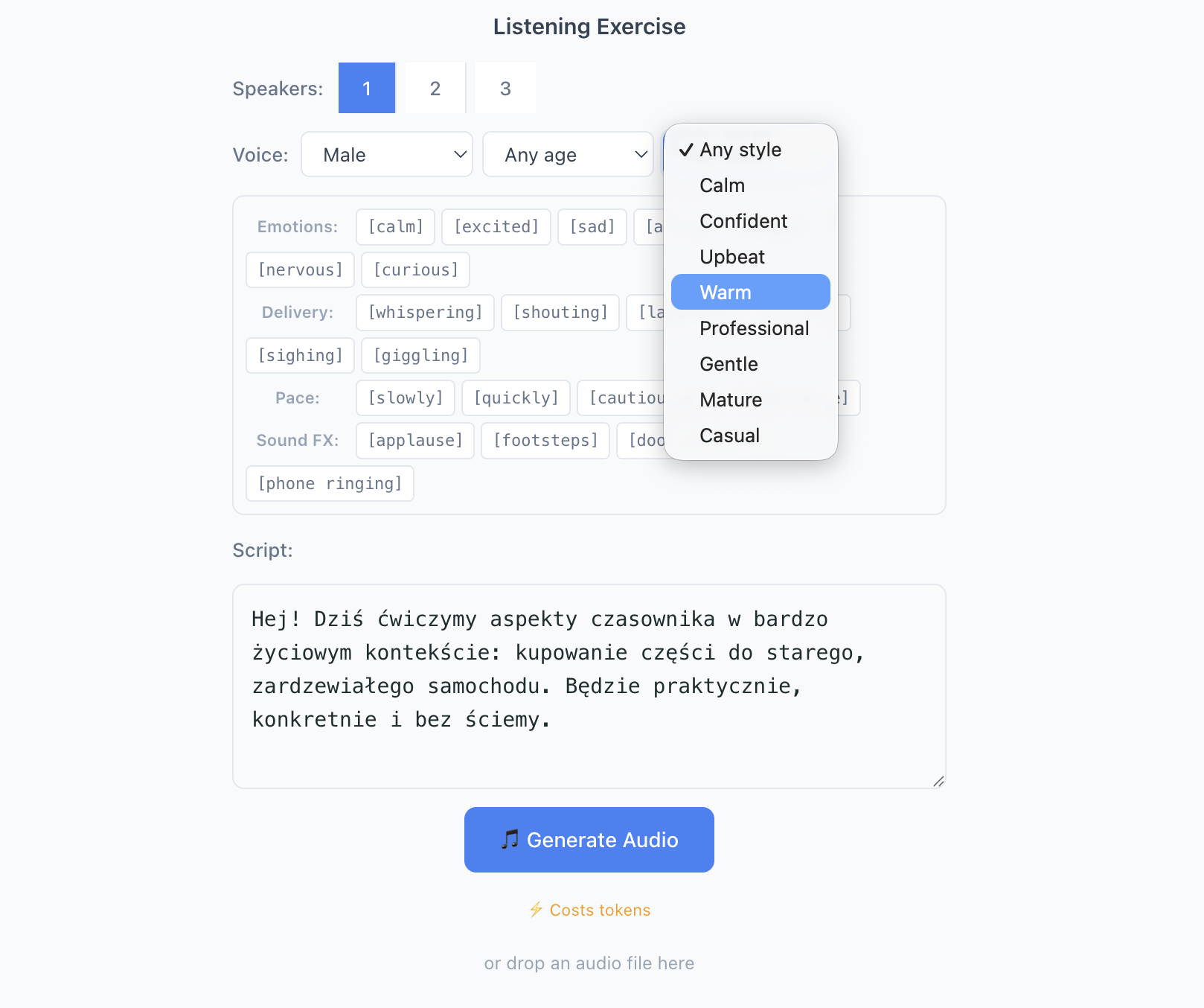
When using the AI lesson builder, listening Steps can include AI-generated audio. The AI writes a dialogue or monologue script, and Locuto converts it into natural-sounding speech.
Voice configuration:
Each speaker is configured with three characteristics:
| Characteristic | Options |
|---|---|
| Gender | Any gender, Male, Female |
| Age | Any age, Young, Middle-aged |
| Style | Any style, Calm, Confident, Upbeat, Warm, Professional, Gentle, Mature, Casual |
The platform picks the best matching voice automatically. Each speaker in a dialogue can have different characteristics — for example, a "young, upbeat female" student and a "middle-aged, professional male" teacher.
Voices in a multi-speaker dialogue
A dialogue written with named characters is produced as one audio track with a different voice for each character, rather than a single narrator reading every part.
- Gender is honored. If you specify a character's gender, the voice matches it. If the language has no matching voice, the platform tells you rather than generating the line, so you can adjust the cast or record that part yourself.
- Different casts spread across the available voices instead of everyone landing on the same default. Regenerate the same cast and you get the same voices back, so a re-run does not reshuffle who sounds like whom.
- The default delivery is steady rather than theatrical. Use the emotional tags below when you want more color in a specific line.
Only a name that matches your cast switches the speaker. A colon inside a line does not split the dialogue, so a time like 10:30 or a lead-in like Note: stays part of what the character is saying.
Emotional tags for natural delivery
The AI can include emotional tags in scripts to make the speech more natural:
| Tag Type | Examples | Best For |
|---|---|---|
| Emotions | [calm], [excited], [nervous], [happy] | Natural conversation feel |
| Delivery | [whispering], [shouting], [laughing] | Expressive dialogue |
| Pace | [slowly], [quickly], [cautiously] | Speed variation |
| Effects | [applause], [footsteps], [door closing] | Scene setting |
Tags are adapted by level:
- A1/A2: calm, slow, clear delivery only
- B1/B2: natural conversation with moderate emotional variation
- C1/C2: full range of emotions, delivery styles, and sound effects
Emotional tags direct the voice synthesis engine -- they are not spoken aloud. Tags are automatically removed from the transcript shown to students.
Pronunciation variety and multi-engine voice support
The platform features multi-engine text-to-speech voice support to ensure authentic pronunciation across all supported languages, including Modern Standard Arabic and Mandarin Chinese. Each supported language is read in one standard variety per lesson, so students hear a consistent accent instead of a mixture:
| Language | Variety |
|---|---|
| English | Follows the lesson's English audio preset — one variety throughout, not a mixture |
| German | Standard German |
| Polish | Warsaw-standard Polish |
| French | Metropolitan French |
| Spanish | Castilian Spanish |
| Czech | Prague-standard Czech |
| Italian | Standard Italian |
| Portuguese | European Portuguese |
| Dutch | Netherlands Dutch |
| Swedish | Standard Swedish |
| Lithuanian | Standard Lithuanian |
| Bulgarian | Standard Bulgarian |
| Arabic | Modern Standard Arabic |
| Mandarin Chinese | Putonghua across Simplified and Traditional scripts |
Audio Player Widget
The generated audio appears in the lesson as an audio player widget with:
- Playback controls (play, pause, scrub)
- Speed adjustment (0.5x to 1.5x)
- Transcript toggle (hidden, shown after listening, or always visible)
- No limits on replaying
Live Classroom Transcript Visibility Control
During a live session, teachers have a live "Show to students" / "Hide from students" button directly beside the transcript expander arrow:
- Show to students: Immediately expands and reveals the transcript across every connected student's screen in real time, regardless of whether the player's authored visibility mode was set to hidden or after listening.
- Hide from students: Collapses the transcript and returns student screens to the authored visibility rule.
For exam-style listening tasks, the same audio widget can be more restrictive: it can use a compact layout, limit the number of plays, prevent rewind, and keep the transcript hidden. Teachers usually use this through Exam Preparation presets rather than configuring it manually.
Retrying Failed Audio
Occasionally, text-to-speech generation may fail due to a temporary service issue. When this happens:
- The audio block displays an error indicator instead of the player
- Click the "Generate Audio" button on the failed audio block
- The platform re-attempts generation with the same voice, language, and emotional tags
- On success, the audio player appears as normal
You do not need to regenerate the entire lesson — only the failed audio blocks need retrying.
If the cast itself cannot be produced, the audio is generated with a single narrator voice and you get a warning about it. You end up with usable audio to review rather than a permanently failed placeholder that retrying could never fix.
Retry applies only to AI-generated text-to-speech audio, not to manually uploaded audio files. If a retry fails again, try once more — transient errors usually resolve on the second or third attempt.
Pronunciation Assessment
The Pronunciation Assessment widget scores a student's spoken attempt against one or more short targets. The student hears a model reference, records themselves, and gets an automated score plus per-phoneme feedback — intelligibility at the word level, not free-form speaking.
Use it for focused drilling:
- locking in new vocabulary after introducing it
- polishing L1-specific problem sounds (e.g. English th for Polish speakers, French nasal vowels, German ü)
- short warm-ups before speaking-heavy lessons
Inserting the Widget
Type /pronunciation or pick it from the Insert menu. A pronunciation widget can contain a single target or a short carousel of targets.
| Parameter | What it does |
|---|---|
| Target text | The word or phrase the student must say. Each slide is for a focused target: 1–5 words, up to 60 characters. |
| Slides | Add up to 10 targets in one widget when you want a compact pronunciation drill. Students complete one slide at a time. |
| Language | The widget uses the course language automatically. Pronunciation scoring is available for English, Polish, German, French, Spanish, Czech, Italian, Portuguese, Dutch, Swedish, and Lithuanian. Other languages — use Speech Recorder instead. |
| Difficulty | easy, normal (default), or strict. Shifts the score thresholds for Excellent / Good / Normal / Retry tiers. Raw provider score does not change. |
Keep each slide short. Pronunciation is for precise sound practice; for longer speaking, role-play, or picture description, use the Speech Recorder or Live Examiner instead.

Difficulty Tiers
Score is always 0–100. Only the tier interpretation changes:
| Difficulty | Excellent | Good | Normal | Retry |
|---|---|---|---|---|
easy | ≥ 80 | ≥ 60 | ≥ 40 | below 40 |
normal | ≥ 90 | ≥ 70 | ≥ 50 | below 50 |
strict | ≥ 95 | ≥ 80 | ≥ 65 | below 65 |
Pick easy for A1–A2 or unfamiliar phonemes, normal for routine B1–B2 drills, strict only for C1+ polishing or exam prep.
Student Experience
- The student sees the current target, a Listen button for reference pronunciation, and a Record button.
- They press record and say the target. A short start sound confirms recording has begun when the browser allows audio cues.
- The recording is uploaded and scored. Empty targets cannot be played or recorded.
- A score ring displays the overall score with its tier label. Word chips show per-word colouring; clicking a word opens the phoneme popover with per-phoneme scores for the syllables in that word.
- In carousel drills, the student moves through the targets with the slide controls. Progress shows how many slides have been completed.
- They can re-record unlimited times — the latest attempt for each slide is the one teachers see.

Teacher-Provided Targets (AI Generation)
When you generate a lesson with the Lesson Builder, a pronunciation Step can take teacher-supplied targets. Provide the list of words or short phrases, one per line, in the Step settings. Locuto uses your list directly, with the course language and chosen difficulty, so you skip the AI's vocabulary choice and drill exactly the items you want. Duplicate lines and surrounding quotes are ignored.
Teacher-supplied pronunciation targets are supported for English, Polish, German, French, Spanish, Czech, Italian, Portuguese, Dutch, Swedish, and Lithuanian. For other course languages, use Speech Recorder instead.
Reference audio and phoneme playback use the course language.
Before assigning a generated lesson, open pronunciation activities and make sure the reference audio is ready. This is especially important when students are expected to pay for AI-generated audio themselves.
Audio Recording (Speech Recorder)
The speech recorder widget lets students record audio responses directly in the lesson. Use it for open-ended speaking, read-aloud tasks, picture descriptions, and short monologues.
Recording Workflow for Students
Read the Prompt
The widget displays instructions (e.g., "Describe your favorite holiday").
Grant Microphone Access
The browser asks for microphone permission the first time.
Record
Click the record button. A timer shows the elapsed time. Recording stops at the maximum duration or when the student clicks stop.
Review
Students can play back their recording and decide whether to keep it or re-record.
Submit
Click submit to save the recording. Teachers can listen to it later for evaluation.
Configuration Options
- Maximum duration: 30, 60, or 120 seconds
- Push-to-Talk & Recording Controls: Students can tap the microphone button or hold down the
Spacebar for Push-to-Talk, releasing when they finish speaking. - Read-aloud mode: provide reference text that the student reads
- Free-response mode: student speaks freely in response to a prompt
- Re-recording: students can re-record as many times as needed before submitting
Speaking Assessment for Exam Tasks
Some exam-preparation speech tasks include automated speaking assessment after the student records. The platform transcribes the answer, estimates delivery signals such as pauses and pace, and gives feedback using a speaking rubric.
The result includes:
- an overall score from 0 to 10
- scores for communication, vocabulary, grammar, pronunciation/intonation, and fluency
- a transcript
- examiner-style feedback with strengths, improvements, and corrections
- an attempt counter when the task has a retry limit

This is different from the Pronunciation Assessment widget. Pronunciation Assessment is for short word or phrase drills with phoneme-level feedback. Speaking assessment is for longer spoken answers where the whole response matters.
Audio Retention Policy (1 Month): To protect student privacy while allowing ample time for teacher review and appeals, student speaking recordings are retained for one calendar month after enrollment or class completion. After this period, audio files are permanently purged, while written transcripts, score breakdowns, and certificates remain permanently saved.
Live Examiner
The Live Examiner widget is used for role-play speaking tasks, such as B1 NAWA and Polish B1-B2 telc speaking practice. The student sees a role card, starts a short audio conversation with the examiner, and then receives speaking assessment feedback after the call.

Teachers can insert Live Examiner from the editor's insert tools and edit the task instructions, role card, and speaking setup before assigning the lesson.
The role card is sent into the examiner session, so the live conversation follows the situation the student sees before starting.
During the conversation:
- the student speaks through the browser microphone
- the examiner handles the other role live
- the student sees clear turn feedback during the exchange
- the call ends when the student finishes or the time limit is reached
- the result is scored with the same speaking rubric used by assessed speech recordings
Live Examiner tasks may be enabled only for schools using the exam-preparation feature. They use live audio, speech-to-text, and AI scoring, so they require sufficient organization AI credit or an included assessment allowance.
Frequently Asked Questions
What audio formats are supported for upload?
MP3, WAV, M4A, and WebM formats are supported. MP3 is recommended for the best balance of quality and file size.
Can I use my own voice instead of TTS?
Yes. You can upload your own audio recordings instead of using AI-generated text-to-speech. Use the audio upload option in the Media tools.
Can I grade student recordings?
Yes. Student recordings are saved and accessible from the student's submission. Teachers can listen to recordings and provide feedback or grades manually. In supported exam tasks, Locuto can also add automated speaking assessment as a first pass.
Is there automatic pronunciation scoring?
Yes — use the Pronunciation Assessment widget for automated phoneme-level scoring on short target words or phrases. The Speech Recorder stays manual on purpose: it is for open-ended responses where a single numeric score is not meaningful. Use pronunciation scoring for locked drills, Speech Recorder for free-form speaking practice.