Managing Enrollments
Enroll students, manage access, and track participation in your courses and classes.
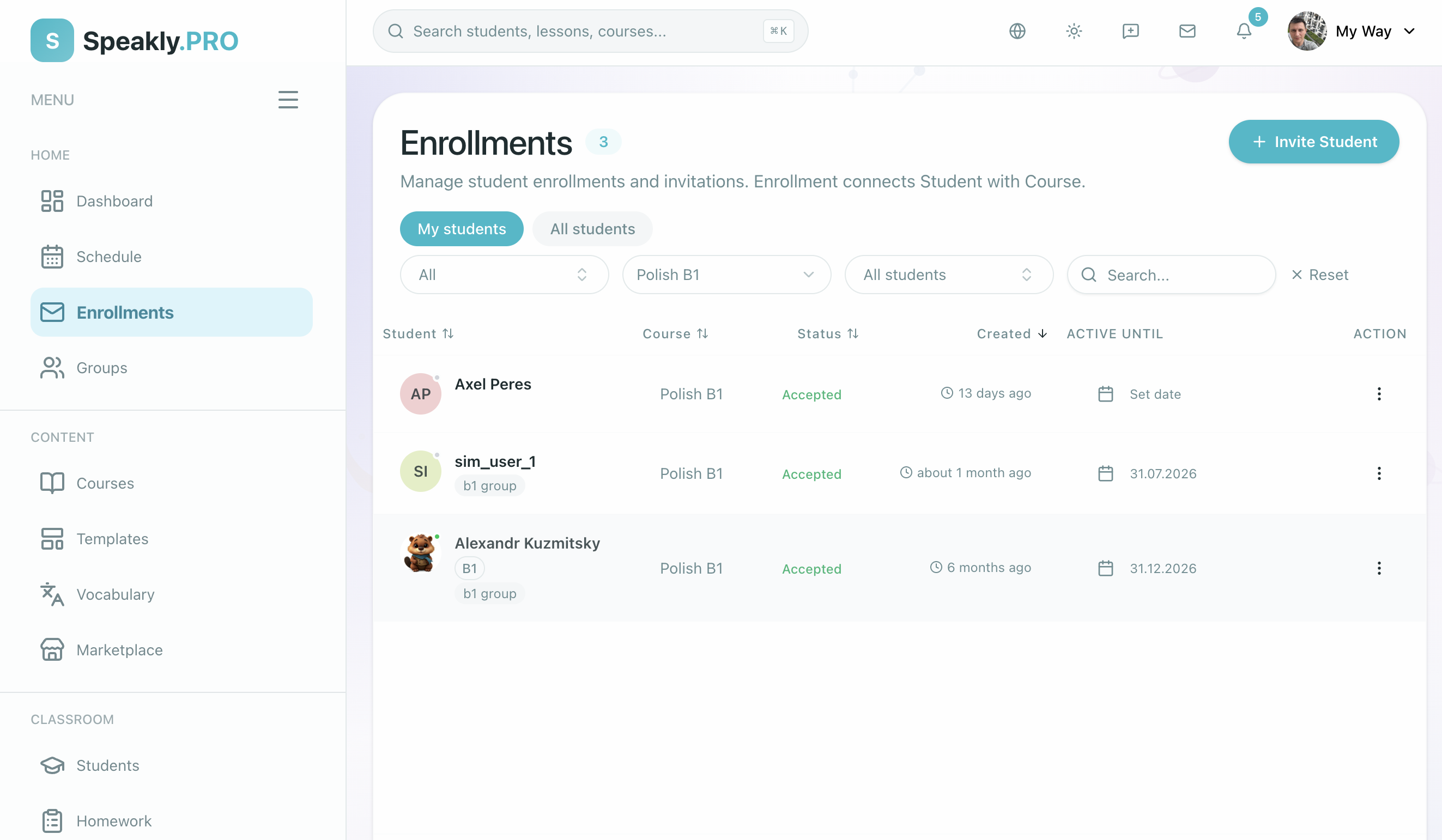
Enrollment Methods
There are five primary ways a learner joins a course, plus a zero-enrollment option for outside guests:
One-on-One Tutoring is a "Class of One": Individual private enrollments now use the same class architecture as group cohorts. When you tutor an individual student, the platform configures a dedicated Class of One named after the student, giving you access to Class Programs, recurring weekly schedule rhythms, multi-course syllabi, and in-class observation tools.
Zero-Enrollment Guest Assignments
When you want to share a single homework task, exercise, or live trial lesson with a prospective learner without adding them to your permanent school roster:
- Assign to a guest by link: Open the row menu (
⋯) on any lesson in your materials or class plan and select this action. - Provisional Account: The recipient clicks the link, enters their display name, and begins working immediately without an upfront account or password.
- 30-Day Free Window: Guests have 30 days of active access starting when the work opens.
- Preserving Guest Work: If the guest later joins your school by claiming an account or accepting a formal enrollment invite, all completed guest exercises and feedback are transferred to their permanent learning profile as an independent attempt.
Method 1: Email invite & Eager Provisioning
When you invite a learner by email:
- Open Students (
/platform/students) from the left rail or click Add student from the class roster. - Enter the student's email and select the class or course.
- Eager Account & Seat Provisioning:
- If the email does not yet have an account, the platform creates the student account and assigns their class seat immediately. You do not need to wait for the learner to accept before scheduling sessions or assigning lessons.
- Sign-In Details: The platform generates initial sign-in credentials where
Loginis their email andPasswordis the invitation code. - Immediately upon sending, the results sheet shows
LoginandPasswordalongside "Copy sign-in details" and "Copy all sign-in details" buttons. Always double-check email spelling before sending so a typo does not allocate a billed seat to an invalid address. - On the class roster and Students list, unactivated learners display a "Has not signed in yet" badge and an inline "Copy sign-in details" button so you can copy and send credentials directly via messenger. Once the student signs in for the first time, the temporary password disappears permanently from all staff views.
- Held Seats (Pending Billing): If your organization has reached its seat limit and requires payment confirmation, the account is still created and the seat is held. Once payment is activated, sign-in credentials are dispatched automatically by email. If staff revoke a held seat before the student ever signs in, the unused account is deleted cleanly.
Batch Inviting Multiple Students
Paste up to 50 email addresses at once separated by commas, semicolons, spaces, or line breaks. The validation bar confirms each email. If your school has reached its active student seat allowance, invitations are safely placed in Pending billing and activate automatically once an Owner or Operations admin updates plan capacity.
Method 2: Course Invite Link
Create a reusable invite link with an optional expiration date and maximum usage limit. Anyone opening the link is enrolled immediately upon signing in.
Method 3: Add Directly
Pick an existing student already registered in your school from the member dropdown to enroll them immediately without waiting for an email confirmation.
Method 4: Marketplace Purchase
When a buyer purchases a listed course on the Marketplace, their enrollment is created and accepted automatically.
One Learner Never Blocks the Class
In cohort learning, administrative or billing issues with an individual student should never disrupt teaching:
- If an enrolled student's seat expires, their billing is paused, or their access is temporarily suspended, they are quietly set aside when a class meeting starts.
- The teacher can click Start class and conduct the session normally for the rest of the cohort.
- When the student's seat or billing access is restored, they automatically regain access to upcoming class lessons and meetings without requiring manual re-enrollment.
The 4-Section Students List (/platform/students)
The school's Students page (/platform/students) is a dedicated top-level sidebar destination located directly below Classes. It organizes your entire learner roster into four distinct status sections:
- Studying — active learners enrolled in a class with upcoming or ongoing lessons.
- Invited — learners with pending class invitations or newly provisioned credentials who have not signed in yet.
- Without a class — registered learners in the school who are not currently assigned to any class cohort.
- Finished learning — a collapsible section for former learners whose course access has ended.
Header Controls
The top of /platform/students includes:
- "Add student" button (green) — opens the student invitation and eager provisioning dialog.
- Search bar ("Find a student by name, email or class") — instant filtering across all sections.
- Seat summary strip — displays active student counts, remaining free seats, next seat rates, and projected billing totals.
- Action menu (
⋯) — provides a direct link to "Invite links" (/platform/students/invite-links) for creating and managing reusable onboarding links.
The Student Card (/platform/students/[id])
Clicking any student row in the Students list, class roster, or global search opens the full Student Card page (replacing the old side rail).
Header Summary
The top hero banner displays:
- Student avatar, name, and email.
- Standing badge: Indicates current learning state ("Learning", "Starts learning on …", "Invited to a class", "Not in a class", or "Learning ended on …").
- Enrolled class count and "In the school since …" registration date.
- Birthday notice: A gift icon badge indicating "Birthday today" or "Birthday in N days".
- Action buttons: "Message" (opens a direct chat), "Add to class" (enrolls the student into another cohort), and
⋮("End learning").
Tab 1: Overview
The default tab organizes student context into two columns:
- Main Column:
- Next lesson card: Displays the upcoming scheduled class meeting with a green Start lesson or Join button.
- Waiting for review: Surfaces submitted homework or exercises awaiting teacher grading.
- Lesson comments: Feedback and notes from recent completed sessions.
- Classes summary: Lists all class enrollments. When a student has multiple 1:1 classes, they are grouped cleanly as "Individual lessons · [Course]".
- School observations: Confidential notes recorded by teachers and school staff.
- Side Column:
- "About the student" card: Displays Native language (with an inline "Change" button to update it anytime), Country, Local time, Birthday, and current Balance.
- "Level and problem areas" card: Displays the student's evaluated CEFR proficiency level and flagged academic problem areas.
Tab 2: Classes
Provides an in-depth view of the student's enrollments across all classes and courses (?section=classes):
- Side Class Rail: Lists the student's classes grouped into Current classes and Past classes (with avatars and indicator dots when work is waiting for review; rendered as a compact pill strip on mobile phones) right beside the selected class pane.
- Progress bar and lesson completion history per cohort.
- Assigned teacher and class schedule rhythms.
- Concrete learning metrics: lessons completed, attendance rate, total time spent, answer accuracy, and verified homework.
Tab 3: Accounting (?section=finance)
Visible exclusively to staff with financial permissions (Owners and Operations admins):
- Plain Balance Card: Displays the student's balance in large numerals (rendered in red ink when the student owes money, or normal ink when prepaid or zero):
- A clear status sentence: "The student owes the school €40.", "The student's balance holds €80.", or "The student owes nothing, and their balance is empty."
- Lifetime summary: "Over all time, … was added to this balance and … was charged to it."
- Three primary action buttons:
- "Top up balance" — records an offline payment or cash deposit.
- "Charge the balance" — logs a manual debit for special materials or fees.
- "Request card payment" — generates a secure Stripe payment request link. When issued, the student receives an in-app alert, an email invoice, a "Needs your answer" card on their Today dashboard, and an entry in their student Wallet under "School payments".
- Day-Grouped Transaction History:
- Filterable by All transactions vs. Card payments and date period.
- Groups charges and credits under daily headers (Today, Yesterday, or specific calendar dates).
- Each transaction row shows the charge description, amount, and the running balance with a clear "Balance after: …" label.
Related pages
- Classes for managing class rosters and persistent chat
- Class Programs & Learning Plans for sequencing course materials
- Homework Management for guest assignment links and reviewing submissions
- Teaching Observations for private student notes