Homework Management
Assign, track, and verify homework assignments.
The Homework System
How It Works
For Teachers:
- Create format-neutral lessons or attach child homework tasks in your course or library
- Assign homework to students or classes, or send selected blocks directly from a live lesson
- Track completion on the Homework page and side-by-side Lesson Panel
- Review submissions and verify with feedback
For Students:
- Receive assignment notification or digest
- Open the homework lesson and complete exercises
- Click "Send to teacher" to submit
- Receive teacher feedback after verification
Creating Homework Content
Homework assignments are built from format-neutral course materials or attached as child tasks under a parent lesson. You build them in the Lex Editor just like any other lesson:
- Go to Materials (
/platform/materials) in the sidebar, open your course or the All lessons tab - Add a new lesson (or click + Add child task under an existing root lesson)
- Build the content using the Lex Editor — add exercises, text, media, and interactive elements
- Save the lesson — when assigned or added to a class plan, deliver it as Homework (with teacher review) or Exercise (independent self-study)
The lesson is now ready to be assigned to students. See Creating Courses and the Lex Editor Guide for details on building lesson content. You can also use the AI lesson builder to generate homework content (see AI Lesson Generation).
Assigning Homework
Locuto supports flexible ways to assign homework to students:
| Method | How it works | Best for |
|---|---|---|
| As part of a class lesson | Attach child homework to a class lesson in a course or Class Program. The homework unlocks when the teacher clicks Start class or at scheduled time. | Structured courses and weekly class rhythms |
| Sending picked blocks home | In the live room, click Choose on the Homework card, select specific blocks/Steps, and click Send to dispatch a clean copy. | Reinforcing concepts covered during today's live session |
| Assign a lesson (Journal) | Click "Assign a lesson" at the top of the Journal (/platform/workspace) to search for and deliver any lesson to a student or cohort. | Ad-hoc practice or individual makeup assignments |
| Guest assignment link | Generate a shareable link via Assign to a guest by link; recipient gets 30 days of free access without prior enrollment. | Prospective students, trial lessons, or outside learners |
| Direct from Course outline | Click the row menu (⋯) on a lesson in the course outline and select Assign this lesson. | Quick assignments without leaving the course builder |
The Homework tab (/platform/workspace?tab=homework) in the Journal is strictly dedicated to reviewing, grading, and tracking student submissions. New homework is assigned through the class plan (+ Add task), dispatched from a live room, shared by guest link, or launched via the "Assign a lesson" button in the Journal header.
Method 1: Homework as Part of a Class Lesson (Recommended)
Structure your curriculum so that class lessons have child homework lessons attached (see Manage Course Lessons). When a class lesson is scheduled in a Class Program, all child tasks are associated with it.
- In live classes, homework unlocks for students the moment the teacher clicks Start class inside the live room.
- In self-paced classes, homework unlocks in lockstep with the parent lesson according to the class's opening mode.
Attaching and Detaching Tasks (+ Add Task and ✕)
You can attach tasks directly to any class lesson row in your class plan:
- Add Task (
+): Click the+icon button on any class lesson row (or select Add task from its⋯menu). This opens a sheet to search for any lesson across your school's courses. - Select Task Mode: Choose how students will complete the assignment:
- Homework: "Students hand it in before the lesson on [date], and you review it." The deadline is automatically calculated as the class's next live meeting date, skipping canceled sessions and counting booked or weekly recurring slots.
- Exercise: "Students do it with no deadline, and you do not review it."
- Detach Task (
✕): Any attached task row displays a✕button (and "Remove from lesson" in its⋯menu) to detach the task after confirmation. - Automatic Filing: Any homework or exercise assigned to the entire class without specifying a date automatically files under the class lesson that started last.
Batch Notification & Course Follow Digests
When multiple homework assignments unlock at the same time:
- In classes following a course, or when 4 or more tasks unlock within 60 seconds, the platform sends a single consolidated Course Follow Digest email and notification.
- Students receive a single direct link to their To-Do queue filtered to that released batch, avoiding inbox clutter.
Method 2: Sending Picked Blocks Home from a Live Lesson
During a live video class, teachers can send a clean, answer-stripped selection of lesson content home as follow-up work:
- Inside the live classroom, look at the left rail and locate the Homework card.
- Click Choose.
- Click or drag across specific lesson blocks or multi-block Steps in your active classroom document to select them privately.
- Click Send to dispatch the selected blocks to the entire class roster. You can deliver them:
- With teacher review: Dispatched as formal homework due before the next class meeting.
- Without teacher review: Dispatched as an independent practice exercise.
- Alternatively, click Copy to copy the selected blocks along with current answers to your clipboard for quick sharing.
Students receive an isolated copy with clean exercise fields ready to solve, while your live classroom board remains unchanged.
Method 3: Assigning from the Journal Header
To assign work directly without opening a specific course outline:
- Open the Journal (
/platform/workspace). - Click the green "Assign a lesson" button in the top header.
- Search for the lesson, pick the recipient student or class cohort, set the due date, and choose the delivery mode (Homework with review or Exercise without review).
- Confirm to dispatch the assignment.
Method 4: Guest Assignment Links
You can share any homework assignment or exercise with prospective students, trial learners, or external guests without enrolling them in your school using Assign to a guest by link:
- In the Materials Library (
/platform/materials) or class Lessons & plan tab, open the row menu (⋯) for any homework or exercise. - Select Assign to a guest by link.
- Copy the generated link and share it through chat, email, or a messaging app.
- Guest Experience: When a guest opens the link, they enter their name and access the assignment immediately on a provisional account.
- 30-Day Free Work Window: Guests receive 30 days of active access starting when the assignment opens.
- Teacher Controls: Teachers can monitor guest recipients, click Open for this guest to release waiting work early, revoke individual access, or rotate/disable the link at any time.
- Account Claiming: If the guest later creates a full student account or accepts a school invitation, their completed guest submission is automatically preserved in their study history as an independent attempt.
Class Assignments & Cohort Batches
When assigning homework to a class:
- The platform creates individual sessions per student — each learner works on their own private copy.
- Answers, time tracking, and exercise scores remain strictly isolated between classmates.
- Teachers can update due dates or notes across the entire class cohort simultaneously from the class plan.
Late Joiners: "Give to Those Without It"
If new students join an ongoing class after homework has already been assigned:
- Open the class Lessons & plan tab.
- In the row menu for the homework, select Give to those without it.
- Locuto immediately delivers the assignment to the newly enrolled students without disturbing existing classmates' progress or re-sending unnecessary notifications.
The Homework Workspace
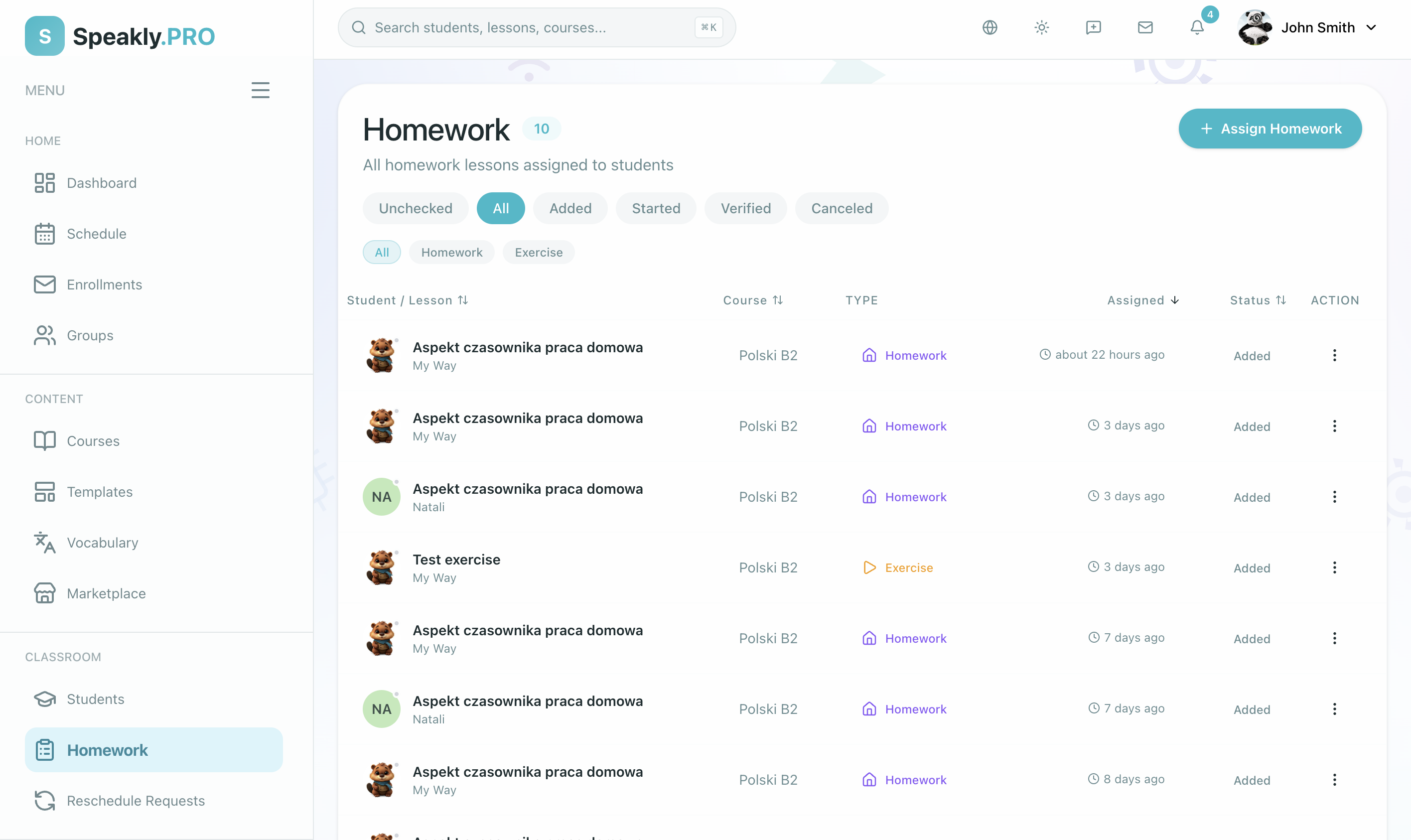
The Homework workspace is a dedicated tab inside the Journal at /platform/workspace?tab=homework (with a red badge displaying the count of submissions awaiting review; visiting /platform/homework redirects here). It provides a central review table for tracking submissions across your classes and students:
Class Meetings & Homework Tracking in the Journal
Inside the Journal's Past lessons and Upcoming lessons tabs, each row represents a class meeting:
- Held meetings display a "Held" badge, an
Analysis N/Mchip, and real-time homework status. - If a completed class meeting does not yet have homework assigned, the row surfaces an "Assign homework" button. This meeting also increments the "Students who got no homework after a lesson" counter on the Journal's To do card.
- If the session was a conversation class or review session where homework is not required, click "No homework needed" directly on the row to clear it from your to-do queue. You can undo or unmark this at any time if you decide to assign follow-up work later.
- When students submit their work, the Journal's To do card alerts you under Submissions waiting for a check with a "Check" button that opens the Homework tab filtered to submitted tasks.
- On the individual Student Card (
/platform/students/[id]), the Overview tab highlights all submissions awaiting grading in the Waiting for review section.
| Column | Description |
|---|---|
| Student / Lesson | Student avatar, lesson name, and student profile link |
| Course | Course or program origin |
| Score | Exercise score summary once submitted and evaluated |
| Time | Time spent and timer countdown status |
| Assigned | When the homework was assigned |
| Status | Current lesson status (Added, Started, Passed, Verified, Canceled) |
| Action | Action menu (⋯) |
Status Filters
Filter pills at the top let you organize work by status:
- Unchecked (default) — Homework submitted by students awaiting teacher verification (status: Passed)
- All — All assignments regardless of state
- Added — Assigned but not yet opened by the student
- Started — Student has opened the lesson and begun working
- Verified — Teacher has reviewed, commented, and verified completion
- Canceled — Canceled assignments
Group Filter
A searchable class filter allows you to isolate submissions from a single class cohort or course.
Actions Per Assignment
Open the action menu (⋯) on any homework row to:
- Review / View — Open the student's submission in the grading interface
- Revoke Verification — Return a verified homework back to "Passed" status to revise feedback
- Assign Again — Create a fresh duplicate assignment for additional practice
- Reset Timer / Reset Time Spent — Reset the exam timer or clear time spent
- Cancel or Delete — Cancel the assignment or permanently delete it
Group Homework on the Calendar
When homework is assigned to a class, the calendar aggregates all student sessions into a single calendar item to prevent clutter:
- Hover Panel: Hovering over the calendar item displays the class name, participant avatars, and color-coded status badges for each student.
- Manage Modal: Clicking Manage displays each participant's individual progress with direct links to review their session.
Tracking Submissions with the Actionable Lesson Panel
From your class Lessons & plan tab, clicking any lesson, homework, or exercise row slides out the Actionable Lesson Panel:
- Timeline & Status Axis:
- The left date gutter lists exact dates and clock times for each learning activity.
- Live sessions started within the last 12 hours display elapsed duration (such as "on for 15 min").
- Completed steps display solid green checkmarks.
- The "Now" line highlights the active step with a prominent action button, or a green Join room button during a live class.
- The footer status line provides immediate shortcuts to Open in the course or Open room.
- Remind Waiting Learners (24-Hour Cooldown):
- For unsubmitted homework or exercises, click "Remind" in the Lesson Panel header to send an immediate in-app notification and email to waiting students.
- To prevent notification fatigue, the button enforces a strict 24-hour cooldown per task. While on cooldown, the panel displays: "The reminder was sent today at [time]."
- Manage Roster:
- Each student row in the Lesson Panel features a
⋯menu (Actions for the student) with "Remove from class" to safely manage student enrollment.
- Each student row in the Lesson Panel features a
- Guest Submissions & Account Claiming:
- For dated lessons, click "Invite by link" to share the meeting link and 6-digit PIN; for undated lessons, click "Create guest link" to select a date first.
- When a guest creates or claims an account, you receive a "A guest now has an account" notification and email. Clicking it opens the Lesson Panel where an "Add to class" button lets you enroll them directly into your class cohort.
Verifying Homework
When a student finishes their homework and clicks "Send to teacher", the status updates to Passed and appears in your Unchecked filter. You also receive an in-app notification.

Verification Process
- Click on any unchecked homework row to open the student's submission.
- Review the auto-checked exercises, student text, audio recordings, or uploaded handwriting.
- Write personalized feedback and guidance in the feedback box (up to 1,024 characters).
- Optionally award Teacher Praise Stickers (including premium stickers) to celebrate outstanding effort.
- Click Finish to verify the homework. The status updates to Verified, and the student receives a notification with your feedback.

Revoking Verification
If you need to adjust feedback after verifying:
- Locate the assignment in the Homework tab.
- Open the menu (
⋯) and select Revoke Verification. - The lesson returns to Passed status, allowing you to edit comments or re-grade exercises before finishing.
Time Limits and Exam Conditions
For formal assignments or exams, lessons can include a time limit:
- The clock runs continuously once the student opens the assignment.
- When time expires, answers are automatically saved and submitted.
- Teachers can use Reset Timer on an individual student row to grant extra time or clear widget locks without changing the time limit for the rest of the class.
Related pages
- Classes for managing class cohorts and student rosters
- Class Programs & Learning Plans for following courses and plan schedules
- Class Materials & Coverage Checklist for row menu actions and coverage tracking
- AI Oversight and Human Review for verifying automated assessments
Q&A
How do guest assignment links differ from class enrollment?
A guest assignment link allows anyone with the link to complete a specific lesson or homework within a 30-day window on a provisional account without going through formal school onboarding.
Can I send only a portion of today's live lesson as homework?
Yes. Use the Choose tool on the left-rail Homework card inside the live room to select specific blocks or Steps, and click Send to dispatch a clean copy to your students.
What happens if I edit a due date on a class homework assignment?
Updating the due date from the class plan updates the deadline for all students in that class cohort whose assignments are still in progress or not yet started.