Creating Courses
The overview page for course setup, lesson organization, and curriculum structure.
Who this is for
Teachers creating or restructuring course content.
What this page answers
- What is the course model in Locuto.PRO?
- How do courses organize lessons into units?
- Which page covers course creation vs lesson management?
- How do working copies protect live lessons?
Prerequisites
- teacher access to Materials (
/platform/materials) in the sidebar (under the My Courses tab)
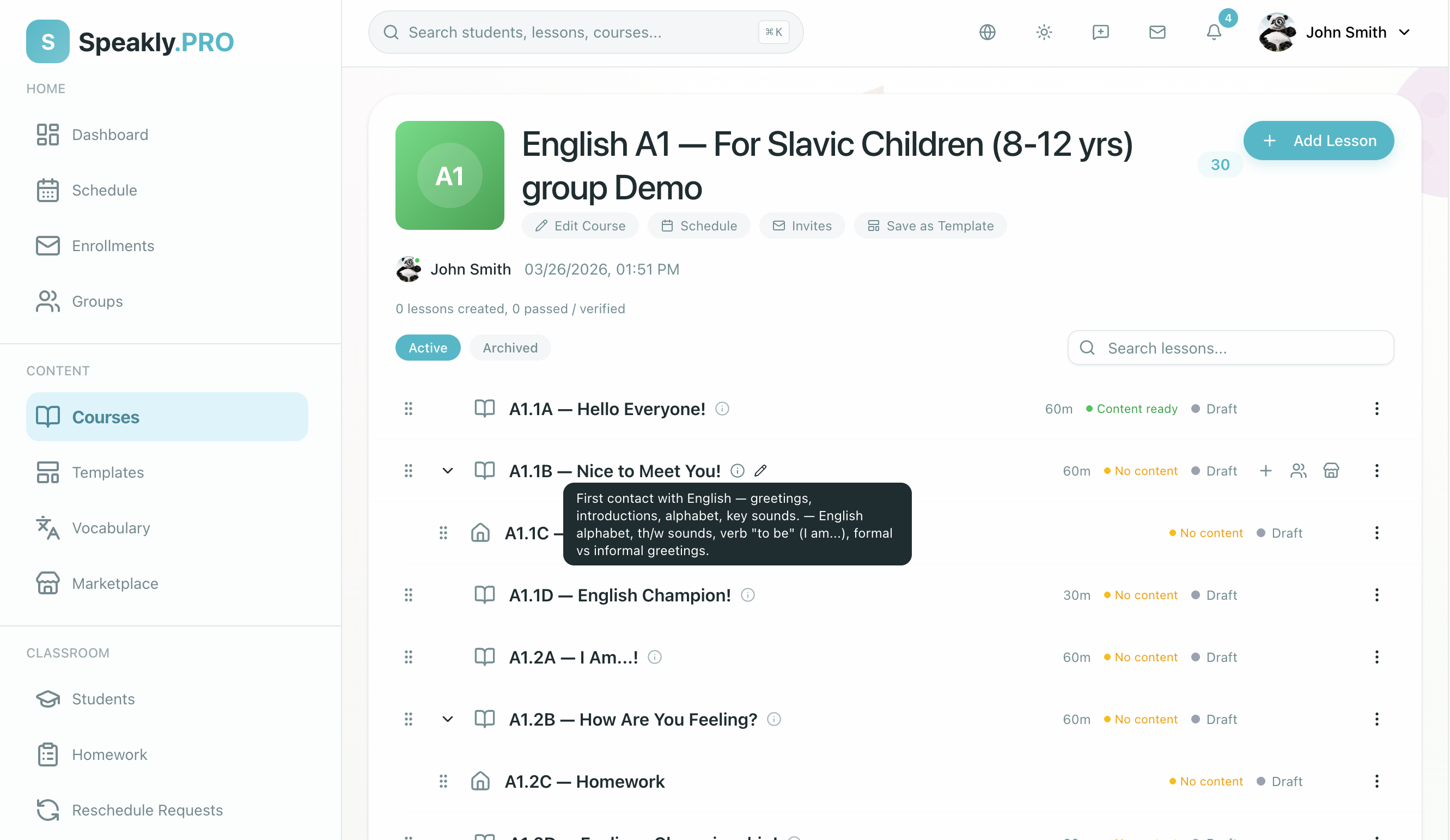
The course model
A course is the container for your school's curriculum:
- Active immediately: Courses and lessons have no Draft status. They are live and ready to use the moment you create them. When you make changes to an existing lesson, those edits are safely held in a private Working Copy until you choose to publish them.
- Course Units: Courses organize lessons into visual chapters called Units. Each unit features a title, description, and an uploaded or AI-generated cover image.
- Format-neutral lessons: Course lessons are format-neutral curriculum materials. You do not lock a lesson into a class meeting, exercise, or homework at creation time—its delivery format is chosen when you add it to a class plan or assign it to a student. Materials marked with Exam Mode require independent student work and cannot be taught as live meetings.
- Child tasks: Any root lesson can have up to 7 nested child tasks (independent homework or exercises) that unlock alongside their parent lesson.
- Course metadata: Details including course title, subject (Language Learning or Mathematics), target language, CEFR or grade level, and description.
- Default widget theme: Configures the visual style for newly added interactive widgets (defaults to "Same as the school", or choose any of the 21 built-in widget themes, including Modern as a clean flat design).
Managing Multiple Courses
On the My Courses tab in Materials, use Select when you need to update several courses at once.
Batch course actions can help you:
- update CEFR or grade level
- update learning objectives and prerequisites
- update default widget theme across courses
- archive active courses to declutter your workspace
- restore courses from the archived view

Batch editing only changes the fields you select in the batch sheet. Unselected fields stay unchanged on each course.
Use the course docs by task
Create a Course
Start from scratch or from an existing course, fill in the course details, and start your first unit.
Manage Course Lessons
Add format-neutral lessons, organize them into units, nest child tasks, and open them in the editor.
Publish and Share
Share courses with your school, list them on the Marketplace, or connect them to classes.
Working Copies
Edit a live lesson safely using a working copy that automatically updates unstarted class sessions when published.