Use Case: Building a Lesson Library
How to create, organize, and scale a collection of reusable lessons and teaching materials.
Prerequisites
- Teaching experience on platform
- Initial lessons created
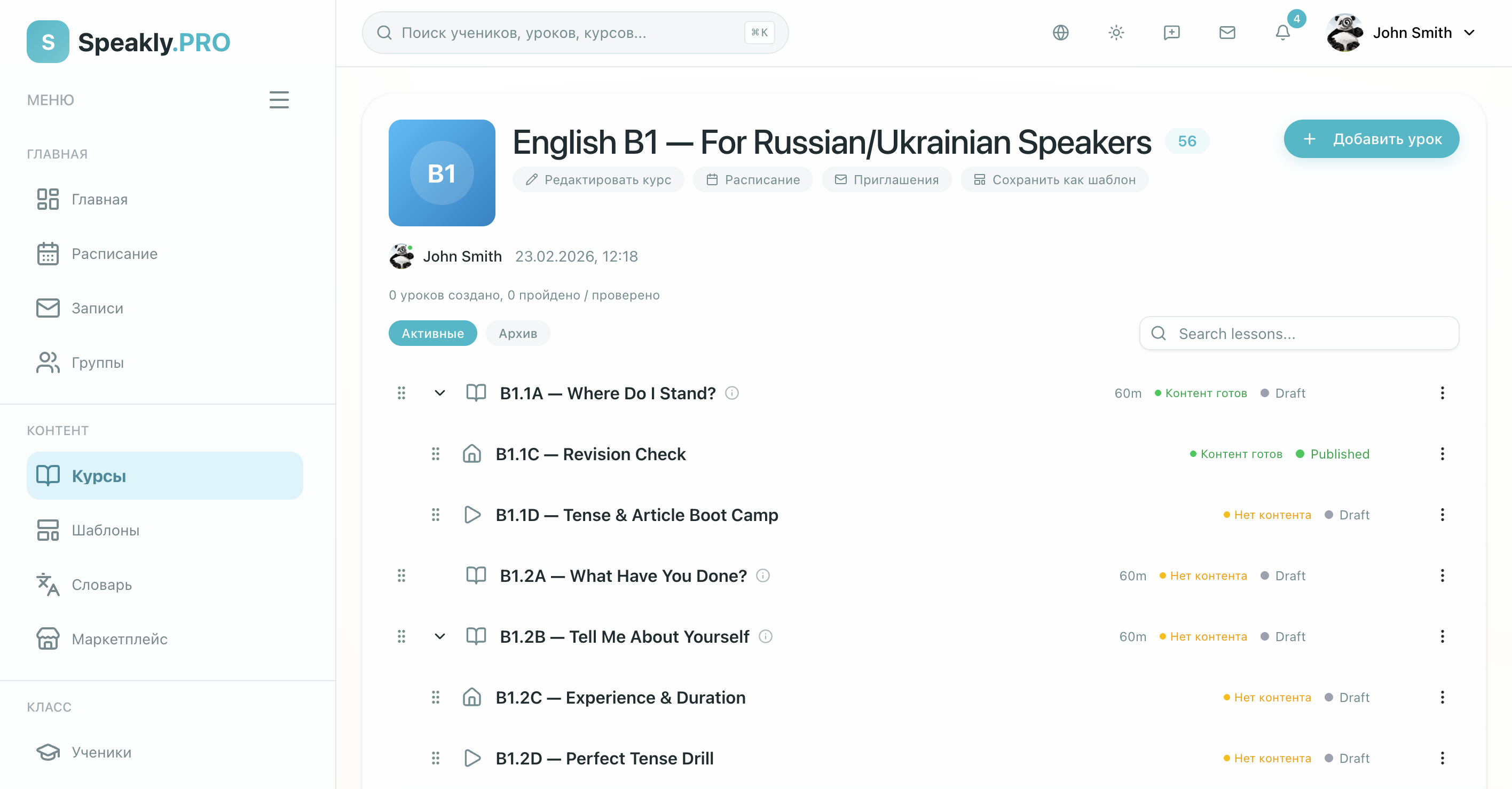
Phase 1: Strategy and Planning
Step 1: Define Your Library Scope
Scope: What subjects/topics? What CEFR levels (A1-C2)? Standalone lessons or course series?
Purpose: Personal teaching use? Share with colleagues?
Scale: Target number of lessons? Timeline? Hours per week dedicated?
Step 2: Create a Content Map
Master Content List:
| ID | Topic | Level | Type | Status | Priority |
|---|---|---|---|---|---|
| SP-A1-001 | Greetings | A1 | Grammar | Done | High |
| SP-A1-002 | Numbers | A1 | Vocabulary | Done | High |
| SP-A1-003 | Present Tense -AR | A1 | Grammar | WIP | High |
| SP-A2-001 | Past Tense | A2 | Grammar | Planned | Med |
| SP-B1-001 | Subjunctive | B1 | Grammar | Planned | Med |
Step 3: Establish Standards
Lesson Structure: Standard structure for all lessons:
Quality Checklist:
- Learning objectives clear
- Content accurate
- Exercises tested
- No typos
- Media works
- Mobile-friendly
Phase 2: Content Creation
Step 4: Batch Create Foundation Lessons
Priority 1: Grammar Foundations (present tense, past tense, future tense, essential structures)
Priority 2: High-Frequency Vocabulary (daily activities, common objects, essential phrases)
Priority 3: Communication Skills (introductions, asking questions, expressing opinions)
Creation Workflow (per 2-week batch):
- Use AI generation for 5 lessons
- Review and customize each
- Add personal touches
- Test with sample student
- Publish
Step 5: Use the Lesson Builder and AI Effectively
When to Use AI: Initial draft creation, exercise generation, example sentences, alternative explanations.
When to Create Manually: Unique teaching approach, complex concepts, cultural nuances, personal anecdotes.
See AI Lesson Generation and Lesson Builder & Lesson Blocks for details.
Step 6: Build Modular Components
Create Reusable Blocks:
- Vocabulary Sets: 20 words per theme, image + audio + example sentence
- Exercise Patterns: Standard question types, consistent formatting
- Introduction Patterns: Hook strategies, connection to prior learning
- Conclusion Patterns: Summary styles, exit ticket ideas
Phase 3: Organization and Management
Step 7: Organize Your Library
Naming Conventions:
[Language]-[Level]-[Topic]-[Type]-[Number]

Examples:
SP-A1-PresentTense-Grammar-001
FR-B1-Travel-Vocab-003
DE-A2-Family-Conversation-002
Document: date of change, what changed, why, impact on students.
Phase 4: Quality Assurance
Step 8: Test Everything
Self-Test: Complete lesson as student, do all exercises, time the completion, note friction points.
Peer Review: Share with colleague, get feedback, make improvements.
Student Testing: Use with real students, gather feedback, observe struggles, iterate.
Step 9: Iterate and Improve
Monthly Review: Analyze usage data, review student feedback, identify popular lessons, find gaps.
Quarterly Updates: Update outdated content, add new exercises, improve based on feedback.
A refresh only counts once it has reached learners, and editing the lesson is the first of three steps:
Edit the lesson
On a published lesson your changes go into a working copy. Nothing outside the editor sees them yet.
Publish
This makes your edit the version every new assignment is built from. Look for the amber asterisk on the lesson list to spot lessons you edited and never published.
Overwrite for students
Publishing does not reach copies students already hold. Overwrite for students replaces the copies nobody has opened yet; a student who has already started keeps theirs.
Skipping the third step is the usual reason a quarterly refresh never shows up in anyone's class. See Working copies and Lesson Document Lifecycle.
Next Steps
- AI Lesson Generation - Scale creation
- Generation History - Reuse past AI outputs