Use Case: Completing a Lesson
Guide for students working through and completing lessons on Locuto.PRO.
Step 1: Access Your Lesson
Navigate to Studies (/platform/studies) and click "Continue" or "Start Lesson" on your top To Do card. You can also find lessons via the "Courses" tab or directly on your Schedule.

Step 2: Understand the Lesson Interface
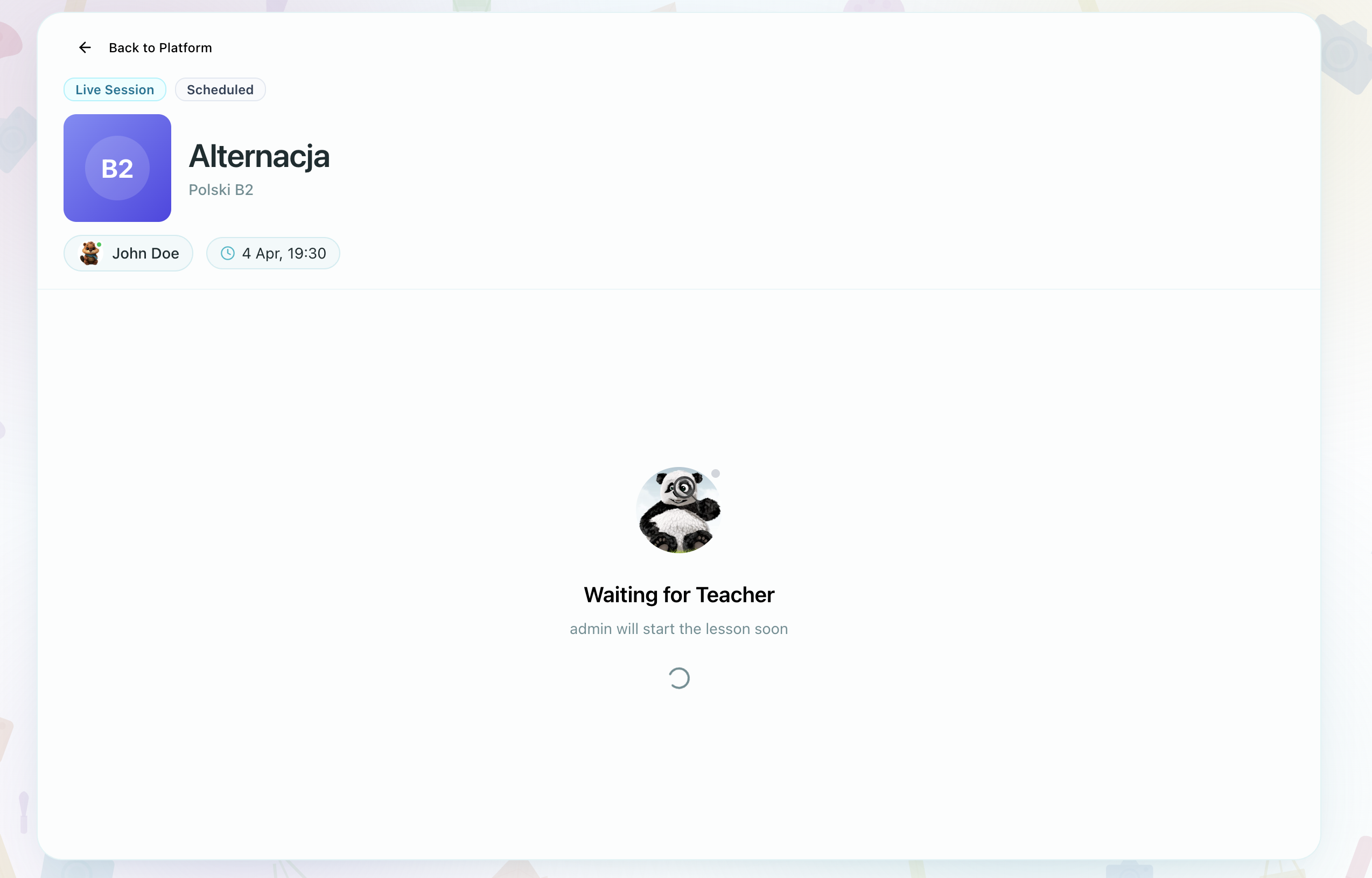
Header Section
- Lesson Title and Course Name
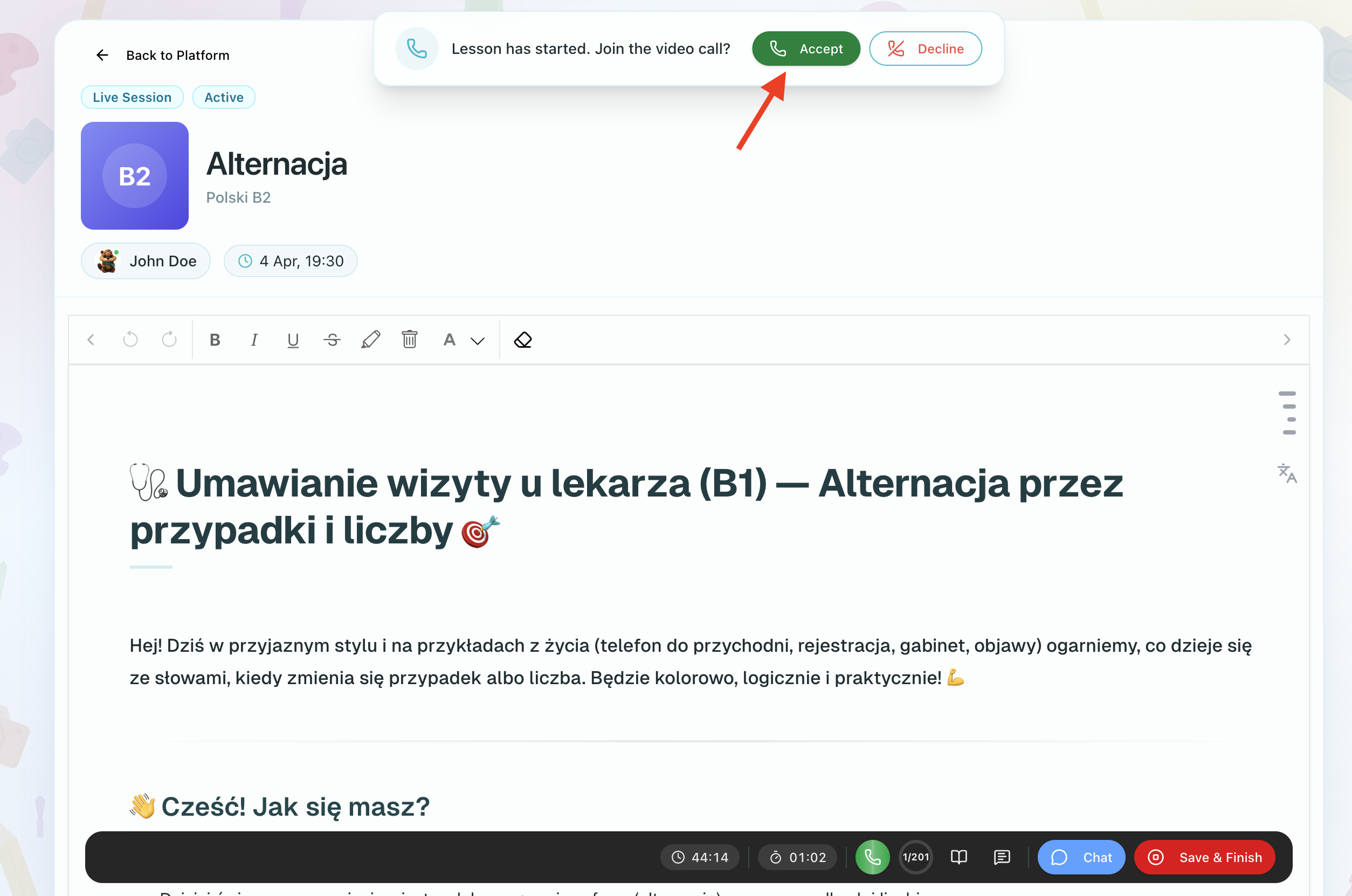
Main Content Area
The lesson content is organized in sections:
- Content organized in sections with text, images, audio, and video
- Interactive exercises throughout
- Progress saves automatically
Step 3: Work Through Content
Engage with the content sequentially -- play audio for pronunciation, watch videos, and click images for a larger view.
Progress Saving
- Your answers are saved as you work — you do not have to remember to save them
- The lesson document is also saved automatically about once a minute
- In an ordinary lesson you can stop and resume from where you left off
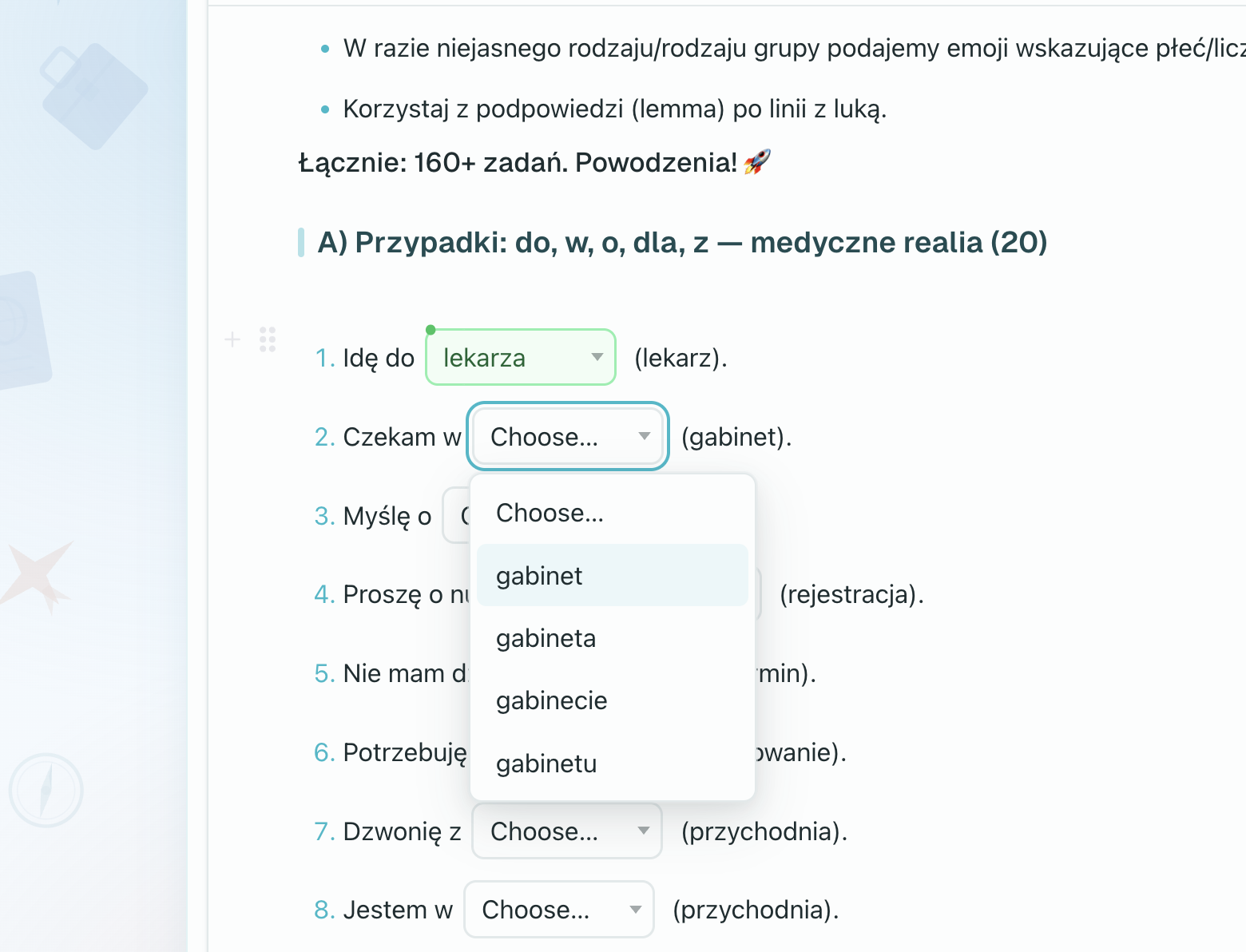
- Use the "Save" button in the bottom bar before closing the browser
A dropped connection does not lose your answers. Each answer is saved shortly after you give it, and when the connection comes back, anything that was waiting is sent. If you are in an exam, keep going rather than starting over.
Timed exams are different
Most of this page describes an ordinary lesson. A timed exam behaves differently in ways that are worth knowing before your first one, because the differences are not reversible.
The exam clock does not pause, and it is not running in your browser. It starts when the exam opens in front of you — not when you press Start — and it keeps running if you close the tab, refresh the page, lose your connection, or open the exam on another computer. There is no way to stop it and come back later.
- You get one attempt. Leaving and returning does not reset anything.
- When the time runs out, the exam submits itself. A short countdown appears first — around fifteen seconds, while your last answers are saved — and then it is submitted whether or not you are looking at the screen.
- Closing the tab does not protect you. The exam is still submitted at the deadline, with whatever you had answered.
- Your answers are saved continuously anyway, so a connection problem in the middle of an exam is not the disaster it feels like. Reconnect and keep answering.
If something genuinely goes wrong during an exam — the page will not load, the audio is broken — tell your teacher rather than trying browser fixes. A teacher can reset your time, which is the only thing that gives you the time back. See Lessons & Homework.
After Completing a Lesson
When you finish a lesson, a completion screen appears showing:
- A success message with the lesson name
- Any homework assigned for this course — each with its status (Added, Started, Passed, Verified) and scheduled date
- Information about your next scheduled class, if any
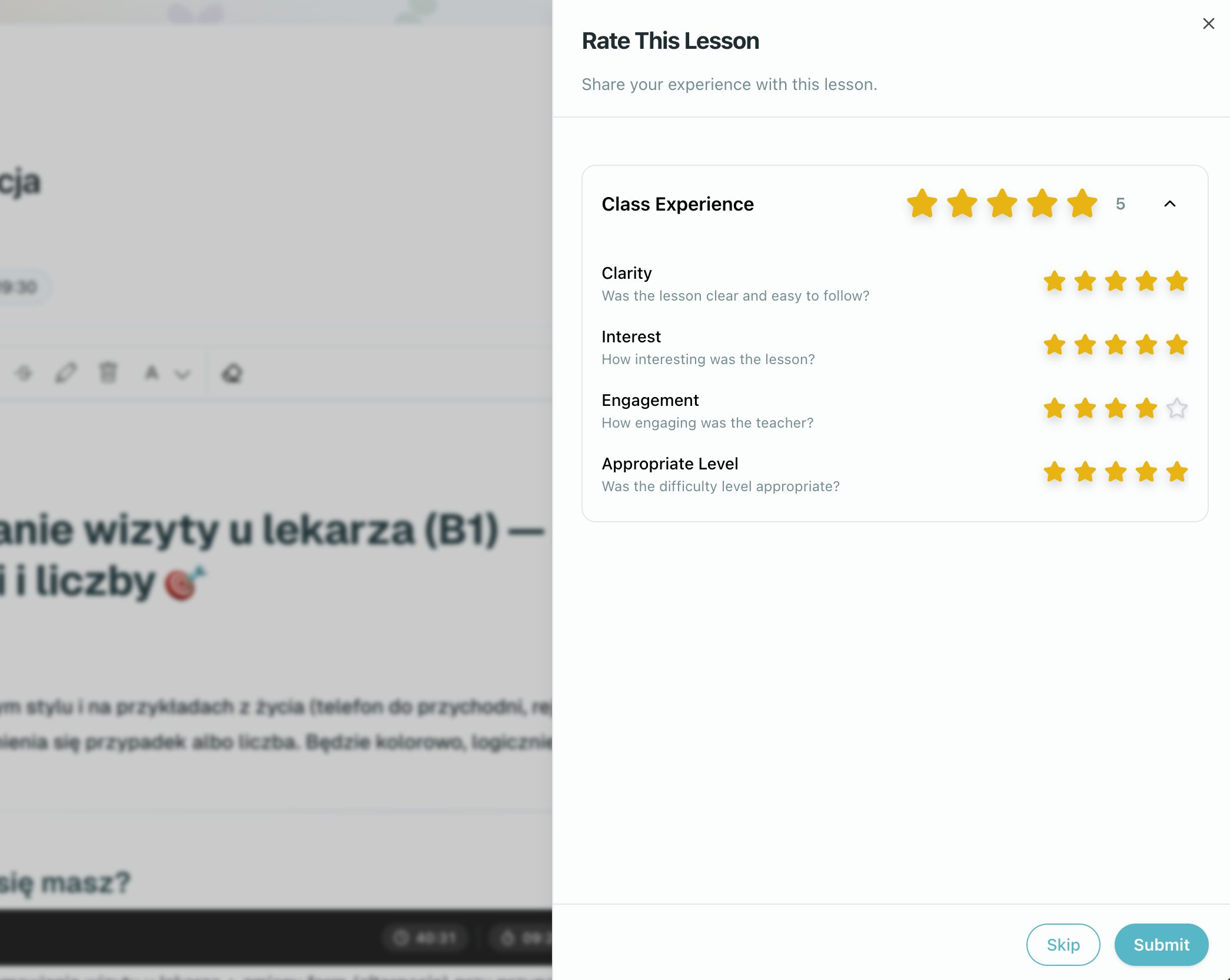
You may also leave feedback about the lesson.
Your teacher can provide written feedback after reviewing your work. See Viewing Feedback for details on where feedback appears.
Troubleshooting
None of the steps below are safe in the middle of a timed exam. Refreshing, clearing your cache, and switching browsers do not pause the clock and do not give you extra time — the exam keeps counting down and will submit itself at the deadline. In an exam, message your teacher instead: only they can reset your time.
Issue: Lesson Won't Load
- Check internet connection
- Refresh page (F5 or Ctrl+R)
- Clear browser cache
- Try different browser
- Contact support if persists
Issue: Exercises Not Saving
- Check connection stability
- Wait for save indicator
- Try manual save button
- Don't close tab while "Saving..." shows
Issue: Can't Complete Lesson
Possible causes: required exercises not done, technical error, or permission issue.
- Check for incomplete exercises
- Scroll through entire lesson
- Refresh and try again
- Contact teacher
Issue: Audio/Video Not Working
- Check speakers/headphones
- Allow browser media permissions
- Try different browser
- Contact teacher about technical issues
Related Documentation
- Lessons & Homework - Detailed guide on learning materials
- AI Oversight and Human Review - when AI helps assess your work, and how to ask a teacher to check the result