Lessons & Homework
Lesson types, statuses, and how to complete and submit your work.
Lesson Types
Your teacher creates three types of lessons:
| Type | Purpose | Feedback |
|---|---|---|
| Class lesson | Live or synchronous sessions with your teacher. May include a shared document you work on together. In Marketplace courses, you may need to book the first session before it appears on your calendar. | Real-time during the session |
| Exercise | Practice activities — multiple choice, fill-in-the-blank, matching, sentence building, audio, and more. | Immediate (auto-checked) |
| Homework | Assignments to complete on your own and submit for review. | Teacher reviews and verifies with written feedback |
| Self-study | Personal material from Marketplace or a lesson you created yourself. | Immediate feedback or automated assessment when included |
Lesson Statuses
Every lesson moves through a series of statuses:
| Status | Meaning |
|---|---|
| Added | The lesson has been assigned to you but you haven't opened it yet. |
| Started | You've begun working on the lesson. Your progress saves automatically. |
| Passed | You've completed the lesson (finished all exercises or clicked "Finish"). |
| Verified | Your teacher has reviewed your work and confirmed completion. |
| Canceled | The lesson was canceled by the teacher or student. |
For Homework, click "Send to teacher" on the bottom panel to submit. Your answers are saved — you do not need to stay on the page. The teacher verifies the submission and may leave written feedback.
Teacher's Assignment Note
When your teacher assigns a lesson, they may include a note with context, instructions, or preparation tips. This note appears:
- on your Dashboard in the "Lesson Starting Soon" banner
- in the calendar when you hover or click on the lesson
- in the email notification you receive about the assignment
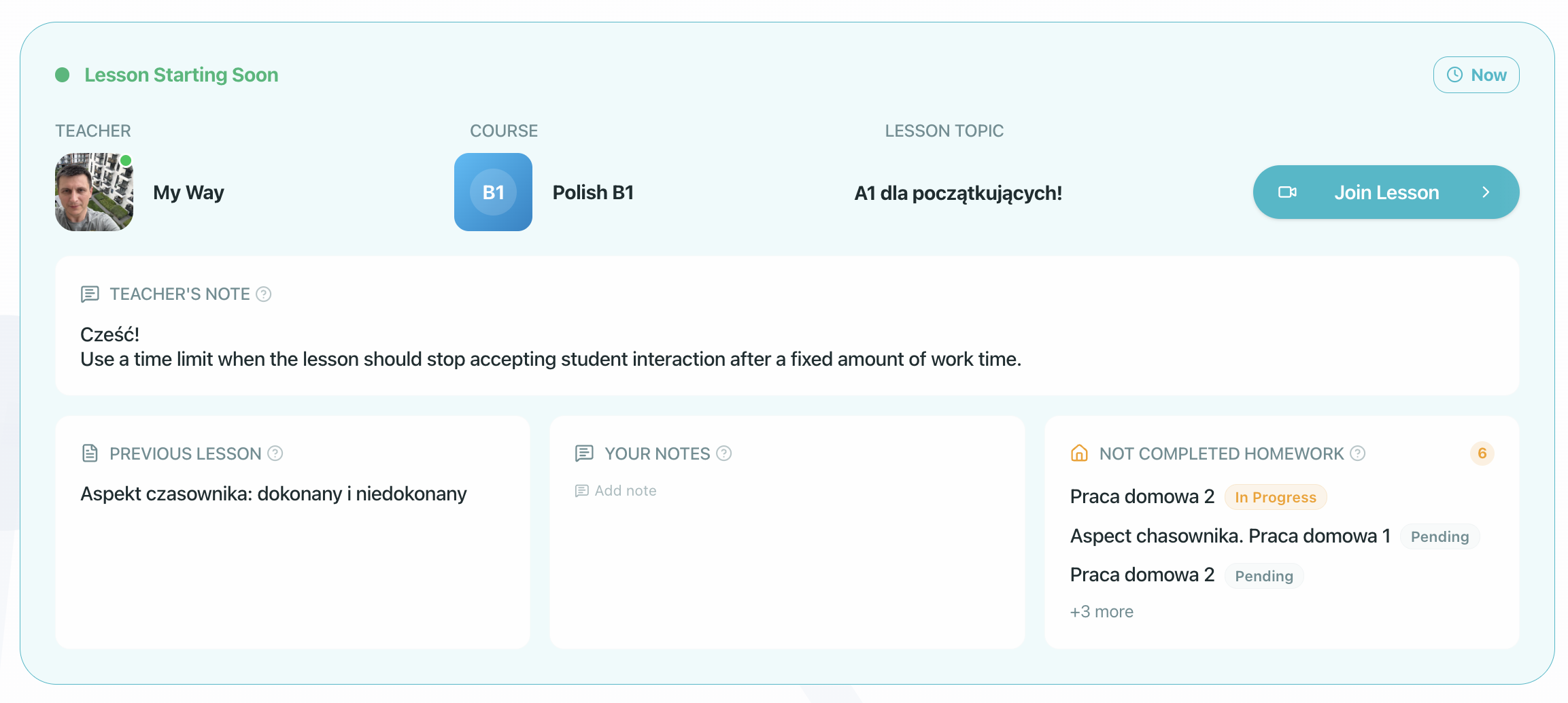
The Studies Hub
All your learning activity is organized inside the Studies hub (/platform/studies), split into clear views:
- To Do — The next piece of work you need to complete is displayed as a large hero card at the top of your screen, followed by a prioritized queue of upcoming deadlines (cutting to the 20 soonest assignments). If homework is tied to an upcoming live class, the card indicates when the lesson will open. The queue only shows assignments from your active courses and classes, so past or archived work never clutters your view.
- Done (Handed-in) — A dedicated archive of your completed lessons, verified homework, submitted work evidence, and teacher feedback.
- Courses — Your active course list, with attribution chips showing whether each course was assigned by your school or purchased by you.
- Classes — Your active group classes, showing class schedules, programs, and shared materials. Lessons that belong to a Program Unit display their unit title directly on the card so you always know where you are in the syllabus.
Completing a Lesson
- Open a lesson from your Studies hub or Schedule
- Work through the content and exercises — progress saves automatically
- When finished, click "Save & Finish" on the bottom panel (or "Send to teacher" for homework)
When submitting homework:
- The platform creates a permanent record of your work evidence (your answers, written texts, and submitted audio) captured at the moment of submission.
- Even if an exercise or lesson draft is later updated, your teacher can review your original submission.
- When you finish, a confirmation screen confirms your submission and lets you leave feedback or return to your dashboard.
When you complete an assignment, it is saved securely within the context of the course or class and organization where it was assigned. Your progress and feedback belong to that specific enrollment or class, keeping your learning records organized across different schools or teachers.
For a detailed walkthrough of the lesson interface, see Use Case: Completing a Lesson.
Tracking Overdue Homework
If you have assignments that are past their due date, you can easily track them using the Missing homework tab on your Dashboard. This tab groups all of your overdue tasks in one place so you can quickly open them, complete the work, and send it to your teacher.
Speaking Exercises and the Speech Widget
When your lesson includes speaking tasks, you will record your response using the speech widget. Pay attention to the widget's label to understand how your recording will be used:
- Silent or personal practice: The exercise is designed for you to practice on your own. Your recording is only used to provide immediate automated feedback (such as pronunciation or fluency tips).
- Formally graded: The widget will explicitly indicate if the task is graded by a Live Examiner or your teacher. In this case, your recording is submitted for official scoring and detailed feedback when you complete the lesson.
Learning Actions in Read-Only Lessons
Some lessons are read-only because they are finished, locked, timed out, or opened for review. You cannot change answers in a read-only lesson, but learning tools may still be available.
Select text in the lesson to use actions such as:
- Translate — view a translation and add useful words to your vocabulary.
- Listen (Text-to-Speech) — hear selected text read aloud by a native-sounding AI voice.
Listen (Text-to-Speech) uses AI credit when it is not covered by a plan or allowance, and supports up to 100 words per request. If the selected text is too long or the action is unavailable, the button is disabled with an explanation.
Viewing Feedback
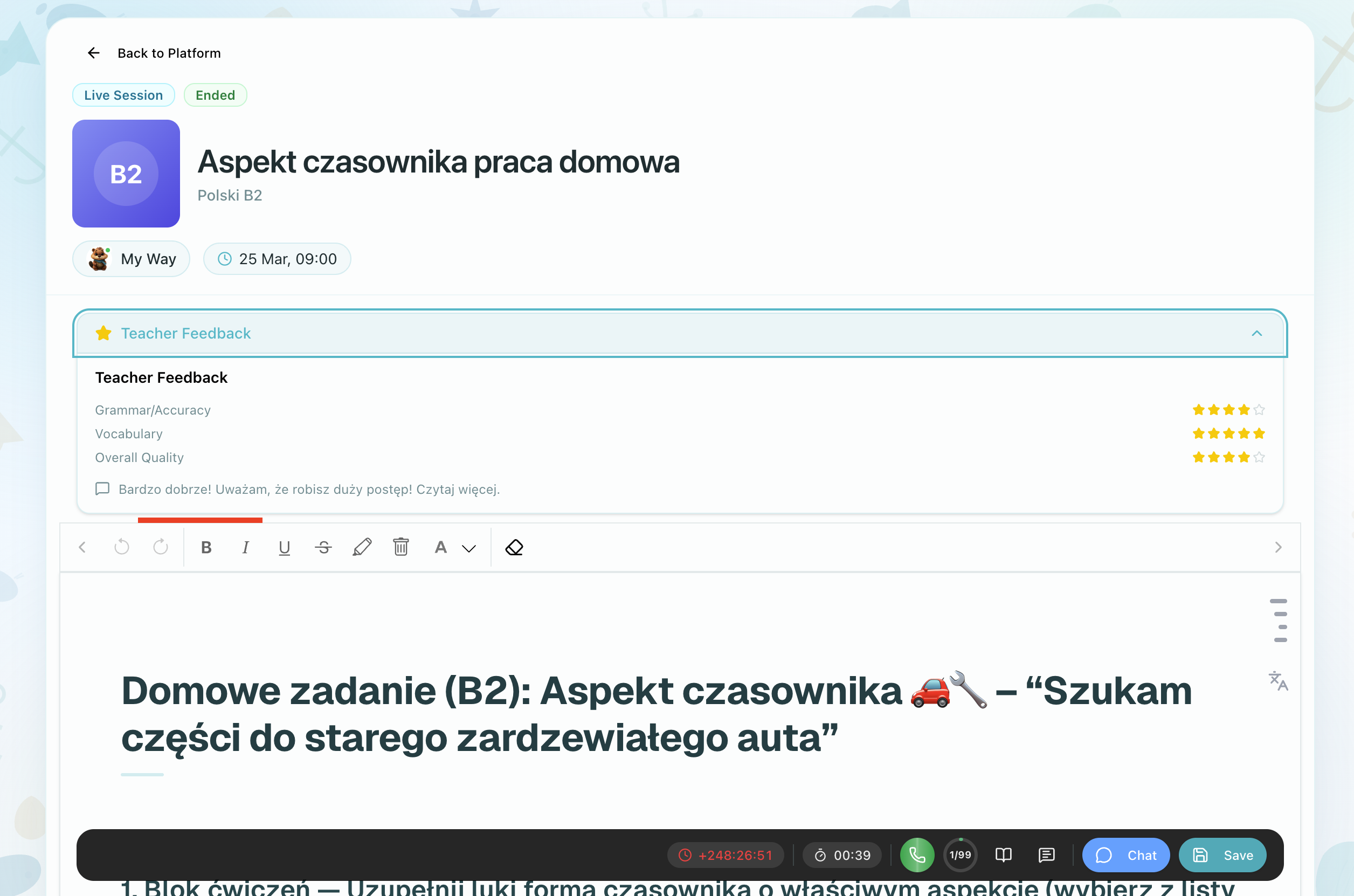
After review, you receive a notification and the lesson status changes to Verified. A "Teacher Feedback" banner appears above the editor toolbar with the teacher's comment. Grammar explanations and AI feedback are displayed in your native language when available.
Past Lessons
The Past Lessons page gives you a timeline of lessons you already attended or completed. Use it when you want to review feedback, reopen a previous lesson, check homework history, or find a lesson summary.
You can filter the timeline by lesson type, such as class lesson, homework, or exercise. You can also customize the view using the density toggle: Comfortable (default) shows full lesson cards, while Compact collapses each card into a slim row for easier scanning. Clicking a homework card on the timeline opens the lesson directly. For other lesson types, opening the card shows details including feedback, time spent, transcript status, and summary status when available.

If a teacher sends you a link to a specific past lesson, the page opens directly to that lesson and scrolls it into view.
Post-Lesson Summary
For live lessons where your teacher has turned on the summary feature, you receive a post-lesson summary shortly after class ends. It is written in your native language and covers:
- what you practiced and the new vocabulary introduced
- how you did on exercises, speaking, and writing during the session
- any homework your teacher assigned and its due dates
- suggestions on what to review before the next class
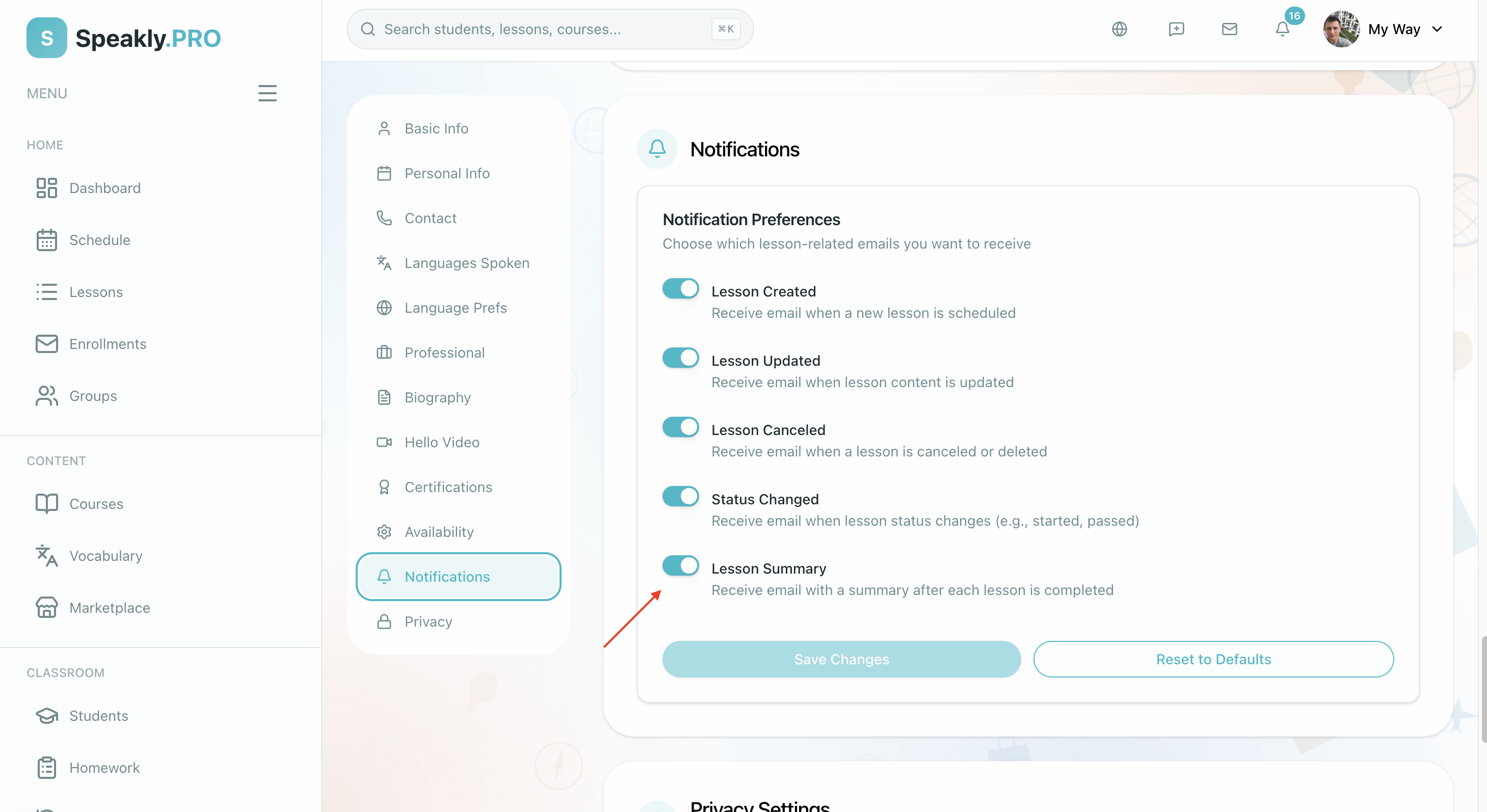
The summary is delivered by email and is also visible on the lesson page under the Summary tab. If you prefer not to receive it by email, turn off the Lesson Summary toggle in Profile & Settings → Notifications. The in-app view remains available regardless.
Time Limits
Some lessons have a time limit set by your teacher. When a lesson is timed, you will see a countdown timer in the bottom toolbar showing how much time you have left.
How It Works
- The timer only runs while the lesson tab is active in your browser. Switching to another tab or minimizing the window pauses the timer.
- Time is saved to the server automatically. If you close the browser and come back later, the timer resumes from where you left off.
- When 15% of your time remains, the timer turns amber as a warning.
- When time runs out, all exercises become read-only and an amber banner appears: "Time is up -- your answers have been saved."
Tips for Timed Lessons
- Check the timer when you start so you know how much time you have
- Pace yourself -- answer the questions you're confident about first
- Don't worry about switching tabs briefly (the timer pauses)
- Your answers save automatically as you work, so nothing is lost if time expires
These tips apply to ordinary timed lessons only. An exam-style lesson works differently: its clock keeps running even when you switch tabs, close the window, or lose your connection. If the timer expires while you are drafting a writing task, the platform automatically submits your draft for AI evaluation so you receive full credit for your work.
If time runs out before you finish, your answers are preserved exactly as they were. Your teacher can see your work and may choose to reset the timer to give you more time.
Exam-Style Lessons
Some lessons are set up as exam modules. Before you begin, you will enter a waiting lobby. This lobby explains the exam rules, shows exactly what copy of the exam you are about to take, and requires you to explicitly click to start and reveal the exam content.
During an exam-style lesson:
- you may have a countdown timer
- answer feedback can stay hidden until you submit
- audio tasks may limit the number of plays
- writing tasks may ask for a word range and allow handwriting upload
- speaking tasks may show an automated score and examiner feedback
When you finish, click Submit exam. If the timer runs out first, your current answers are saved and the lesson becomes read-only.

The Clock in a Timed Exam
An exam clock behaves differently from the timer on an ordinary timed lesson. It runs on the platform's own timing from the moment the exam opens, so closing the tab, switching to another window, or losing your connection does not pause it.
- Your answers are safe. They are saved as you work, so a dropped connection or a closed tab does not lose what you have already written.
- There is a grace period of a few seconds at the end, so a save you make just as time expires still counts. It is a safety net for that last answer, not extra working time — do not plan to use it.
- If you never press Submit exam, the exam is submitted for you when the time is up.
Because the clock keeps running, treat an exam lesson as one sitting. Open it when you have the full time available.
Your CEFR Level Result
Some exam lessons give you a CEFR level (A1–C2) based on your answers. If a lesson is set up this way:
- Complete and submit the exam as usual.
- Your answers are assessed in the background — the lesson briefly shows "Assessing your level…".
- When it's ready, open the lesson again and click "View your CEFR result".
The result shows your overall level, feedback for each criterion (range, accuracy, coherence, and task), a breakdown by skill, and how confident the estimate is. Longer, fuller answers give a more reliable result.

The result appears a few moments after you submit — not instantly. If you don't see the button yet, reopen the lesson from Past Lessons in a moment. It's an estimate to guide your learning, not an official certificate.
AI-Assessed Results and Your Right to a Human Check
Some of your work is assessed with the help of AI — writing tasks, speaking recordings, and level results. Whenever that happens, the result itself says so, so you never have to guess.
- Most results are accepted straight away. Nothing unusual was found and the result stands.
- Some are sent to a teacher to check before they can count toward something formal, such as a certificate. You still see your result while it waits.
- If a result looks wrong, use "Request a review" on it. Describe what your teacher should look at — which part seems incorrect and why. You can request a review once per result, so say everything you want checked in that one message. When it has been decided you get a notification, and opening it takes you back to the lesson with the outcome next to the result.
For what each notice on a result means, and what a teacher can decide, see AI oversight and human review.
Answer Resets
Some lessons allow you to reset your answers and try exercises again. When available, you'll see a "Reset answers" button in the editor toolbar.
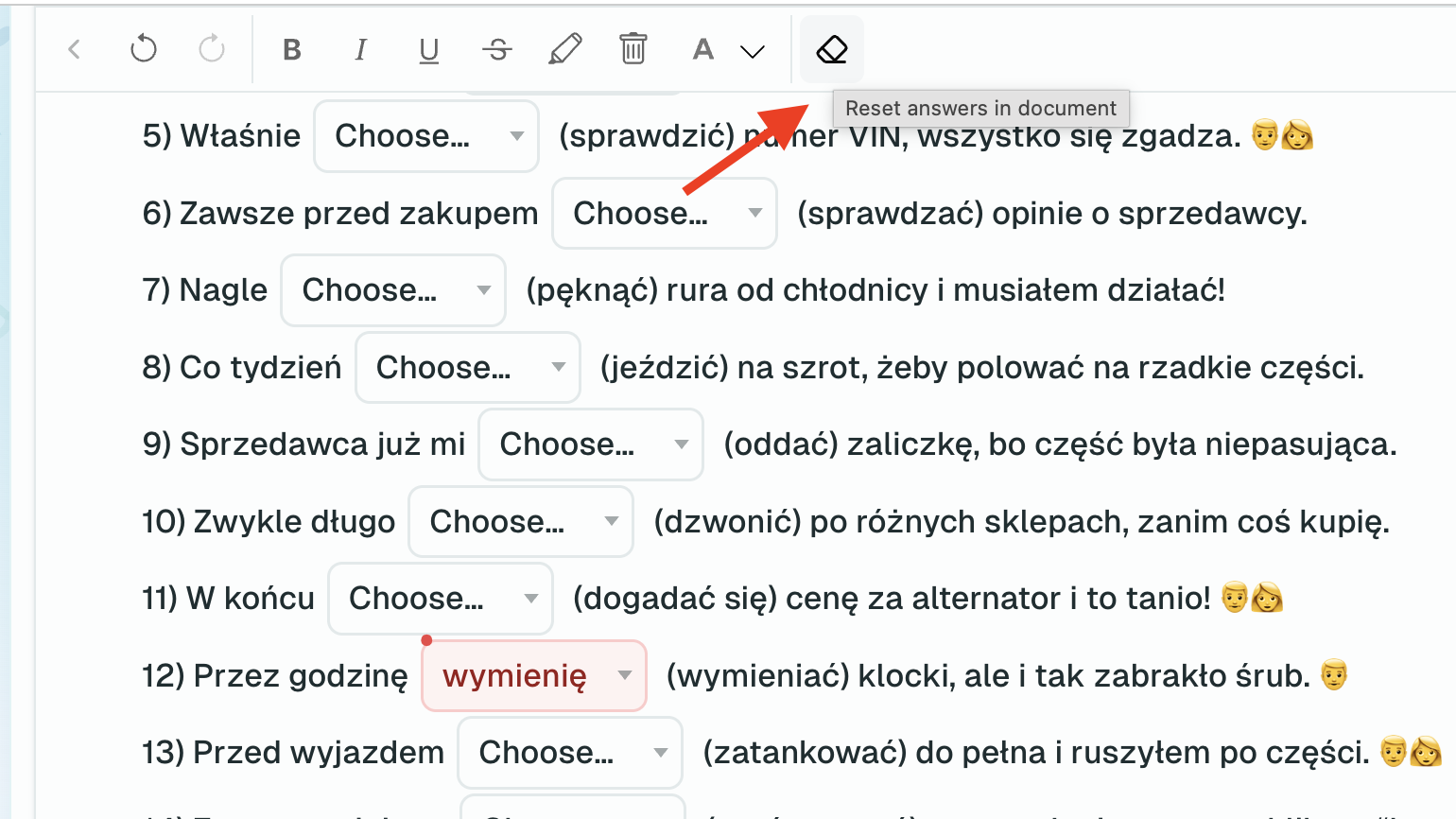
- Available -- you can click "Reset answers" to clear your responses and start over. A confirmation dialog asks you to confirm before resetting. You can choose to Reset all or Reset all, except AI checks (which preserves any automated assessments).
- Not available -- the button is hidden. This is common for homework assignments where your teacher wants to see your original work.
Whether the reset button appears is controlled by your teacher's lesson settings. If you don't see it, it means the teacher has intentionally disabled it for that lesson.
Lesson Lockdown
Your teacher can lock a lesson at any time during a live session. When locked:
- All exercises become read-only (you cannot change your answers)
- A blue banner appears: "Your teacher has locked this document"
- Your existing answers are preserved
Lockdown can also happen automatically when a timed lesson expires. In that case, you'll see an amber banner instead.
If your teacher unlocks the lesson or resets the timer, you can continue working normally.
When a Teacher Cancels or Deletes a Lesson
Your teacher can cancel or delete a lesson at any time — including a lesson that has already passed.
- If the lesson was canceled, the lesson card moves to the Canceled state and stays in your history.
- If the lesson was deleted, the lesson card is removed from your schedule and lesson list.
If you were billed for the lesson, the cost is refunded automatically — you do not need to ask for it. Refunds appear in your school balance history. If something looks wrong, reach out to your teacher first.
Locked Lessons
Some courses release lessons gradually — on a schedule, after you finish the previous one, or when your teacher manually unlocks them. Before a lesson unlocks, you see it as locked in your lesson timeline on Dashboard, My Enrollments, and My Library:
- The card appears greyed out with a lock icon next to the type label.
- The title is plain text — clicking it does nothing.
- Hovering (or tapping on mobile) the lock badge shows an unlock hint — Unlocks on {date} when your teacher set a fixed schedule, or This lesson will unlock soon for sequential or manual releases.

When the lesson unlocks, you receive a Lesson unlocked notification with a message like "Unit 3 — Past Tense is now available" — click it to jump straight into the lesson. The notification arrives immediately when your teacher unlocks it, or on the scheduled date for date-based unlocks.

Locked course lessons do not appear in My Library — that page shows self-study material you have access to now. Your full course timeline is on Dashboard and My Enrollments.
Next Steps
- Vocabulary — Practice and review your vocabulary