Vocabulary
How to add words to your vocabulary, translate them, and practice with the Cards game.
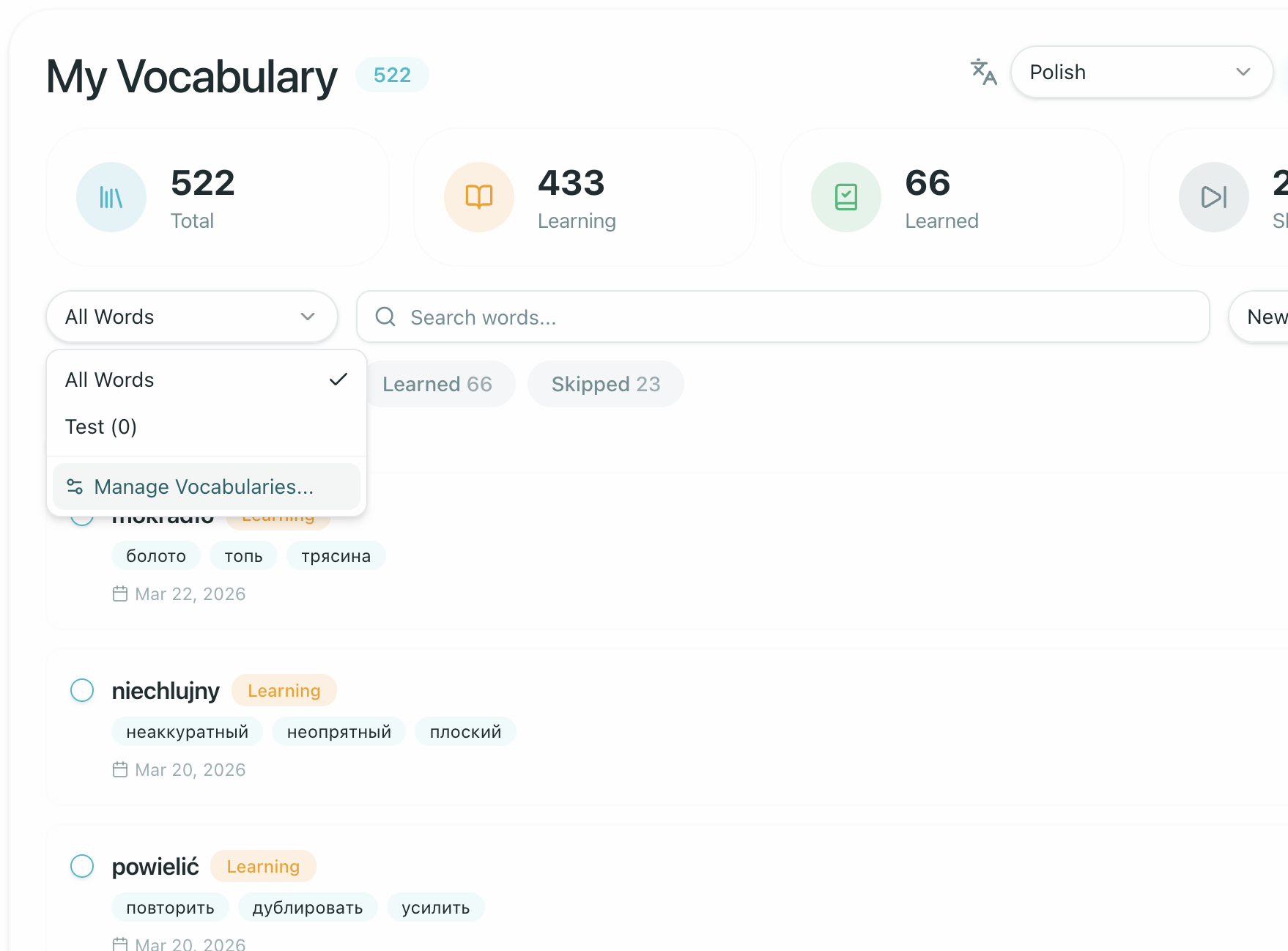
Your Vocabularies
You can create multiple vocabularies per language. This lets you organize words by topic, course, or however you prefer.
When adding words, you choose which vocabulary to save them into. Translations are automatically created into the language you set as your native language in your Profile settings.
Adding Words to Your Vocabulary
There are two ways to add words:
From the Learn Words Page
Navigate to Vocabulary (or go to /platform/vocabulary) and click "Add Words". You can add single words or multi-word phrases and collocations of up to 4 words per entry (such as take care of or give it a shot).
If any entry has formatting issues, the page highlights the exact line with a jump button rather than flagging the whole text. You can select which vocabulary list to save into and edit translations before saving.
Vocabulary Capacity (1,000 Active Words): Each student account has an active vocabulary limit of 1,000 words. If you reach this ceiling, you will be prompted to archive or delete mastered words before adding new ones. This ensures your spaced repetition sessions remain focused and efficient.
From a Lesson
While working through a lesson, you can add words directly:
- Word List widgets — click the bookmark icon on any term in an interactive vocabulary list to add it to your collection
- Translator tool — open the dedicated translator panel and add words from there
- Inline translation — select any word or phrase in the lesson text, and use the "Translate selected" option to see the translation and add it to your vocabulary
In all cases, you can define your own translation for the word before adding it. You can also edit translation pairs directly inline in your vocabulary table at any time.
Words Your Teacher Assigns
Your teacher can attach a word list to a lesson. When that lesson becomes available to you, those words appear in your vocabulary automatically — you do not need to add them yourself.
Audio and translations for those words are prepared in the background, so they may arrive a little after the words themselves. If a word looks incomplete at first, check again in a moment. Word list audio playback is completely free and ready to play.
Words added this way sit alongside the words you added yourself, and you practice them the same way. They are yours once delivered: you can edit a translation or delete a word exactly as you would with one you added, which removes it from your own list only — your teacher's word list for the lesson is unchanged.
Practicing with the Flashcards Trainer & Cards Sponsorship
Click "Learn Words" from your Vocabulary page to open the interactive Flashcards Trainer in a full-width in-app drawer.

School Sponsorship (Unlimited Practice)
- Educator Paid School Sponsorship: If you are enrolled in a school with an active Educator Paid plan, your school automatically sponsors unlimited vocabulary training across all Locuto websites and apps using your account (including your school domain,
locuto.pro, andcards.locuto.pro). - Free Accounts: Independent free users without a school sponsorship receive 2 free practice sessions per day, or can upgrade with a Season Pass.
How Spaced Repetition Works
The Flashcards trainer uses spaced repetition — words you struggle with appear more often, while mastered words are reviewed less frequently. Pronunciation audio for words is ready to play instantly at no extra cost. Each word has a status:
| Status | Meaning |
|---|---|
| Learning | You're actively studying this word |
| Learned | You've correctly recalled it multiple times |
| Skipped | You marked it as already known |