Profile & Settings
Manage your account profile, preferences, and notification settings.
Your profile is your identity on Locuto.PRO. Keep it up to date so your teachers know who you are, your timezone is correct for scheduling, and your notification preferences match how you like to learn.
Accessing Your Profile & the Me Hub
Clicking Me (/platform/profile) in the desktop navigation rail opens your Me account hub. (Clicking your avatar in the top header directly opens the Change profile photo dialog, with a camera overlay on hover, rather than navigating to Me).
On mobile phones, the bottom bar keeps 5 slots: Today, Schedule, Words, Progress, and Me. Tapping Me on a phone opens a compact menu with two options:
- Messages (showing your unread badge count)
- Profile
The Me button on the phone bar displays the unread badge and stays highlighted whether you are viewing Messages or Profile.
Collapsible My Balance Card
On the Me screen, the My balance card (showing your school lesson balances) can be folded or unfolded by clicking its header row, and the platform remembers whether you left it open or closed across visits.
The Me Account Hub
The Me hub organizes your account options into clean, accessible rows:
- Profile — opens the profile settings form with the Section Rail (
/platform/profile/settings) to manage Account, Security, Notifications, Preferences, and Privacy without scrolling through a single long page - Messages — your direct messages and teacher communications
- Notifications — recent alerts and announcement feed
- Schedule — direct jump to your class calendar
- Billing — school payments, memberships, and transaction movements
- AI Credit — your personal balance, monthly top-up, and audio perks
- Buy lessons — marketplace catalog to discover courses and materials
- Help — student guides, help assistant, and support resources
- Language — interface language selector
- Sound — sound effects and audio preferences
- Log out — end your session securely
Shared Back Links on Off-Bar Pages
Because Schedule is now a first-level bar tab, it has no Back link. Off-bar pages share a consistent top-left Back link that returns you to the parent view (preserving your scroll position and filters when navigating back):
- Profile settings (
/platform/profile/settings) → Back to Me (/platform/profile) - Wallet (
/platform/billing) → Back to Me (/platform/profile) - Wallet subpages (Generation history, AI claims) → Back to Wallet (
/platform/billing) - Class page & Class hub (
/platform/studies) → Back to Today (/platform) - Word list (
/platform/vocabulary/words) → Back to Words (/platform/vocabulary)
Messages on Mobile and Narrow Screens
On narrow screens and phones, the Messages conversation list and active chat thread take turns in a single-column view (opening a thread lets you use the Back button to return to the conversation list).
Chat search is tucked into a Search chats icon button in the Messages header; clicking it expands and focuses the search input.

Editing Profile Information
Personal Details
Your personal information helps teachers and the platform personalize your experience.
Navigate to Me → Profile under Account and edit the following fields:
- Username -- your unique handle on the platform. Type a new username to change it; the platform checks availability in real time and shows a green checkmark when the name is free or an error when it is already taken.
- First Name and Last Name -- displayed to teachers and on your profile card
- Email Address -- used for login and notifications (cannot be changed from this page)
- Date of Birth -- may be required by your school
- Country -- displays dates, times, and content for your region
- Phone -- optional contact number
- Gender -- optional
- Timezone -- critical for accurate schedule display and live session timing. You can also change your timezone directly from the Schedule page.
Click "Save" when done.
Additional Profile Sections
- Biography -- a short text about yourself, visible to your teachers
- Languages Spoken -- languages you know, with proficiency levels
Setting your timezone correctly is critical. If your timezone is wrong, live session times will display incorrectly, and you might miss classes. Always verify this setting when traveling.
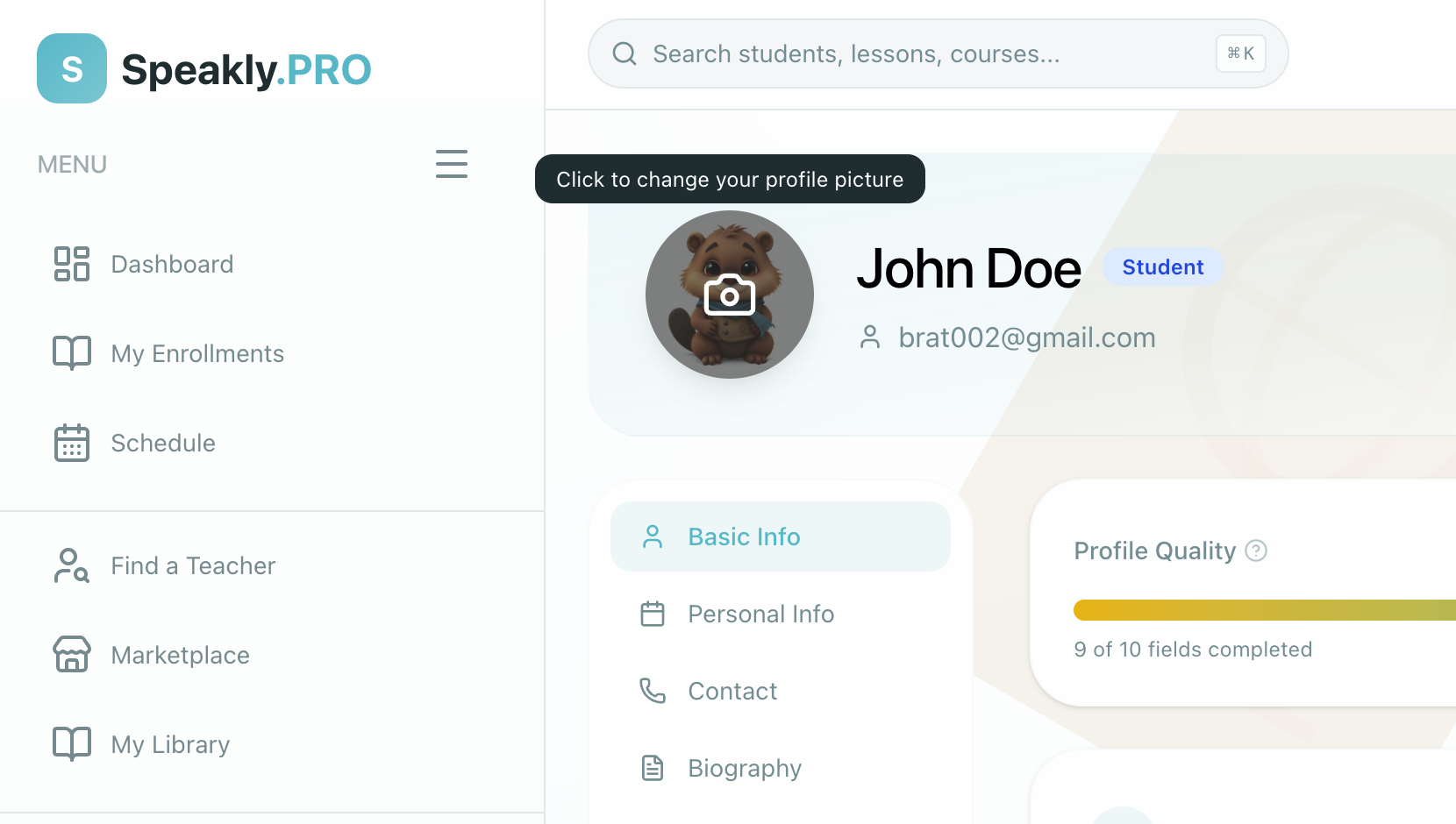
Changing Your Avatar
Your avatar appears across the platform -- on your profile card, in course enrollment lists, in messaging, and during live sessions.
Uploading a New Avatar
Open Avatar Settings
Click your avatar directly in the top header (which displays a camera overlay on hover) to open the Change profile photo dialog immediately, or open Profile and click on your current avatar image.
Select an Image
Click "Upload Photo" and choose an image file from your device. Supported formats: JPG, PNG, GIF. Maximum file size: 4 MB.
Crop and Adjust
Use the cropping tool to select the visible area of your photo. The preview shows how it will appear at different sizes.
Confirm
Click "Save" to apply your new avatar. The change takes effect immediately across the platform.
Notification Preferences
Fine-tune how and when the platform communicates with you.
Use the main Email notifications toggle when you want to turn all platform email off or back on. Every notification email also includes a standard one-click unsubscribe link in the email header. Unsubscribing is protected against security scanners and bots, so link previews never accidentally turn off your notifications, while your in-app account and class access remain completely unaffected.
Browser Push Notifications
You can enable Browser Push Notifications to receive real-time alerts even when you are not actively looking at the Locuto.PRO tab. This ensures you never miss a teacher's message, a live session start alert, or a newly assigned lesson.
When prompted by your browser, click Allow to receive these notifications. You can toggle them on or off anytime from your profile settings.
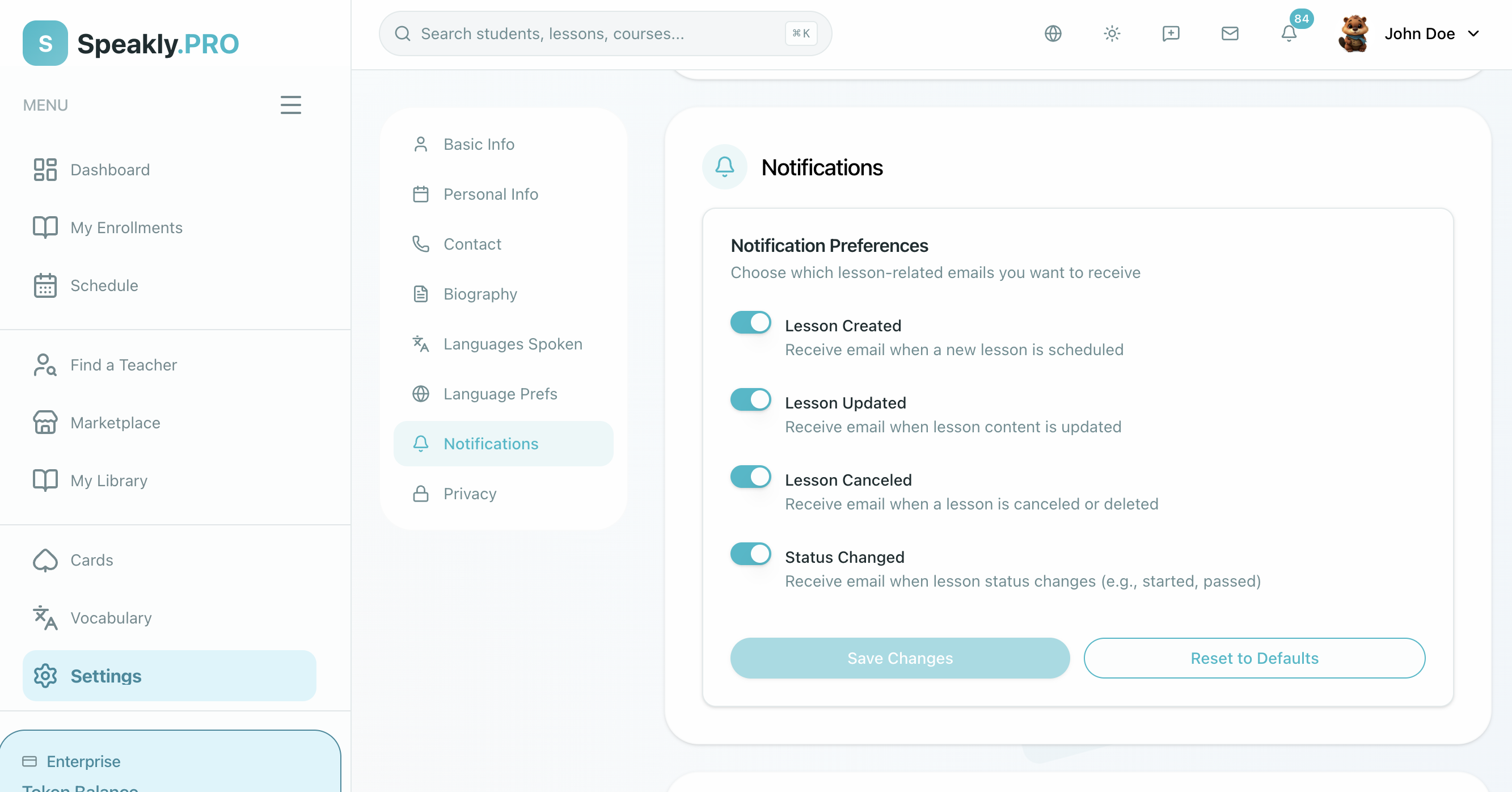
Notification Toggles
Navigate to Profile → Notifications to toggle each notification type on or off:
| Notification | What It Covers |
|---|---|
| Lesson Canceled | A scheduled lesson has been canceled |
| Lesson Created | A new lesson has been assigned to you |
| Lesson Summary | A personalized recap email after each completed live lesson that has summaries enabled. The summary remains available in-app even if you turn the email off. |
| Lesson Updated | A lesson you are enrolled in has been modified |
| Status Changed | A lesson status has changed (e.g. verified by teacher) |
Click "Save Changes" to apply. Changes take effect immediately.
Privacy Settings
Control who can see your information and how your data is used.
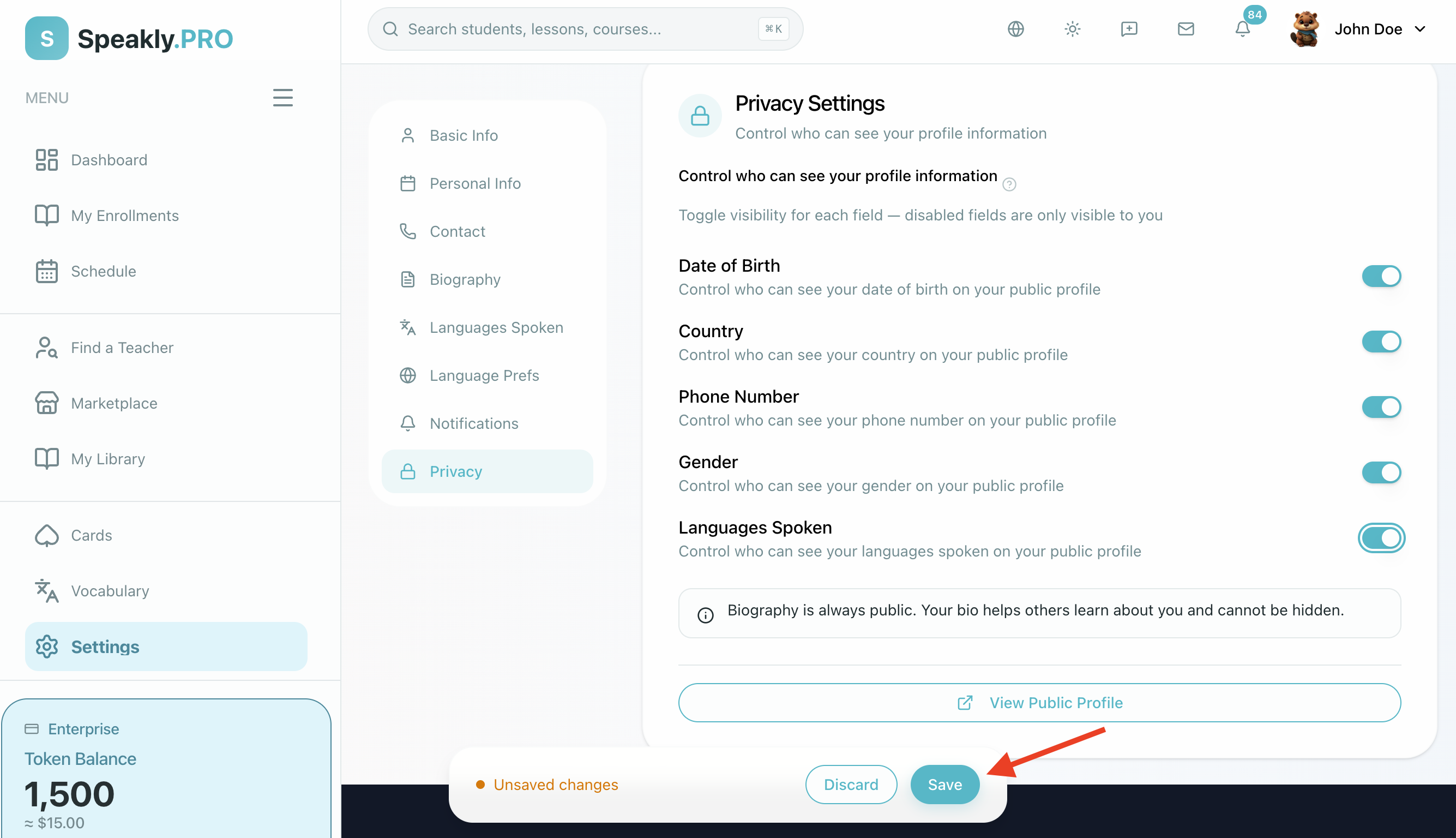
Per-Field Visibility
You can control which personal details are visible to others. Navigate to Profile → Privacy and toggle visibility for individual fields:
- Date of birth
- Country
- Phone number
- Gender
- Languages spoken
Each field can be toggled on or off independently.
Troubleshooting
Profile Changes Not Saving
- Ensure all required fields are filled (name, timezone, etc.)
- Check that your avatar image is under 4 MB
- Verify your internet connection is stable
- Try refreshing the page and re-entering your changes
Not Receiving Email Notifications
- Check your spam/junk email folder
- Verify your email address is correct in Profile settings
- Ensure email notifications are enabled for the relevant category
- Add the platform's email domain to your safe senders list
Avatar Not Updating
- Clear your browser cache (Ctrl+Shift+Delete)
- Try uploading a different image format (JPG instead of PNG, or vice versa)
- Ensure the image is under 4 MB and at least 200x200 pixels
Frequently Asked Questions
Q: How do I delete my account? A: Open Profile, find the account deletion section, and confirm with your email address. Account deletion is irreversible. After deletion, you cannot log in or create a new account with the same email address. Note that any unused AI credits, active marketplace access periods, or pending refunds are forfeited upon deletion.
Q: Can I have multiple profiles? A: No. Each email address is associated with a single account. If you need separate student and teacher accounts, use different email addresses.
Q: Does changing my timezone affect past schedule entries? A: No. Past events remain as recorded. Only future events will display in your updated timezone.
Related Documentation
- Getting Started - Initial account setup
- Billing & AI Credit - Subscription plans, allowances, and AI credit