Schedule & Live Sessions
View upcoming events, join live lessons, request reschedules, and keep your timezone correct.
Who this is for
Students managing their learning calendar and live-session workflow.
What this page answers
- What appears on my schedule?
- How do I join a live lesson?
- When can I reschedule or cancel?
Prerequisites
- an active enrollment with scheduled lessons or homework
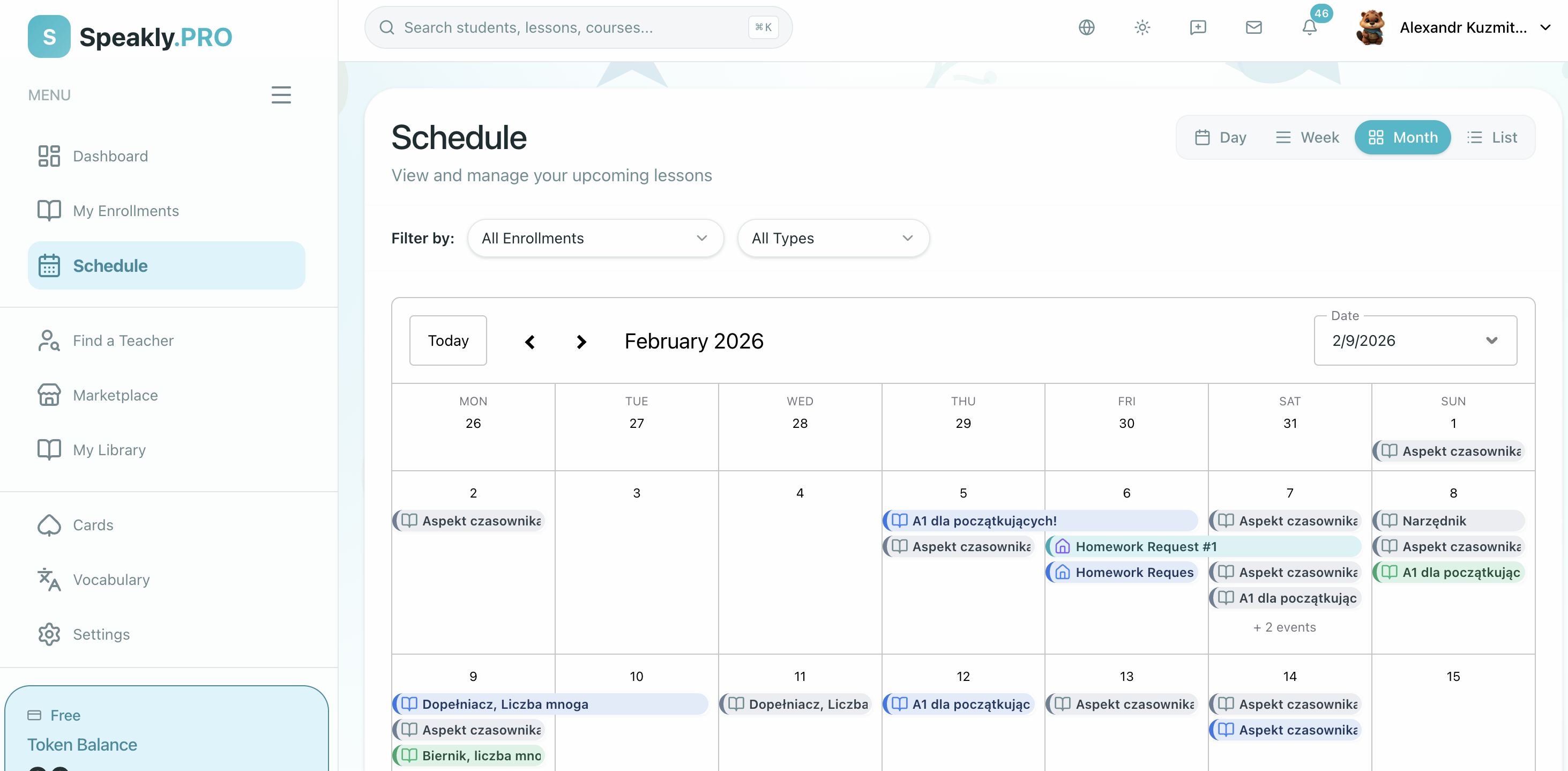
What the schedule shows
Your schedule combines the events you need to act on:
- live sessions with your teacher
- scheduled lessons
- homework and exercise work attached to those lessons
Lessons that still need a first time slot do not appear on the calendar until your teacher approves a booking request. Those show on Dashboard (Upcoming Lessons) and on the enrollment timeline as Available to book or Booking requested. See Marketplace Courses for the full purchase-to-booking flow.
Status colors help you scan what is upcoming, active, completed, verified, or canceled.
The student schedule view is intentionally simplified: admin and teacher filter bars are hidden. If your calendar is empty, clear contextual prompts guide you to your Courses or booking requests.
If you are enrolled in a class that does not follow a single course curriculum (a "course-free class"), clicking that class card or its "Continue" button on your dashboard takes you directly to your Schedule, where all your upcoming live class meetings and room links are organized in one place.
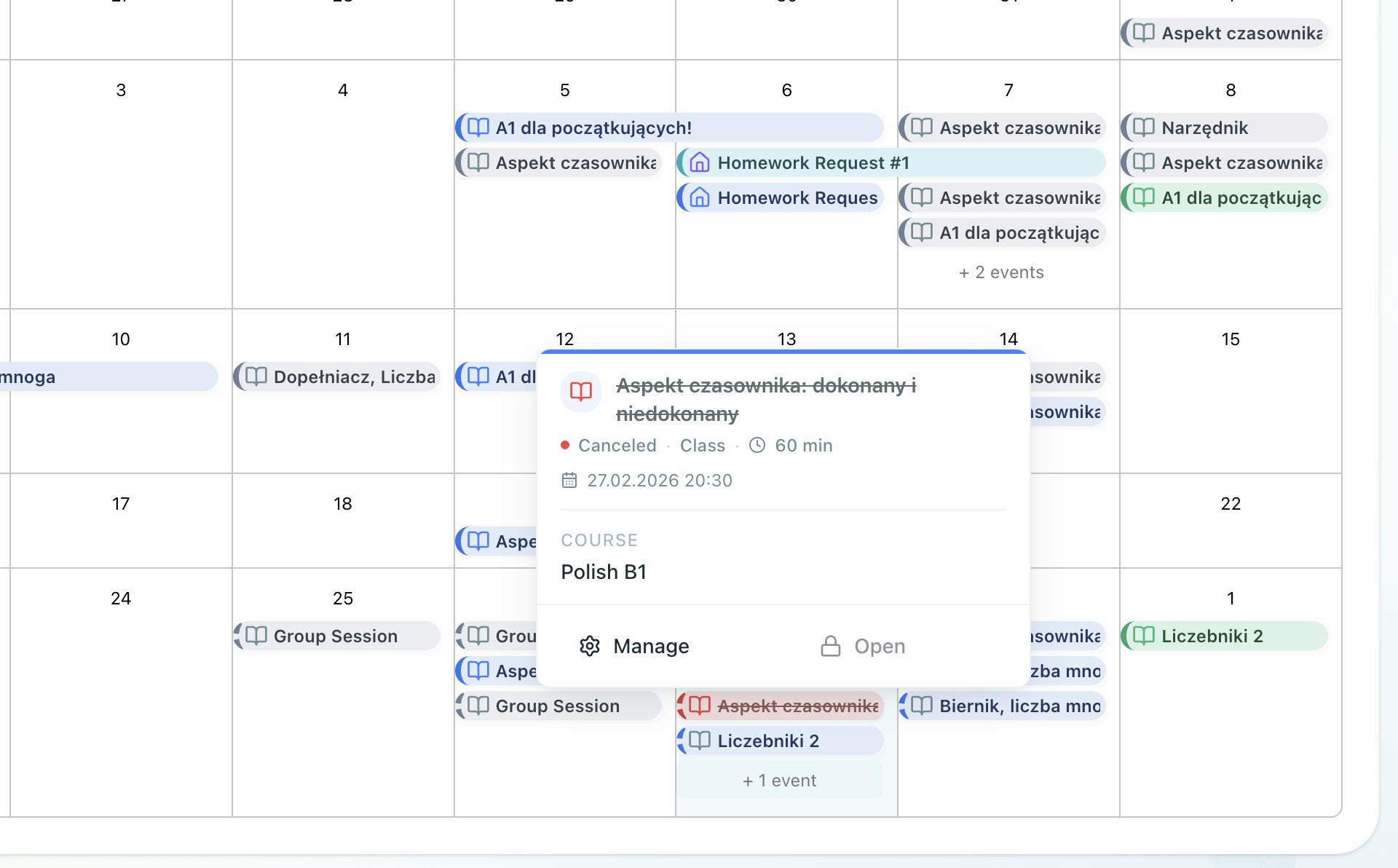
If you study with more than one school
When your calendar holds lessons from different schools, each lesson shows which school it belongs to, so you can tell them apart at a glance.
- The label appears only when the lessons you can currently see actually come from more than one school.
- Lessons with a personal teacher show no school label.
- On a school's own web address you only ever see that school's lessons, so no label is needed there.
Teacher notes on lessons
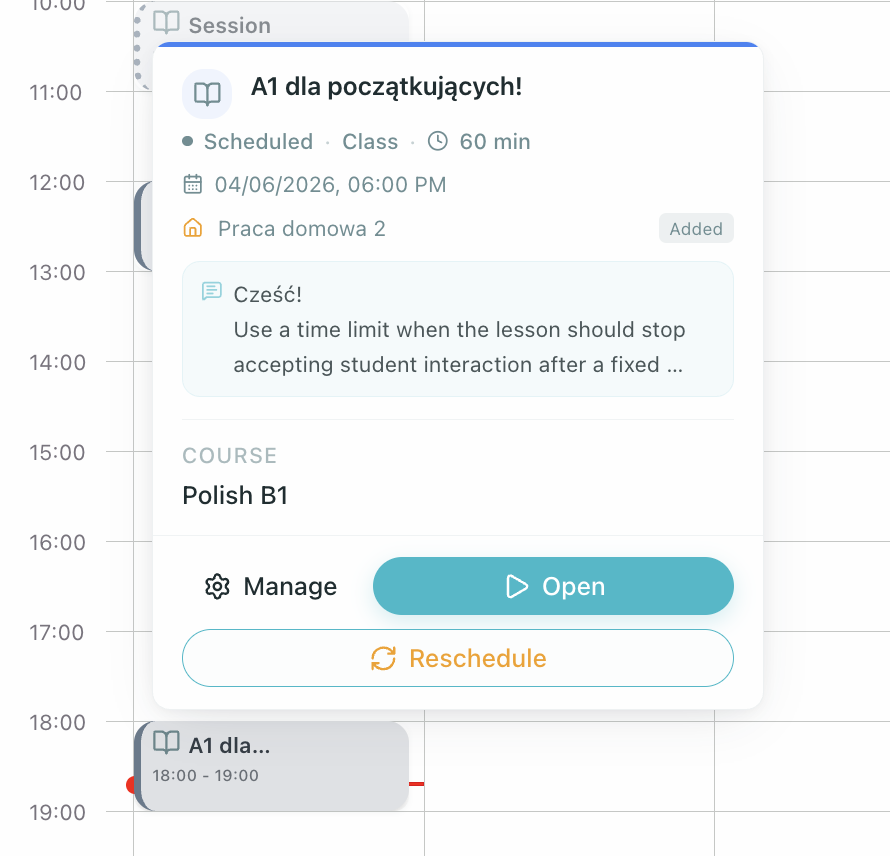
When your teacher assigns a lesson, they may include an assignment note with context or preparation instructions. You can see this note by:
- hovering over the lesson event on the calendar
- clicking the event to open the lesson detail dialog
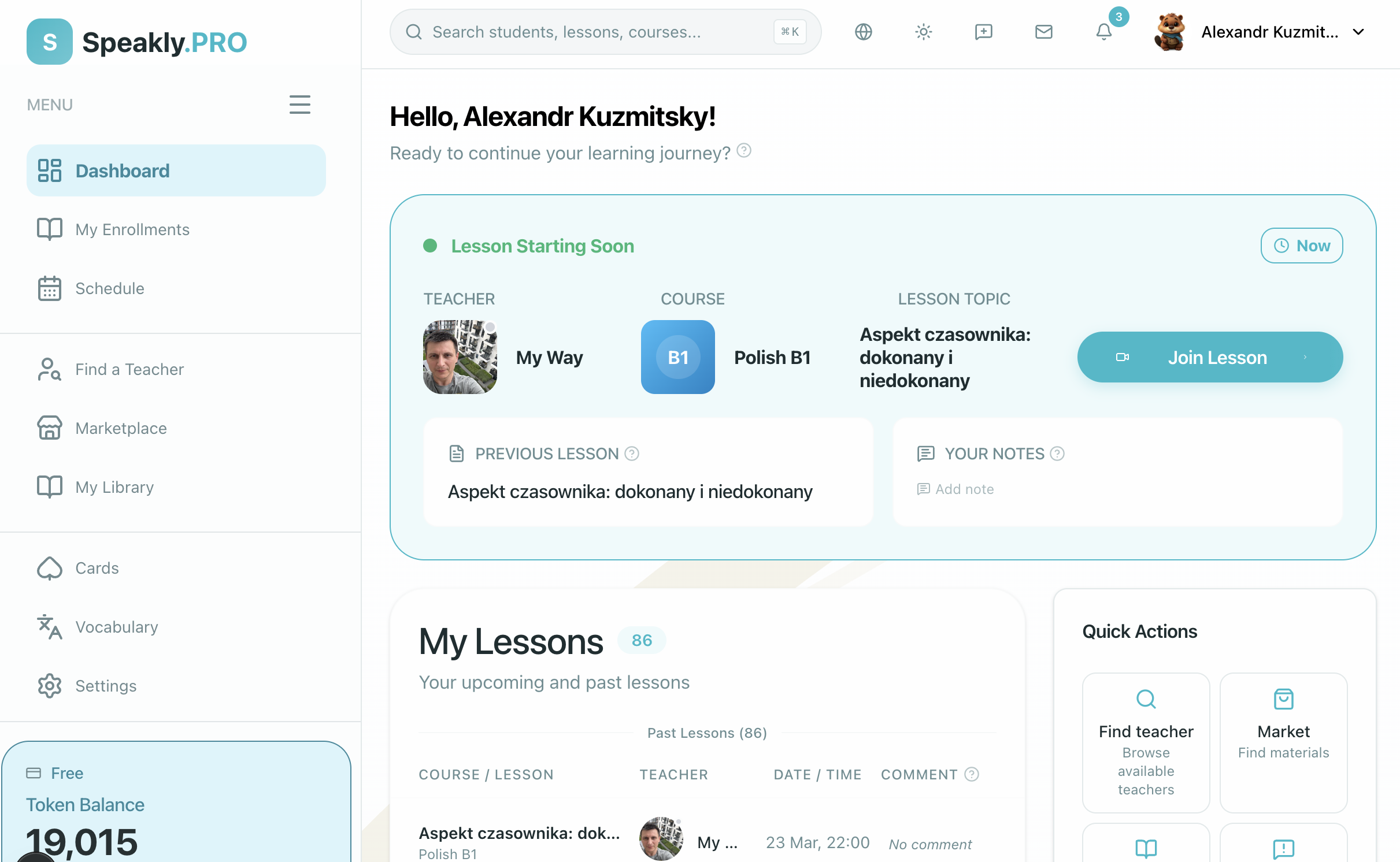
Join a live session
You can join from three places:
- the Dashboard when the lesson banner appears
- the Schedule event details
- a relevant notification
The join action usually becomes available shortly before the session starts.
Before joining, check:
- your camera and microphone
- your timezone
- your internet connection
An outstanding or negative tuition balance is for your information only and never prevents you from entering scheduled live classes or accessing the video classroom.
Book a class lesson (first time)
Booking is not the same as rescheduling.
Use Book lesson when a class lesson is released but has no scheduled session yet. This is common after you buy a Marketplace course with live lessons, or when your teacher assigns a class lesson without picking a time.
- Open the enrollment timeline or Dashboard → Upcoming Lessons.
- Click Book lesson on a lesson marked Available to book.
- Pick a time from the teacher's Free Week Board. You will see clear availability windows across the current week and next two weeks, converted to your local timezone.
- If your teacher has enabled instant booking, selecting an open slot confirms your session immediately. If manual confirmation is required, add a note with your preferred times and click Send booking request.
Your teacher approves the request and sets the final time. The lesson then appears on Schedule like any other live session.
While a booking request is pending, the lesson shows Booking requested and stays off the calendar until approval.
Request a reschedule
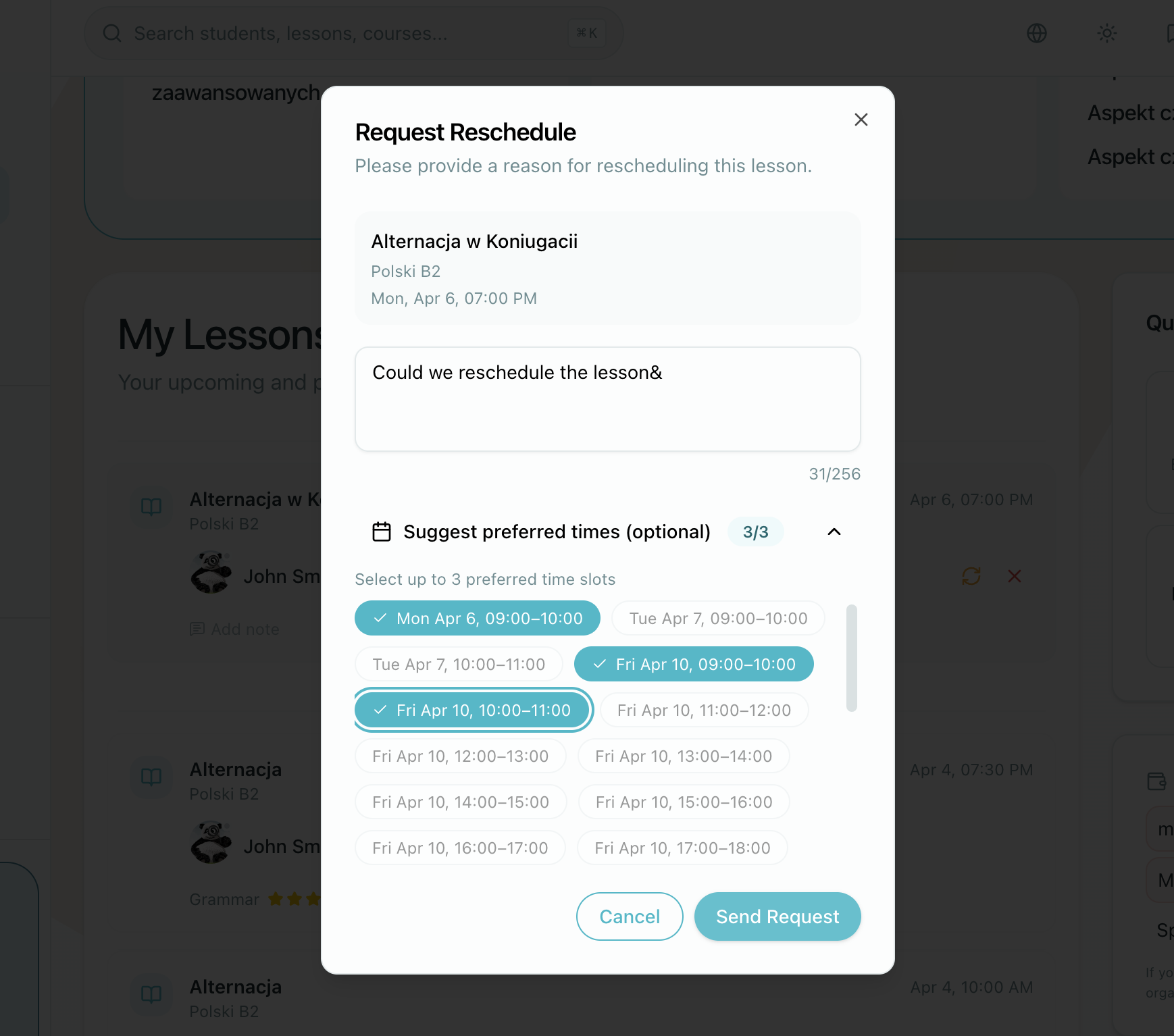
Rescheduling moves a class lesson that already has a scheduled session.
Rescheduling is available for individual (1:1) class lessons in the Added or Started state. Group class lessons follow the class cohort schedule and cannot be rescheduled individually — contact your teacher directly if your class session needs to move.
Open the lesson event and choose Reschedule, or click Reschedule directly on the Lesson Starting Soon banner on your Dashboard. You can then:
- explain why you need the change
- suggest preferred time slots from the teacher's availability
- submit the request for review
Your calendar updates automatically if the request is approved. When a class lesson is rescheduled, any homework or exercises attached to it move to the new time as well.
Student Cancellation Rules (12-Hour Cutoff)
If you must cancel a scheduled class rather than move it:
- 12-Hour Cutoff: You can cancel a live class only when more than 12 hours remain before the scheduled start time.
- Inside 12 Hours: Within 12 hours of class start, the cancellation button is disabled. If you cannot attend, submit a Request Reschedule or message your teacher directly.
- Homework & Exercises: Homework and self-study exercises cannot be canceled by students (they remain in your study queue until completed).
When your teacher cancels or deletes a lesson
- Teacher Cancels: Canceling keeps the lesson in your history. Prior charges are not refunded, and your school's late cancellation policy may apply if canceled without advance notice.
- Teacher Deletes: The lesson is removed from your schedule and study queue entirely. If the lesson had been billed, the deduction is auto-refunded to your school balance.
Keep your timezone correct
You can update your timezone directly from the schedule page or from your profile settings.
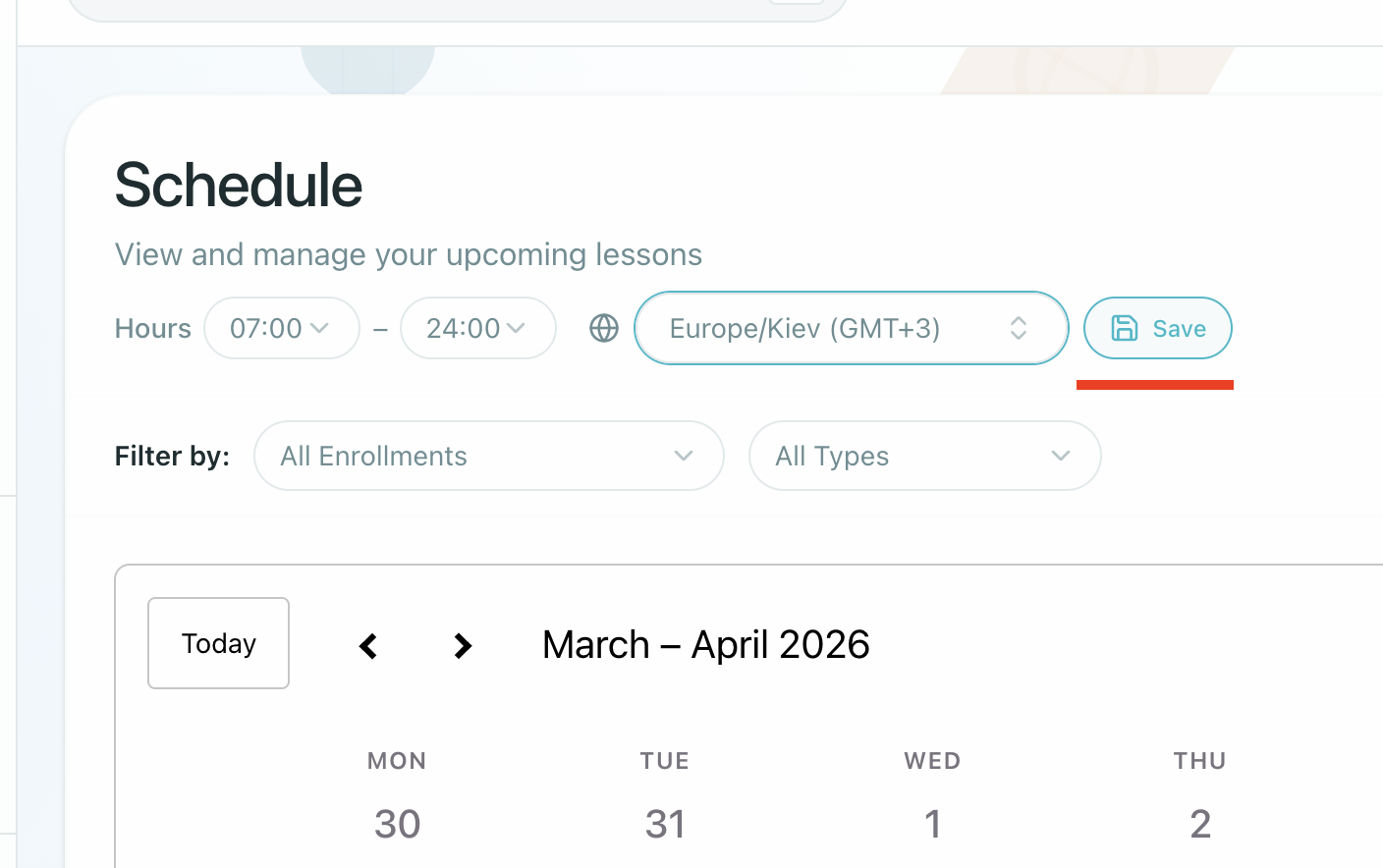
If session times look wrong, fix the timezone before the lesson rather than waiting until the join window opens.
If something goes wrong
Try these checks first:
- refresh the page if the join button does not respond
- confirm your timezone if the lesson appears at the wrong hour
- allow camera and microphone permissions in the browser
- contact your teacher if the session is missing or needs to be moved urgently