Getting Started
Set up your student account, join your first course, and find the pages you will use every day.
Who this is for
Students who are new to Locuto.PRO.
What this page answers
- How do I finish account setup?
- How do I join my first course?
- Where do I find lessons, homework, and live sessions?
Prerequisites
- a student account
- either an invite code or a teacher who accepts join requests
Exploring as a Guest
If you are exploring the platform without an account, you can try out interactive features like Pronunciation Assessment exercises. However, on your second attempt, you will be asked to register. Creating a student account is completely free and is required to continue practicing and save your progress.
1. Complete your account setup
Start by finishing your onboarding profile:
- set your timezone (essential so lesson times and reminders match your local clock)
- choose your native language
- pick your study goal (e.g., travel, career, exam preparation, or general fluency — this powers personalized teacher and course recommendations)
- upload a profile photo

2. Join your first course or class
If you have an invite code or link
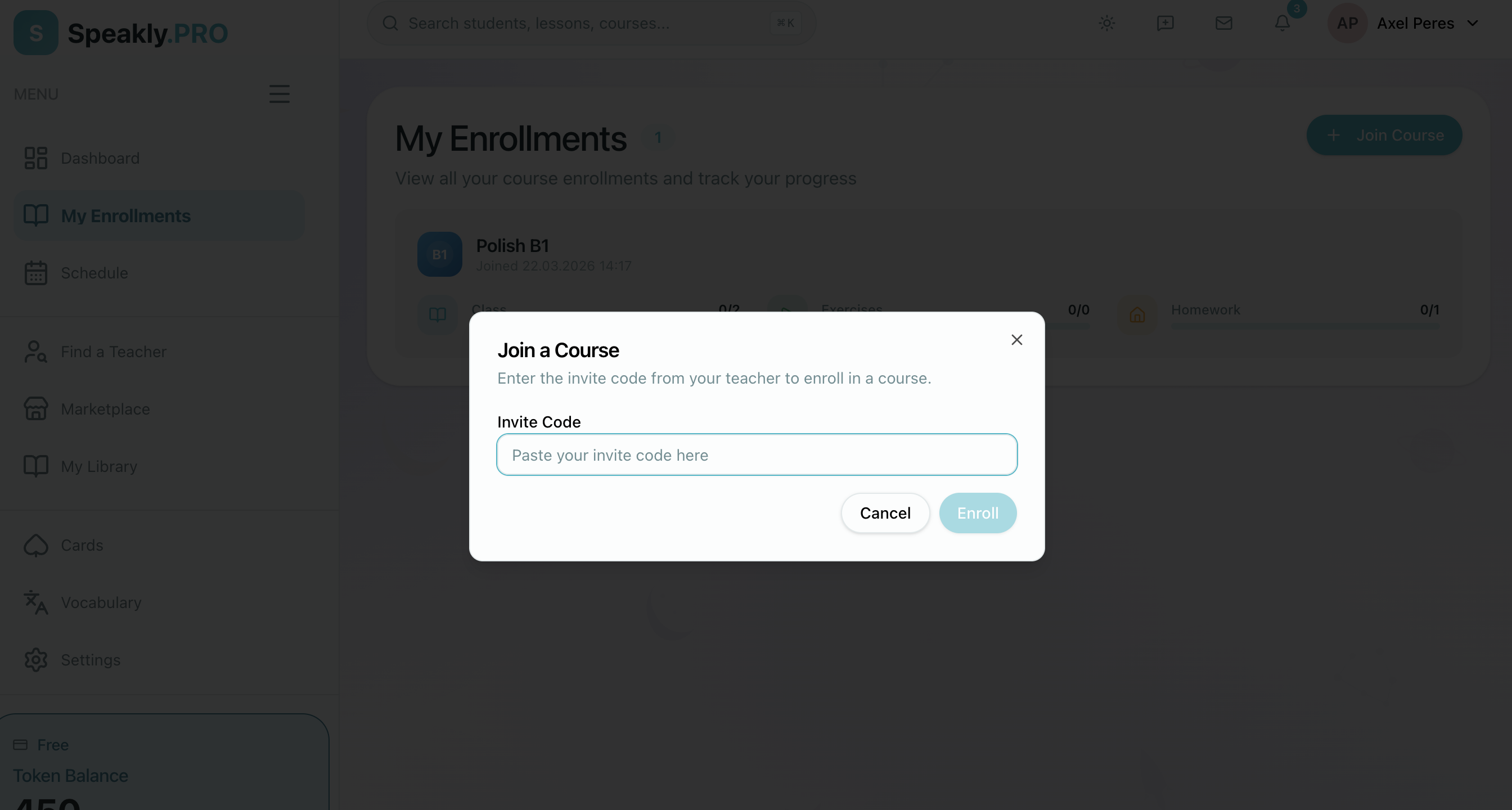
Your teacher or school administrator may send you an invite link to join automatically, or provide an 8-character invite code as a fallback. You can be invited to:
- A Course: To join a course manually, open Studies, switch to Courses, click Join Course, enter your code, and confirm.
- A Class: To join a group class, use your teacher's class invite link or enter the class invite code. Once joined, the class appears under your Classes tab with its schedule, classmates, and assigned materials. See Learning in Classes.
If you do not have a code
Request access to a teacher or course that accepts join requests, then wait for approval. Once accepted, the course or class appears in your Studies hub automatically.
Open Teachers in the sidebar to do this in one place. It shows the teachers you already learn with, suggests teachers for your learning goal, and tracks the join requests you have sent so you can see whether each one is still pending, accepted, rejected, or expired. See Finding a Teacher.
If you bought a course on Marketplace
Paid course listings on locuto.pro create an enrollment in the seller school automatically — no invite code needed. Open Studies → Courses, then book each released class lesson with the teacher when it shows Available to book. See Marketplace Courses.
3. Learn the student navigation
Students have a single, unified workspace without complex organization switchers. Your sidebar navigation remains consistent across all courses and schools:
| Section | What it is for |
|---|---|
| Schedule | live sessions, upcoming events, booking follow-up, rescheduling, and timezone checks |
| Studies / My Classes | your unified workspace: To Do queue, Done archive, and My Classes across all your schools |
| Vocabulary | your personal dictionary and the interactive Flashcards trainer ("Learn Words") |

4. Open your first lesson
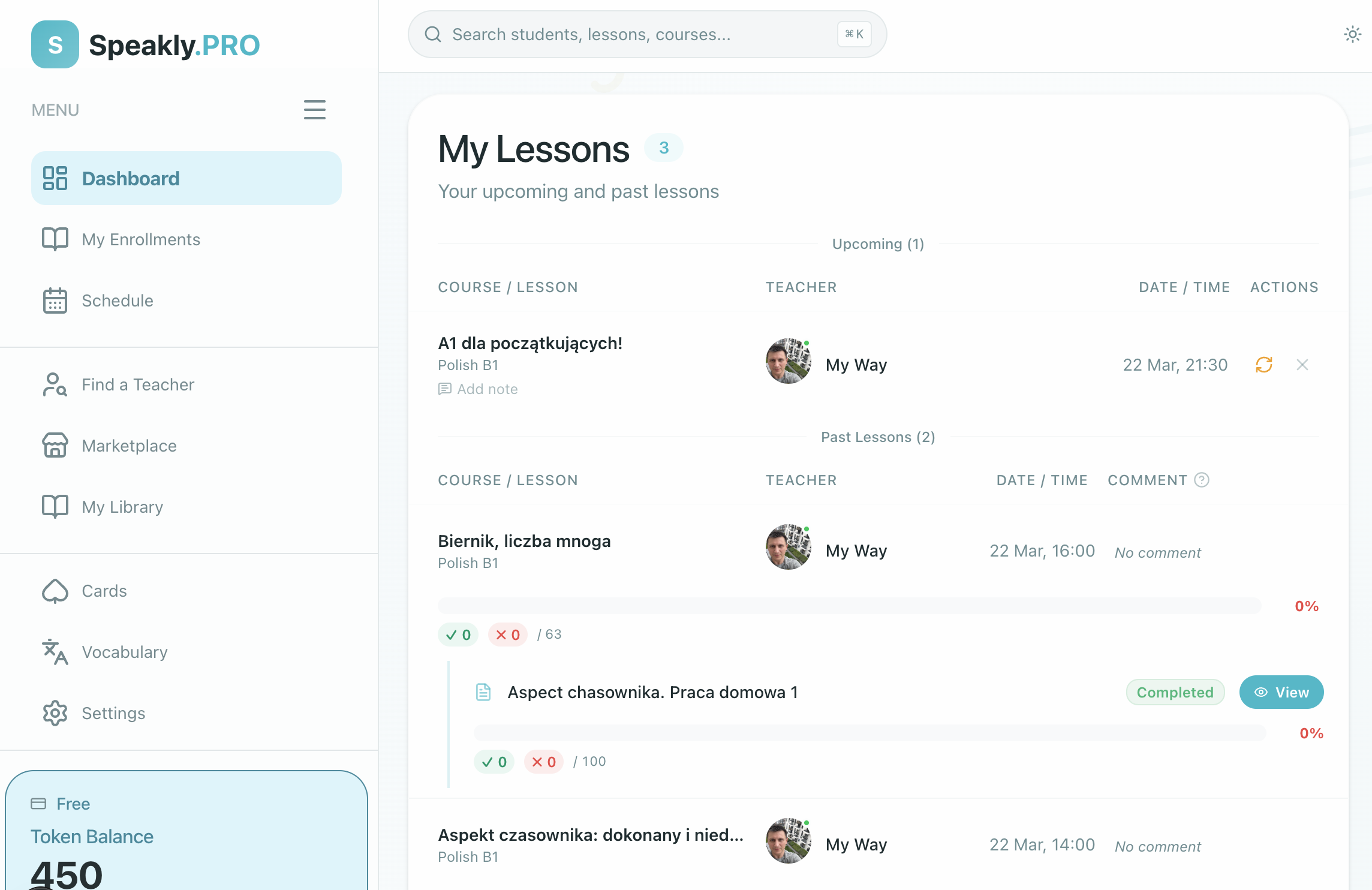
You can open lessons from the Studies hub (To Do, Courses, or Classes tab) or directly from your Schedule.
When you are working in a lesson:
- your progress saves automatically
- exercises stay attached to your lesson copy
- homework is submitted from inside the lesson when you are ready
5. Turn notifications on or off
Open Profile → Notifications and review the four lesson-related toggles so you know when content is created, updated, canceled, or changes status.
6. Track your progress
As you complete lessons and homework, the platform tracks your achievements:
- Skills Radar: A visual radar chart aligned with your analytics to show your strengths across different language skills.
- Next-Step Banner: When you register for Workshops, a guidance banner at the top of your page will direct you to your next immediate step.
- Achievements & Leaderboards: Keep an eye on your nearest achievement and see how you rank among your peers on the weekly leaderboard.
Your progress is automatically updated and can be viewed directly from your Dashboard or the Observatory Deck (your achievement and progress tracker).
On your school's own domain vs. locuto.pro
Some schools run Locuto.PRO on their own school-branded website (for example lessons.myschool.edu or myschool.locuto.pro). The product is the same, but the scope is different:
- On your school's branded website, you see that school's courses, teachers, and classmates. When visiting your school's website, you will see their course catalog or sign-in page directly.
- On
locuto.pro, you can use the platform-wide Marketplace and Find a Teacher pages and see the cross-school view for schools that do not use their own branded address. A school with a branded address is reached through that address instead.
You use the same Locuto account for both. For more, see the guide on school-branded websites (often called "White Label").
Where to go next
- Lessons & Homework for day-to-day lesson work
- Learning in Classes for joining and participating in group classes
- Finding a Teacher for the Teachers page, suggestions, and join requests
- Marketplace Courses if you purchased a live course on Marketplace
- Schedule & Live Sessions for joining lessons, booking class times, and requesting reschedules
- Profile & Settings for timezone, language, and notification settings