Live Session Follow-Up
Complete the administrative work after class and recover cleanly from common session issues.
Who this is for
Teachers closing out a live lesson and preparing the next step for the student.
What this page answers
- What should I do right after the session ends?
- Where do I record attendance or notes?
- How do I recover from no-shows or technical interruptions?
Prerequisites
- a session that has already taken place or needs post-session handling
1. Mark the session complete
Use the schedule or the relevant session record to complete the lesson state and record any attendance or follow-up notes you need for later.
The completion flow can show different action labels depending on the lesson setup:
- Finish — complete the lesson without an additional deduction.
- Finish & Deduct — complete the lesson and apply the shown lesson cost.
- Verify and Deduct — verify submitted work and apply the shown cost.
- Cancel — close the lesson as canceled instead of completed.
Always read the confirmation screen before submitting. If a cost applies, Locuto.PRO shows the billing effect before the action is confirmed.
Empty Class Room Skip Flow
If a scheduled class room had no students attend (everyone was marked absent or did not show up), the completion flow adapts automatically: it skips the Feedback and Sticker steps entirely, allowing you to conclude the session in a single click with Save and finish lesson.
Presence and Praise in Sessions
For group and individual sessions, review presence and award encouraging feedback before closing out:
-
Presence Confirmation: Students who joined can be confirmed automatically. If a student never joined, mark them absent in the completion flow so the final record and billing behavior match what actually happened.
-
12 Teacher Praise Stickers (8 Free + 4 Premium): Instead of numerical 1–5 star ratings, teachers award Praise Stickers to recognize student effort, character, and learning milestones. Choose up to 3 stickers per student per lesson from the 12 available badges:
8 Free Stickers (available on all plans):
- 🗣️ Brave speaker — Active speaking and participation
- 🧠 Sharp thinking — Thoughtful problem solving and reasoning
- 🔥 Full effort — Outstanding momentum and engagement
- 🚀 Big step forward — Noticeable improvement and progress
- 💯 Spot-on answers — High accuracy and precision
- ✨ New words in use — Applying freshly introduced vocabulary
- 💪 Kept going — Persistence through difficult material
- ❤️ Great teammate — Supportive collaboration and listening
4 Premium Stickers (unlocked on paid school plans: Solo 30 and School):
- 🤯 Mind-blowing idea — Creative and out-of-the-box contributions
- 😎 Cool under pressure — Composure during challenging exercises
- 🥳 Worth a party — Exceptional milestone celebration
- 💩 Made us all laugh — Bringing good humor and joy to class
Premium stickers are marked with a gold crown icon. On the Free plan, premium stickers appear locked with the tooltip "Not available on the free plan". Praise stickers are tokens of recognition rather than currency; they award 0 XP and appear directly in the student's personal Sticker Album.
Late Presence Resolution
If a student joined the room late (e.g. right as or after the teacher ended the call), a Late Presence Review badge appears on the lesson card. The teacher can resolve this post-session:
- Mark present: Marks group attendance confirmed and transitions the student's lesson from canceled/absent to Passed.
- Keep absent: Retains the absence and logs a mandatory reason.
Resolving late presence updates academic attendance only and never moves money (no automatic student charges or refunds occur).

2. Capture and Adjust Post-Session Notes
Keep notes operational:
- what was covered
- what the student struggled with
- what should happen next
Post-Session Assessment Corrections
If you need to revise feedback, change awarded praise stickers, or refine private notes after closing out a session, you can do so at any time:
- Open the lesson in the Journal (
/platform/workspace), the Lessons Directory, or directly from the class schedule. - Click "Edit Feedback" on the completed lesson card.
- Adjust the stickers, written commentary, or private observations, and click Save. Changes update the student summary while preserving all existing timestamps.
3. What Happens to the Lesson Next (4 Destination Cards)
When finishing a lesson, the completion sheet presents four vertical choice cards to determine what happens to the lesson material next:
- Next Class Meeting: Places the lesson onto the class's next weekly calendar slot, complete with a visual calendar date leaf. If the class does not have a recurring weekly schedule, it allows you to pick a custom date and time for the follow-up meeting.
- With Teacher Review: Converts the completed live session material into an interactive homework assignment due before the next meeting, requiring student submission and teacher review.
- Without Teacher Review: Releases the completed material as a self-study practice exercise with no deadline and no required teacher sign-off.
- Lesson Completed: Marks the lesson fully finished with no further follow-up assignment or rescheduling.
Send Finished Class Home as Homework
When you choose With Teacher Review or Without Teacher Review:
- Students who attended receive the materials to review completed slides and teacher annotations, while absent students receive the lesson to work through asynchronously.
- Each student's private Individual work copy, personal responses, and any teacher corrections written during the live session stay with that student.
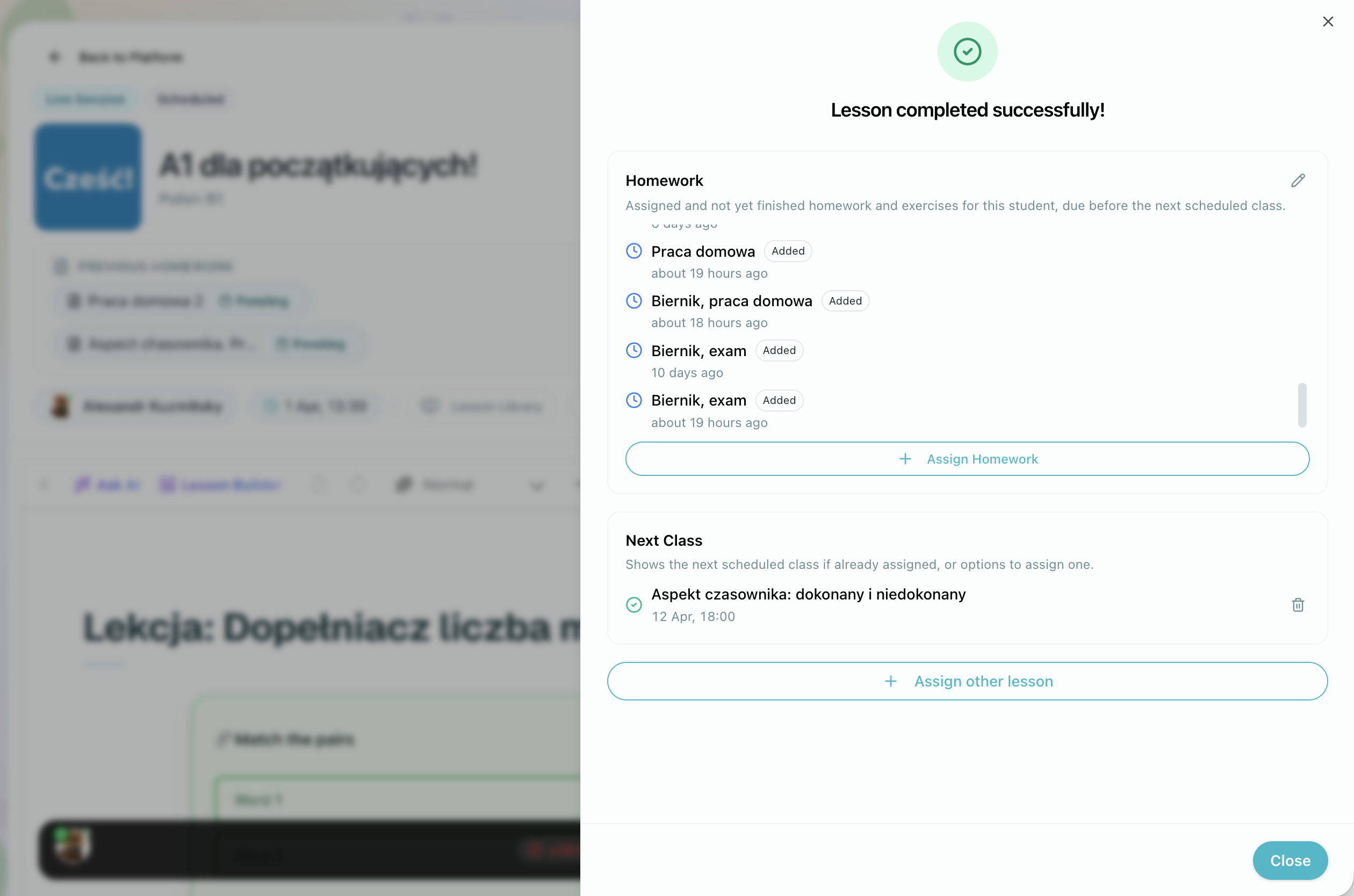
Current Assigned Homework Overview
Below the destination cards, the completion screen summarizes any homework already assigned to the student or cohort for this course:
- Each homework has a status badge (Added, Started, Passed, or Verified)
- Scheduled dates displayed in relative format (e.g., "in 3 days")
- Edit button (pencil icon) to remove selected homework assignments
- "+ Assign Homework" button to add new homework
Upcoming Class & Rescheduling Options
If a next class is already scheduled, the screen shows its confirmed date and time. Otherwise, quick actions let you book the next step:
- "Continue Lesson" — schedule another session with the same lesson (useful when you didn't finish)
- "Next Lesson" — schedule a session with the next lesson in the course sequence
If all course lessons are already assigned, the screen shows "All lessons assigned."
An "+ Assign Other Lesson" button lets you assign any lesson outside the standard sequence.
Use Continue Lesson when you ran out of time but the same lesson should be taught again. This keeps the follow-up linked to the original teaching context instead of forcing you to duplicate or recreate the material.
4. Review the post-session summary
Whether live audio is transcribed and summaries are created is controlled by the school's Lesson transcripts and summaries policy, configured by the Owner or Operations admin in School settings:
- Enable everywhere: Transcription and summaries run automatically for all live classes in the school.
- Disable everywhere: Turns off live transcription and summary generation across the entire school to conserve AI credits.
- Set individually for each class: Allows enabling or disabling the feature on a per-class basis (via the class settings sheet).
When enabled, Locuto generates two summary reports shortly after the session ends:
- Teacher summary — an analytical report covering lesson evaluation, per-student activity, speaking-time balance, which language dominated the conversation, new vocabulary introduced, and homework status at the end of class. This is intended for academic oversight — it is visible to school-wide staff and routed to the school's configured teacher lesson summary recipients. As the session teacher, you see the student summaries of your own sessions on the Summary tab, but the teacher-facing analytical report is an admin-only report by design.
- Student summary — a personalised recap for each participant in their native language. It highlights what they practised, new words, exercise results, and any homework you assigned. Students see their own summary on the lesson page and receive it by email when they have the Lesson Summary toggle on in their notification preferences.
Practice Lesson Analysis: Copy Prompt for Ask AI
On a completed practice lesson's analysis card, you can click "Copy prompt for Ask AI" to generate an immediate follow-up plan. Clicking the button shows a confirmation message:
"Prompt copied — Paste it into Ask AI in the lesson."
The generated prompt packages the key context into natural English: the lesson theme, level, duration, step outline, exercise types, and specific student mistakes. Paste this prompt directly into Ask AI inside the Lex Editor to draft a follow-up lesson tailored to the concepts students struggled with most.
Summaries appear on the lesson session page under the Summary tab and are flagged by the Summary icon in the Lessons Directory. A Regenerate button is available if you make a post-session correction and want a fresh pass.

Summaries require the school's policy or class setting to be enabled, sufficient plan allowance or school AI credit balance, and (for class-type sessions) a completed transcript. Individual exercise and homework sessions do not generate summaries.
5. Recover cleanly from issues
If the session was disrupted:
- use Continue Lesson when the student still needs the same material
- add follow-up notes so you do not lose context
- review whether the problem was scheduling, preparation, or technical setup
If the lesson should not count as taught, use cancellation instead of finishing. Use deletion only when the record itself was created by mistake or should be removed from normal lesson history. See the lifecycle reference before removing records that students or admins may need later.