Getting Started
Set up your teacher profile, understand the teaching workflow, and get to your first course faster.
Who this is for
Teachers using Locuto.PRO to build courses, teach students, and manage daily teaching work.
What this page answers
- What should I configure before I start teaching?
- Which pages matter most in the first week?
- What is the shortest path from sign-up to a live lesson?
Prerequisites
- a teacher account
- if you work inside a school, the invite code from whoever runs it
1. Finish your teacher profile
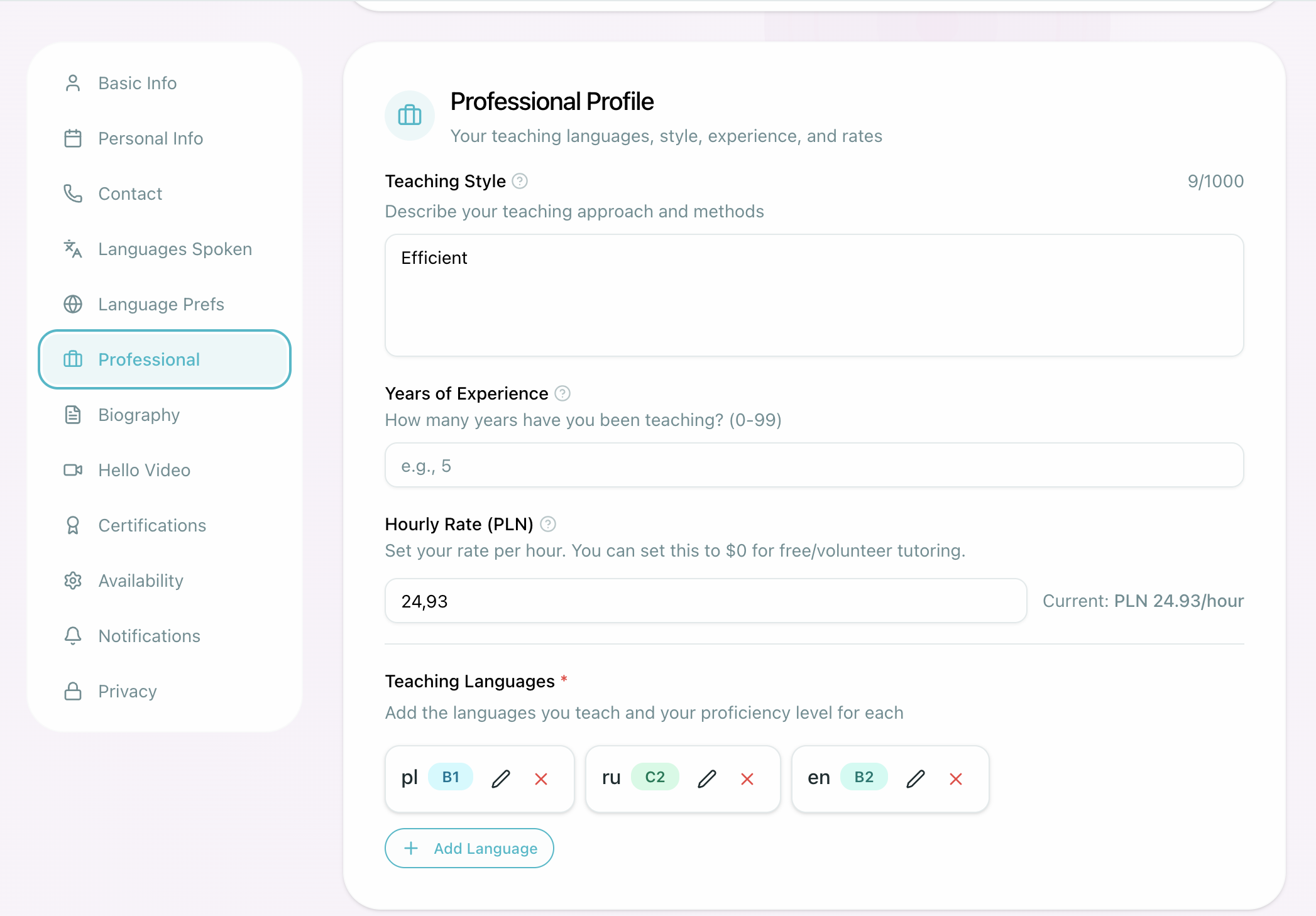
Before you create content, complete the parts of your profile students will rely on:
- teaching languages and proficiency
- professional bio and experience
- certifications
- teaching availability (painted as booking hours on Schedule)
Enable Browser Notifications: While setting up your profile, you will see a prompt to enable browser push notifications. Turning this on ensures you never miss a student message, a live session start alert, or important platform updates—even when the Locuto.PRO tab is not in focus.
Booking Hours and Calendar Integration
Weekly availability and calendar synchronization are managed directly from your teaching schedule:
- Booking Hours: Weekly availability editing has moved from the profile page to Schedule (
/platform/schedule). Teachers paint their free time directly on the weekly calendar using the "Booking hours" button. Visiting/platform/profile#availabilityautomatically redirects you to/platform/schedule?availability=edit. - Google Calendar Sync: Google Calendar integration is accessed through the Schedule settings popover via the gear icon on the calendar toolbar (which displays a Google G badge when available). Visiting
/platform/profile#google-calendarredirects you to/platform/schedule?calendar_settings=google.
Catalog visibility
You appear in the public teacher directory only once your profile is genuinely ready — students should not find a half-finished page. Your profile page shows a status card listing exactly what is still missing, so there is no guesswork:
- a profile photo
- a filled-in profile, including your bio and introduction
- saved booking hours on your schedule
- teaching languages
The card ticks each item off as you complete it and tells you when nothing is left, and a matching reminder appears on your dashboard until the list is clear.
Profile edits you make while working inside a school also update your public profile on locuto.pro, so staff who mostly work in one school can still become discoverable.
For the student's side of the directory — how they search, filter, book a class meeting, or message a teacher about available times — see Finding a teacher.
2. Join your organization if you were invited
If your school gave you an invite code, enter it during onboarding so your account is connected to the correct organization.

If you run the school yourself, stop here and use Organization Setup to configure billing, default costs, and teacher invitations.
3. Learn the core teaching workflow
The day-to-day teacher flow is:
- create or open materials in Materials
- build or edit a lesson
- manage Classes or enroll students
- schedule the lesson as a live session or assign it as homework
- review progress and follow up

The Teacher Workspace Layout
The staff interface is built as a Light Register Workspace with a clean white ground designed for clarity during long teaching days:
- Full-width top bar: Anchors the top of your screen, hosting your school logo on the left, the yellow AI Credit balance pill (hover or focus to inspect credit breakdown and payment card status; click to open the purchase modal), an interface language switcher, notifications, and your profile menu.
- Fixed 88 px labelled left navigation rail: The left navigation is a permanent 88 px labelled rail where every destination displays its icon stacked directly above its text label. No hover-expand drawer is needed, and on shorter screens, spacing tightens automatically so every item fits cleanly.
- Top-Level Staff Rail Destinations:
- Main group:
- Today (
/platform) — your daily teaching agenda, quick actions, and active classes - Materials (
/platform/materials) — manage course curricula, starters, and lesson libraries - Classes (
/platform/groups) — dedicated top-level sidebar destination for cohort curricula, group schedules, and class plans - Students (
/platform/students) — separate top-level sidebar destination right below Classes for managing student rosters and enrollments - Schedule (
/platform/schedule) — calendar, weekly booking hours, and live rooms - Journal (
/platform/workspace) — operational teaching journal (formerly called My workspace), displaying an action badge count for unended rooms, missed lessons, missing homework, and pending checks - Instant Lesson button — launch an immediate live teaching room
- Today (
- School menu: Opens a dedicated side menu beside the rail for school leadership containing Team, Analytics, Accounting, School usage, Marketplace sales, Communications, Recordings, Certificates, Goals, and School settings.
- Messages (
/platform/messages): Dedicated top-level rail item with an unread badge sitting directly above More, providing access to pinned Class Chats, individual Direct messages, and incoming catalog class booking cards. - More menu: Opens a side menu beside the rail for Billing, Generation History, Vocabulary, Learn Words, Marketplace, Profile, and Help.
- Rail Footer: Hosts the School tools switch, allowing Academic leads, Operations admins, and Owners to toggle between School and Solo workspace views.
- Main group:
The Journal (/platform/workspace)
The Journal is your operational teaching hub, consolidating everything that needs your attention across classes and students:
-
Header Controls:
- "Assign a lesson" CTA button — selects and assigns curriculum materials directly to any student or cohort.
- Scope switch: Toggle between "My lessons" and "Whole school" (available to Academic leads, Operations admins, and Owners).
- Search: Search across student names, class titles, or lesson names using the "Student, class or lesson" search bar.
- Filters: Filter by Course, Status, Period (including "Custom dates" with From and To calendar pickers), "Has analysis" checkbox, and Teacher.
-
The Live Strip: When a live lesson is in progress ("The lesson “Unit 3” is in progress.") or starting within 15 minutes ("The lesson “Unit 3” starts at 14:00."), a prominent green strip pins to the top of the Journal with a direct "Join" button.
-
The "To do" Card & Quiet History Row: Surfaces up to 5 actionable queues:
- Submissions waiting for a check → "Check" (opens the Homework tab filtered to submitted work)
- Unended lessons (rooms active for over 12 hours that were never ended, e.g. "The lesson “Unit 3” is not ended.") → "End lesson" or "Show"
- Reschedule requests waiting for a reply → "Reply" (opens the reschedule requests slide-out sheet)
- Students who got no homework after a lesson → "Assign" (opens the missing-homework slide-out sheet)
- Assessment results waiting for a check → "Check" (opens the AI assessment checks slide-out sheet)
Directly beneath the To do card, a quiet "Sections with history" row provides an "Assessment checks" link for staff with review permissions to open the full AI oversight review history sheet anytime.
-
Three Tabs & Class Meeting Rows:
- Past lessons, Upcoming lessons, and Homework (
/platform/workspace?tab=homework, with a badge for submissions awaiting review; visiting/platform/homeworkredirects here). - Each row in Past lessons and Upcoming lessons represents a class meeting:
- Held meetings display a "Held" badge, an
Analysis N/Mchip, and homework tracking. - If a held meeting has no homework assigned yet, it surfaces "Assign homework" directly on the row (and counts toward the missing-homework to-do). If the meeting does not require homework, you can click "No homework needed" (and undo or unmark it anytime) to immediately clear it from your to-do queue.
- Held meetings display a "Held" badge, an
- Past lessons, Upcoming lessons, and Homework (
The Today Dashboard & Quick Actions
The teacher dashboard is labeled Today in the sidebar. It organizes daily teaching work and provides up to 6 quick action tiles:
- Instant lesson: Launch an immediate live teaching room (always labeled Instant lesson, displaying the subtitle "Return to active lesson" when a room is currently active).
- Create class: Opens the class setup drawer, prefilled to the next available half-hour.
- Open profile: Quick shortcut to update your bio, qualifications, and teaching languages.
- Create Lesson: Jumps directly to the lesson creation flow in the Lex Editor.
- Add Student: Invites a new learner to your school or enrolls them in a course.
- Assign Lesson: Selects and assigns existing curriculum materials to students or cohorts.
Your Next Lessons & Your Classes
Your daily teaching agenda is organized into two primary dashboard sections:
- "Your next lessons": Displays up to 8 upcoming lessons across the next 7 days, neatly grouped by day (Today, Tomorrow, and upcoming weekday/date).
- Completed and canceled sessions are hidden to keep your focus on active teaching.
- Overrunning live rooms remain pinned at the very top of the list so you can re-enter with one click.
- Empty schedule slots for today and tomorrow allow you to click anywhere on the row to assign a lesson on the spot.
- "Your classes": Located directly below the schedule, this card grid presents all your active teaching cohorts, each displaying a clear learning mode badge (such as live meetings or self-paced study) alongside current enrollment numbers and quick links to the class plan.
Interactive Classes Guide (4 Doors)
On the Today dashboard, the walkthrough card ("Interactive guide: What are we doing today?") offers 4 guided doors with mini screen previews to help you master common teaching workflows:
- How classes work: Explores class architecture, configuring the About the class card, unit and weekly lesson pacing, assembling multi-course curricula, managing delivery format exceptions, and inviting learners.
- A class with live meetings: Guides you through establishing recurring weekly slots, sequencing lessons in plan order, inviting students, and starting live classes.
- Marathon: Demonstrates launching an asynchronous cohort directly from Teach this course, setting automated release schedules, sharing invite links, and opening lessons early.
- Instant Lesson: Walks through launching a quick live room from Quick Actions → Instant Lesson without configuring a class, admitting guests with a share link and 6-digit PIN, and wrapping up the session.
(Note: Your weekly teaching statistics, student counts, and daily activity are tracked on your Profile page hero banner instead of the dashboard.)
4. Know the pages you will use most
| Page | Why it matters |
|---|---|
Today (/platform) | your teaching dashboard with upcoming lessons, interactive guide doors, and active classes |
Materials (/platform/materials) | manage lessons and courses across 5 tabs: All lessons, My Courses, Course Starters, External materials (?tab=library), and Programs (?tab=programs) |
Classes (/platform/groups) | dedicated top-level sidebar destination for managing class cohorts, curricula, and group schedules |
Students (/platform/students) | dedicated top-level sidebar destination organizing the school learner roster into 4 sections (Studying, Invited, Without a class, Finished learning) with invite links and seat counts |
Schedule (/platform/schedule) | schedule sessions, paint weekly booking hours, configure Google Calendar sync, and join live rooms |
Journal (/platform/workspace) | operational workspace featuring a live lesson strip, actionable "To do" card (unended rooms, missed lessons, missing homework, pending checks), Past lessons, Upcoming lessons, and Homework tracking |
| Instant Lesson | launch an immediate live teaching room directly from the rail button |
Messages (/platform/messages) | dedicated top-level rail item above More for pinned Class Chats, Direct messages, and incoming catalog class booking cards |
Billing (/platform/billing) | track personal AI credit usage and AI generation history (school billing is managed by the Owner or Operations admin) |
| Learn Words | build your personal vocabulary and practice with the Cards game |
5. Start with these docs
- Creating Courses for the course and lesson structure
- Lex Editor Guide for the teacher-facing path into editor docs
- AI Lesson Generation for the quickest way to draft lesson content
- Live Sessions for the scheduling and teaching workflow
If your school runs on its own domain
Some schools run Locuto.PRO on their own branded domain (for example lessons.myschool.edu or myschool.locuto.pro). On that domain, teaching and school management are scoped to that school. If the school has selected Storefront as its home and has published course listings, visitors see a course-only storefront; otherwise the domain opens its configured Sign in or CMS destination. The platform-wide Marketplace and Find a Teacher pages remain on locuto.pro. See White Label — for teachers for more.