Live Sessions
The overview page for scheduling, running, and following up on live teaching sessions.
Who this is for
Teachers running individual or group lessons in Locuto.PRO.
What this page answers
- Where do I schedule a session?
- How do I start an unscheduled lesson immediately?
- Which page covers the in-session teaching workflow?
- Where do I handle follow-up and recovery tasks?
Prerequisites
- enrolled students
- a course or lesson ready to schedule or start
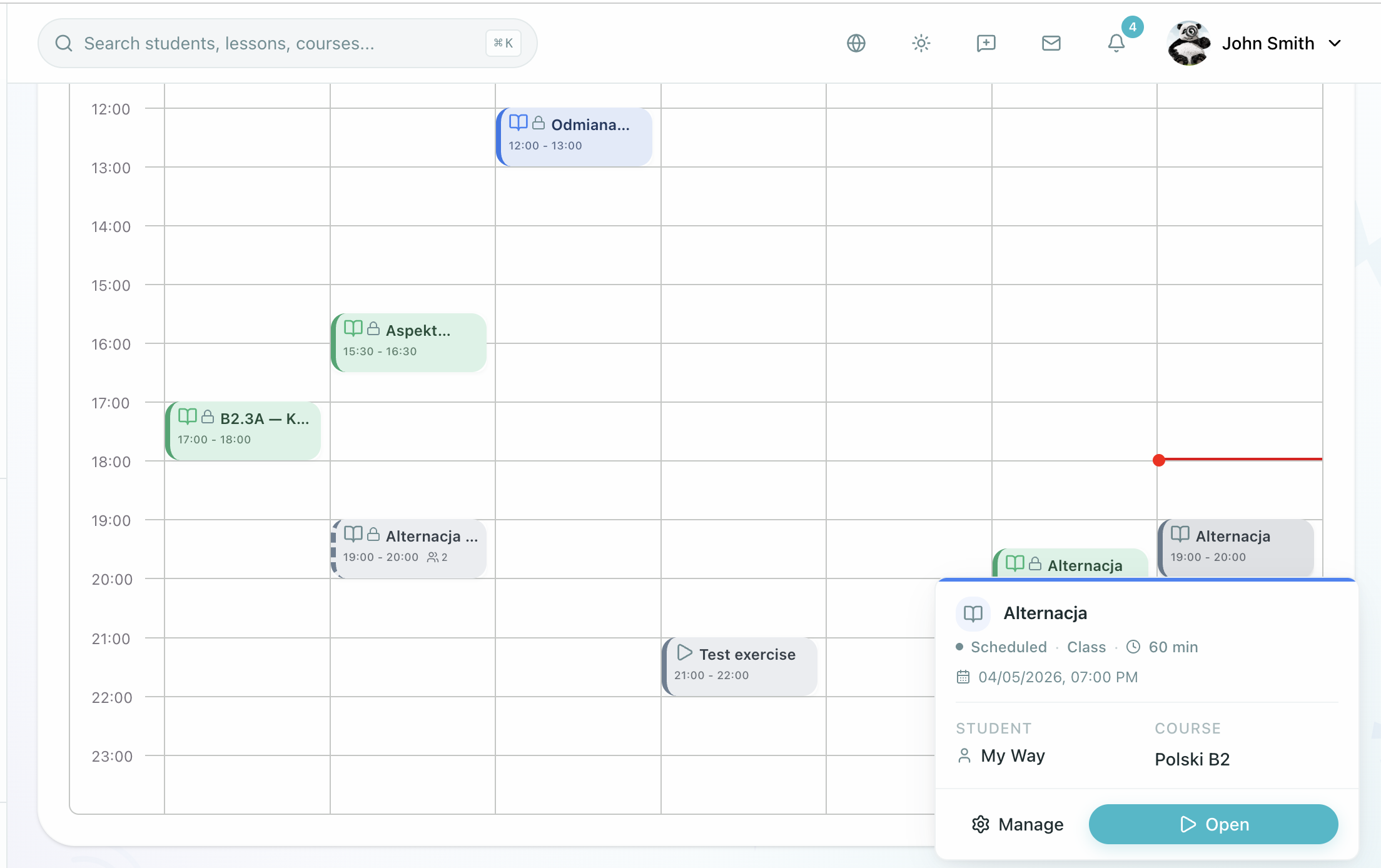
Pick the page that matches your task
Schedule a Session
Create individual or group sessions, assign participants, and prepare the calendar event.
Run the Session
Start a scheduled or unscheduled lesson, use in-session tools, and teach the live class.
Follow Up After the Session
Mark completion, record notes, assign follow-up work, and recover from issues.
Start a lesson now
When a lesson needs to begin immediately, open the course lesson list or the Lessons directory, choose any lesson (not marked as Exam Mode), and select Start instant lesson. This opens a live lesson without first adding a calendar time. For the in-lesson workflow, see Running Live Sessions.
Session types
| Type | Best for |
|---|---|
| Individual session | one teacher and one student |
| Group session | one teacher and multiple students in the same live class |
Built-In Video vs. External Video Calls
Live sessions support two video call delivery modes:
- Video call on the platform (Default): Students and teachers meet directly inside the platform's live room with webcam feeds, audio presets, breakout rooms, screen sharing, and automated AI lesson summaries.
- External Video Call: If "Video call on the platform" is turned off in Class settings, the platform does not launch a built-in video stream and hides breakout rooms. Teachers can provide a link to an external call (e.g., Google Meet or Zoom). An "Open video call" button on the live room dock opens the external meeting in a new tab, while all interactive exercises, the shared lesson document, and attendance tracking continue to run smoothly on the platform.
Staying in Sync with Course Updates
When you open a live room, the lesson automatically checks for published updates to the master course material. If a new version of the course lesson was published after the live room copy was created or edited (and before the lesson starts), a notice banner appears at the top of the room: "This lesson's material was updated in the course." Clicking "Load the new version" lets you refresh the entire class to the latest published course content with one click.
Missed Lesson Materials Access
If a student misses a scheduled live group meeting, their attendance record marks them absent. However, if the class has "Absent students can open the lesson materials" turned on in Class settings, the student can click "Open materials" on their schedule or learning trail to review the completed lesson document, exercises, and board annotations at their own pace.