Managing Users
Invite teachers, manage students, and organize enrollments within your organization.
Teacher management (school-wide staff)
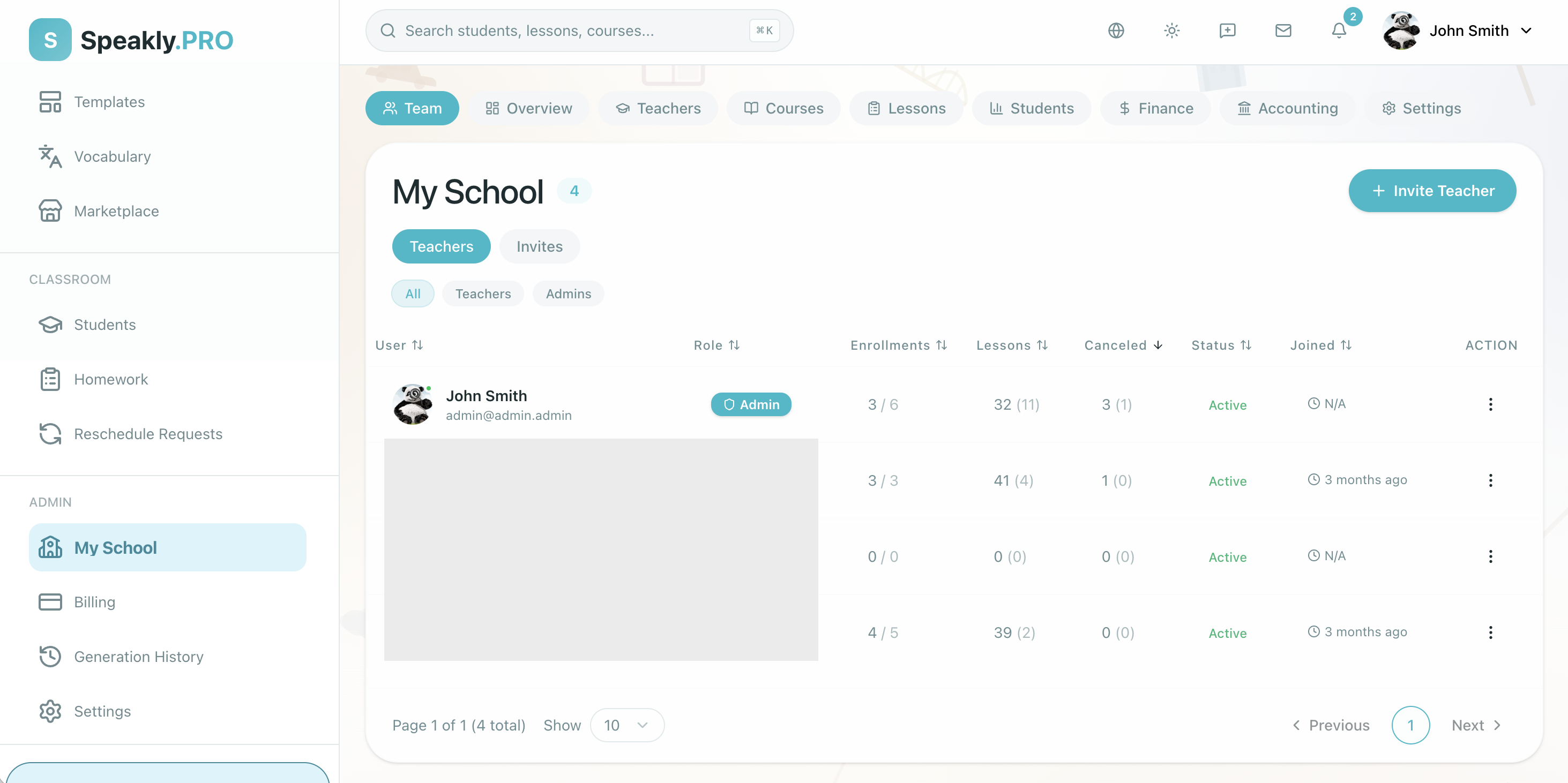
Owners and Operations admins invite and manage teachers through the My School → Team page. See Teacher Management for the full workflow — inviting teachers, changing roles, viewing activity metrics, and disabling accounts.
The Teachers tab on the Team page lists all teachers in your organization:
| Column | Description |
|---|---|
| User | Avatar, name, email |
| Role | Teacher or above |
| Enrollments | Number of active enrollments |
| Lessons | Total lessons conducted |
| Canceled | Number of canceled lessons |
| Status | Active or inactive |
| Joined | When they joined the organization |
| Invited By | Who generated their invite code |
Student Management
The 4-Section Students Page (/platform/students)
Click Students (/platform/students) directly in the left navigation rail (located right below Classes) to open your school's learner roster. The page organizes all students by their current learning state across four distinct sections:
- Studying: Active learners currently enrolled in a class cohort with ongoing or upcoming lessons.
- Invited: Prospective students who have been invited to a class and provisioned with accounts, but have not signed in yet.
- Without a class: Registered students in the school who are not currently assigned to any class or course.
- Finished learning: A collapsible archive section for former learners whose access has ended.
Header Controls & Eager Invitation Provisioning
- "Add student" (green button): Opens the invitation modal. When you invite a student by email:
- If the student is new to the platform, their account is created and their class seat is assigned immediately. Teachers do not need to wait for student acceptance to schedule lessons or assign coursework.
- Initial sign-in credentials (
LoginandPassword) are generated on the spot, where the password is the invite code. - On the roster, unactivated students show a "Has not signed in yet" badge and an inline "Copy sign-in details" button so you can copy and send credentials directly to the student in a messenger. Once the student signs in, the temporary password disappears permanently.
- Search bar ("Find a student by name, email or class"): Quickly locates any student across all four sections.
- Seat summary strip: Displays organization seat metrics, including active students, remaining free seats, next seat cost, and projected invoice totals.
- Action menu (
⋯): Provides a shortcut to "Invite links" (/platform/students/invite-links) for generating reusable registration links.

The Student Card (/platform/students/[id])
Clicking any student row in the Students list, class roster, or global search opens their full Student Card page (replacing the old side rail).
Card Header
The header banner displays the learner's essential context and quick actions:
- Avatar, full name, and email address.
- Standing badge: Displays real-time status ("Learning", "Starts learning on …", "Invited to a class", "Not in a class", or "Learning ended on …").
- Enrolled class count and "In the school since …" registration date.
- Upcoming birthday badge: Displays a gift icon with "Birthday today" or "Birthday in N days".
- Action buttons:
- "Message": Starts a direct conversation with the student.
- "Add to class": Enrolls the student into another cohort or course.
- Menu (
⋮): Contains "End learning" to conclude the student's active studies.
Three Tabs
The Student Card provides three focused workspaces:
- Overview:
- Main Column:
- Next lesson card: Displays the upcoming scheduled class meeting with a green Start lesson or Join button.
- Waiting for review: Surfaces submitted homework or exercises awaiting teacher review.
- Lesson comments: Shows feedback notes left by teachers after completed lessons.
- Classes summary: Groups active enrollments. When a student has multiple 1:1 classes, they are grouped cleanly under "Individual lessons · [Course]".
- School observations: Confidential notes recorded by teachers and administrators.
- Side Column:
- "About the student" card: Displays Native language (with an inline "Change" button so staff can set or update it), Country, Local time, Birthday, and current Balance.
- "Level and problem areas" card: Displays the evaluated CEFR proficiency level and flagged academic problem areas.
- Main Column:
- Classes (
?section=classes):- Detailed view of the student's enrollments, completed lessons, attendance rates, and progress through class programs.
- Accounting (
?section=finance):- Visible to staff with financial permissions (Owners and Operations admins).
- Plain Balance Card: Shows current balance in large numerals (red when owing, normal ink when prepaid or zero) with a clear status sentence ("The student owes the school €40.", "The student's balance holds €80.", or "The student owes nothing, and their balance is empty."), lifetime totals ("Over all time, … was added to this balance and … was charged to it."), and three actions: "Top up balance", "Charge the balance", and "Request card payment" (sends a Stripe payment link to the student's app and email).
- Day-Grouped Transaction History: Lists every charge and top-up under day headings (Today, Yesterday, or calendar dates) with running balance ("Balance after: …").

Enrollments & Classes of One
Open Students (/platform/students) in the rail to invite learners and manage individual course access. Individual 1-on-1 tutoring is structured as Classes of One, giving 1:1 students the full benefit of Class Programs, weekly schedule rhythms, and classroom tools. See Managing Enrollments for details.
Classes
Click Classes in the left rail (/platform/groups) to organize students for group cohorts and 1:1 tutoring. Teachers, Academic leads, Operations admins, and Owners can create and manage classes. See Classes for the full guide — creating classes, managing members, scheduling class sessions, and tracking class progress.
Next Steps
- Creating Courses — build your curriculum
- Managing Enrollments — detailed enrollment workflows
- Classes — in-depth class management
- Onboarding a New Teacher — bring new teachers into the organization
Q&A
What happens when I delete an enrollment?
Removing a student course archives it first. Lesson history remains available and can be restored later. Permanent deletion is available only from the archived view and cannot be undone. This does not delete the student's account.
How do I transfer students to another teacher?
Use the Reassign Teacher action on each enrollment from the Students tab. This is available from the Academic lead role upward.
Can students see other students in the same course?
Students only see their own progress and submissions. In group lessons, participant names are visible, but individual grades and homework remain private.